MiniCPM Desk Pet is a local-first desktop pet app. It runs MiniCPM small models directly on your own computer, giving you a companion on your desktop that can chat and keep you company while you code — just download and install it, follow the first-launch setup, and you're ready to go; everyday chat doesn't depend on any remote inference service.
Three highlights:
- Runs locally: the model runs inference on your machine and chat content is never uploaded to the cloud, so privacy stays under your control and it works offline
- Small and lightweight: uses the MiniCPM5-1B model by default and runs with about 2 GB of disk space
- Keeps you company at work: reacts differently — thinking, working, done, and so on — based on the state of your coding agent
1. Quick Start
System Requirements
| OS | Recommended configuration |
|---|---|
| macOS | 14.0+, Apple Silicon (M1/M2/M3/M4), about 2 GB of disk space |
| Windows | x64, Vulkan support required, about 2 GB of disk space |
macOS on Apple Silicon is currently the primary verified platform; an installer is available for Windows, and feedback on issues is welcome.
Installation
macOS
- Go to Releases and download the latest
MiniCPM Desk Pet-*-arm64.dmg. - Open the DMG and drag MiniCPM Desk Pet into
Applications. - Launch the app and follow the setup guide. If macOS blocks the app on first open, right-click the app and choose 「打开」(Open). If necessary, you can also remove the quarantine attribute in Terminal:
xattr -cr /Applications/MiniCPM\ Desk\ Pet.app
Windows
- Go to Releases and download the latest
.exeinstaller. - Run the setup wizard and follow the prompts to complete installation.
- Launch the app and follow the setup guide.
First Launch
MiniCPM Desk Pet has a complete built-in first-launch flow — just follow it through:
Environment check → Model download → Model warm-up → Start using
The default model is MiniCPM5-1B-GGUF. You can let the app download it automatically, or select an existing local .gguf file (useful if you've already downloaded the model).
2. Core Features
Once installed, MiniCPM Desk Pet mainly helps you with the following. Each feature covers what it is and how to use it.
A Local Chat Companion on Your Desktop
Summon the floating chat bubble with a shortcut at any time and talk to MiniCPM directly — ask questions, write something, or just chat. Because the model runs locally, chat content never leaves your computer, making it suitable for privacy-sensitive or offline scenarios.
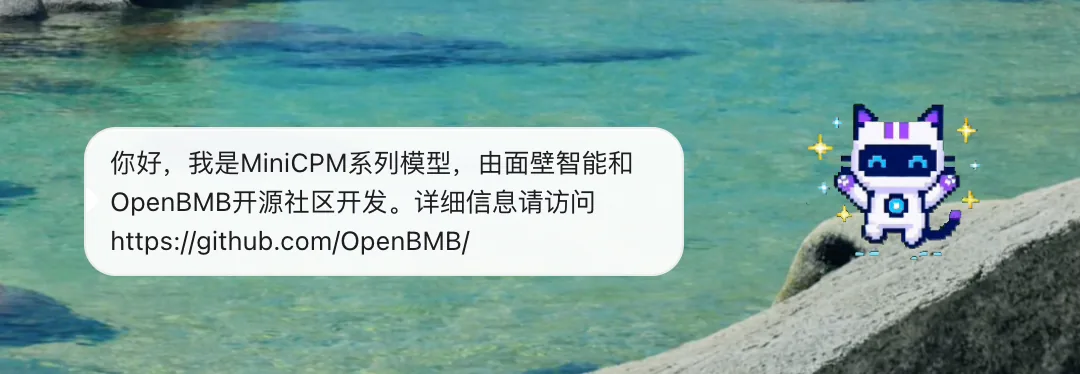
Common shortcuts (Cmd on macOS, Ctrl on Windows):
| Shortcut | Action |
|---|---|
Cmd/Ctrl+Shift+M | Open or close the MiniCPM chat bubble |
Cmd/Ctrl+Shift+T | Show or hide thinking mode |
Esc | Close the bubble when the input box is focused |
Status Companion While You Code
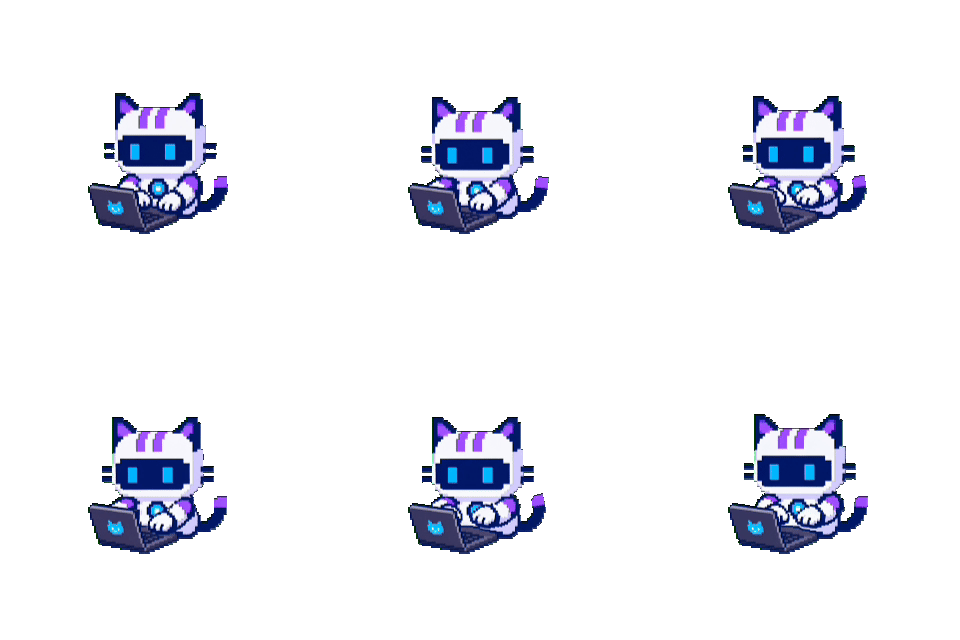
Put the desk pet next to your workspace, and it changes its expression according to the coding agent's running state: thinking, working, task complete, waiting for your attention, resting, and more. During long coding sessions, you have a responsive little companion by your side.
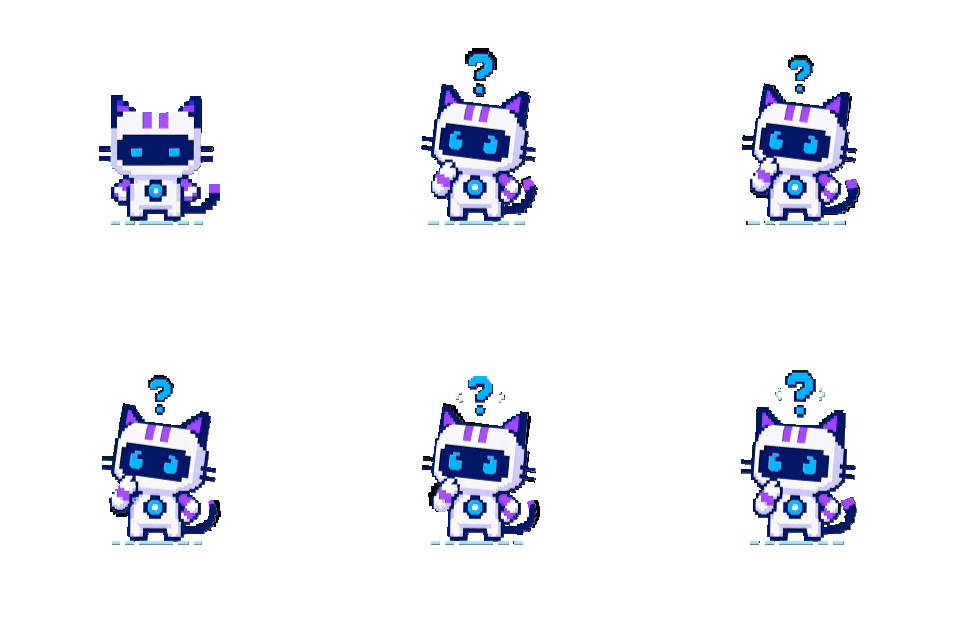 Thinking
 Working
 Task complete
A Desktop Character with a Customizable Persona
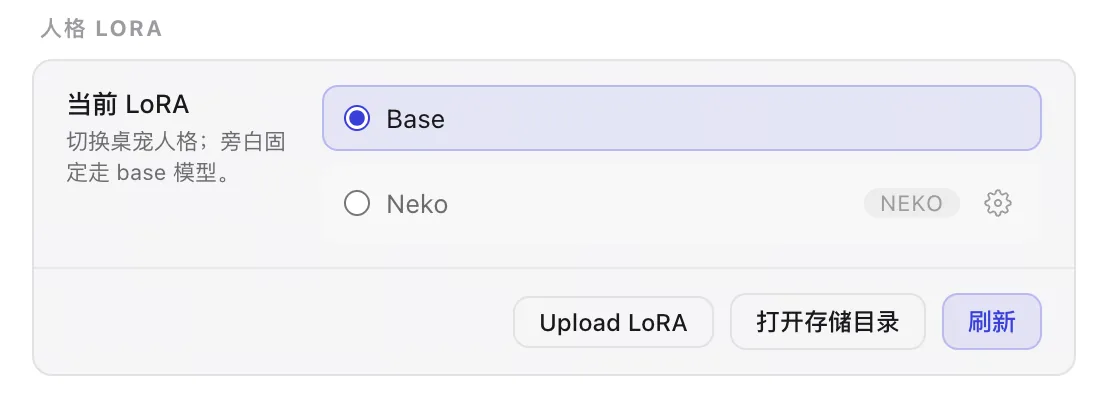
The app has a built-in neko-style persona adapter. You can switch adapters in 「Settings → MiniCPM」, or import your own adapter to make the desk pet's speaking style match your preferences.
Model Management
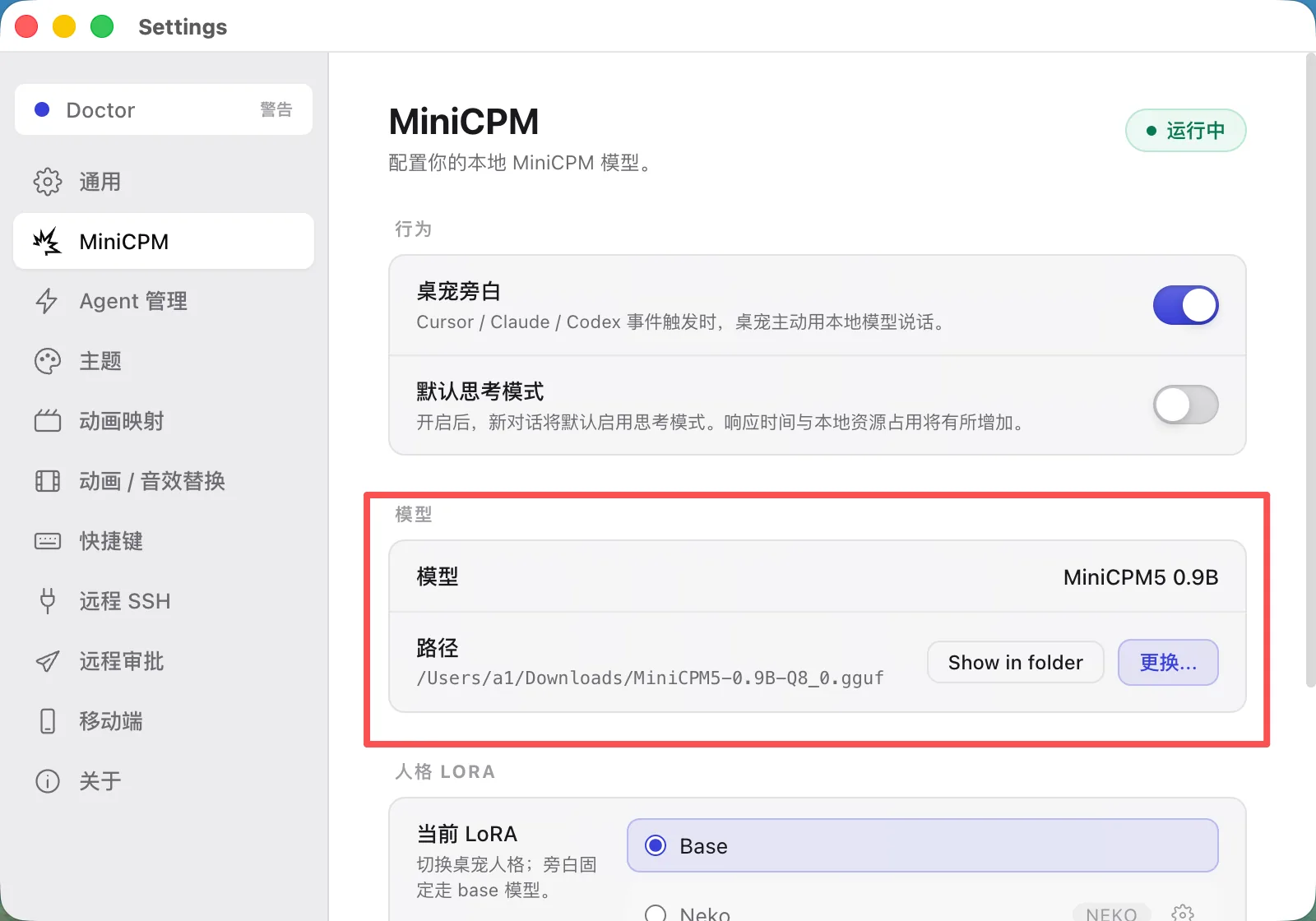
On the 「Settings → MiniCPM」 settings page, you can:
- Download the default model or select a local model file
- Re-run the first-launch guide
- Manage character / persona adapters
- Restart the local model runtime when needed
3. Known Limitations
Response speed is affected by the chip, memory pressure and model choice. Coding agent status reactions depend on each tool's own integration and may differ between versions.
4. Developers and Acknowledgements
Developer notes: for the development environment, packaging process and repository structure, see docs/development.md.
Roadmap:
Expand Linux verification · Add more persona presets · Improve model download prompts, retries and diagnostics · Shorten first-launch time and reduce app size · Provide richer desk pet narration for long coding sessions.
Acknowledgements:
The desk pet UI is based on rullerzhou-afk/clawd-on-desk. See NOTICE.md for full attribution. Model weights come from the OpenBMB MiniCPM model family and are downloaded separately when used. The built-in neko persona is fine-tuned on the NekoQA-30K dataset.