If you're like me, you often wonder what else there is to do with a NAS these days. Virtual machines, Docker, media, photo albums: the things that were all the rage a few years ago no longer seem to get you excited. Your days seem to consist of nothing but AI news and NAS content creators, checking out new tools and new tricks every day, then opening the NAS admin page, clicking around a bit and staring at the router's network monitor for a while. And in the end, bored, you close the browser? I get it, I've been there too. But what I want to say is that it's not that NAS has stopped being fun; it's that you and I have gone from beginners to NAS experts, and there doesn't seem to be anything left that's worth our time to tinker with.
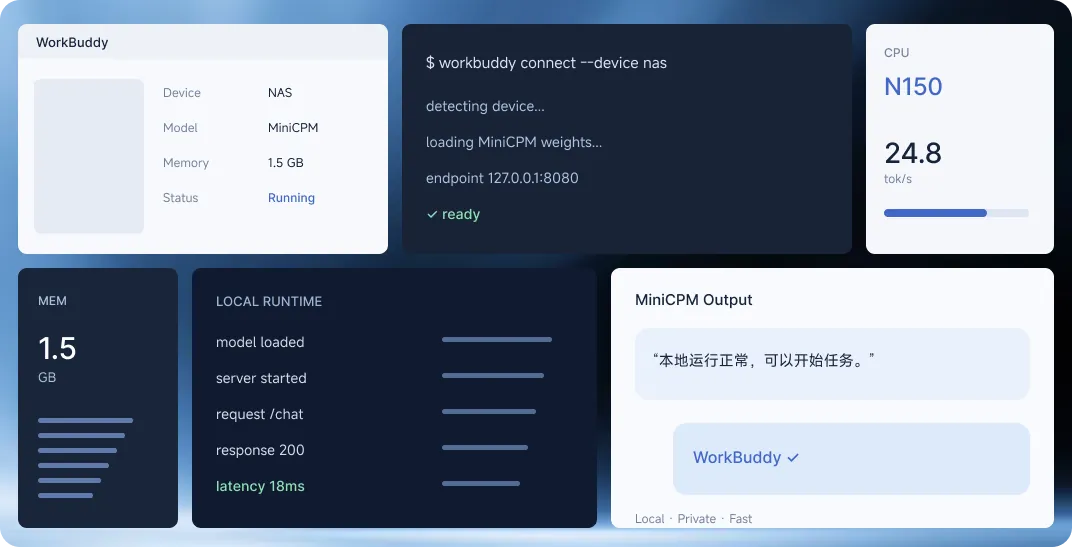
Over the past few days I've tried out some real AI + NAS scenarios, including knowledge bases, local models, MCP, agent collaboration and more, and found that a few AI + NAS combinations make for some surprisingly deep use cases. And they barely tax performance; even the most common N150 processor can handle them.
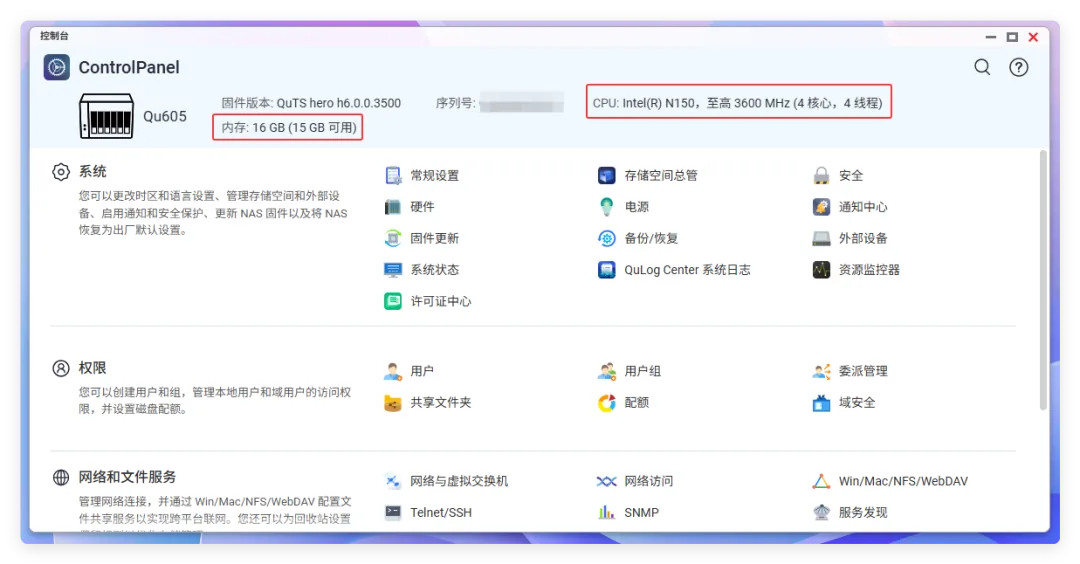
The QNAP Qu605-N150-16G not only has the dual QTS/QuTS hero operating systems, but also ships with many built-in AI applications. Paired with the N150 processor and 16GB of DDR5 memory, it can handle many AI + NAS scenarios.
1. Local LLMs and RAG That Run Easily on an N150
Followers often ask me which local models a NAS can actually run, and how well it performs for vector retrieval and LLMs.
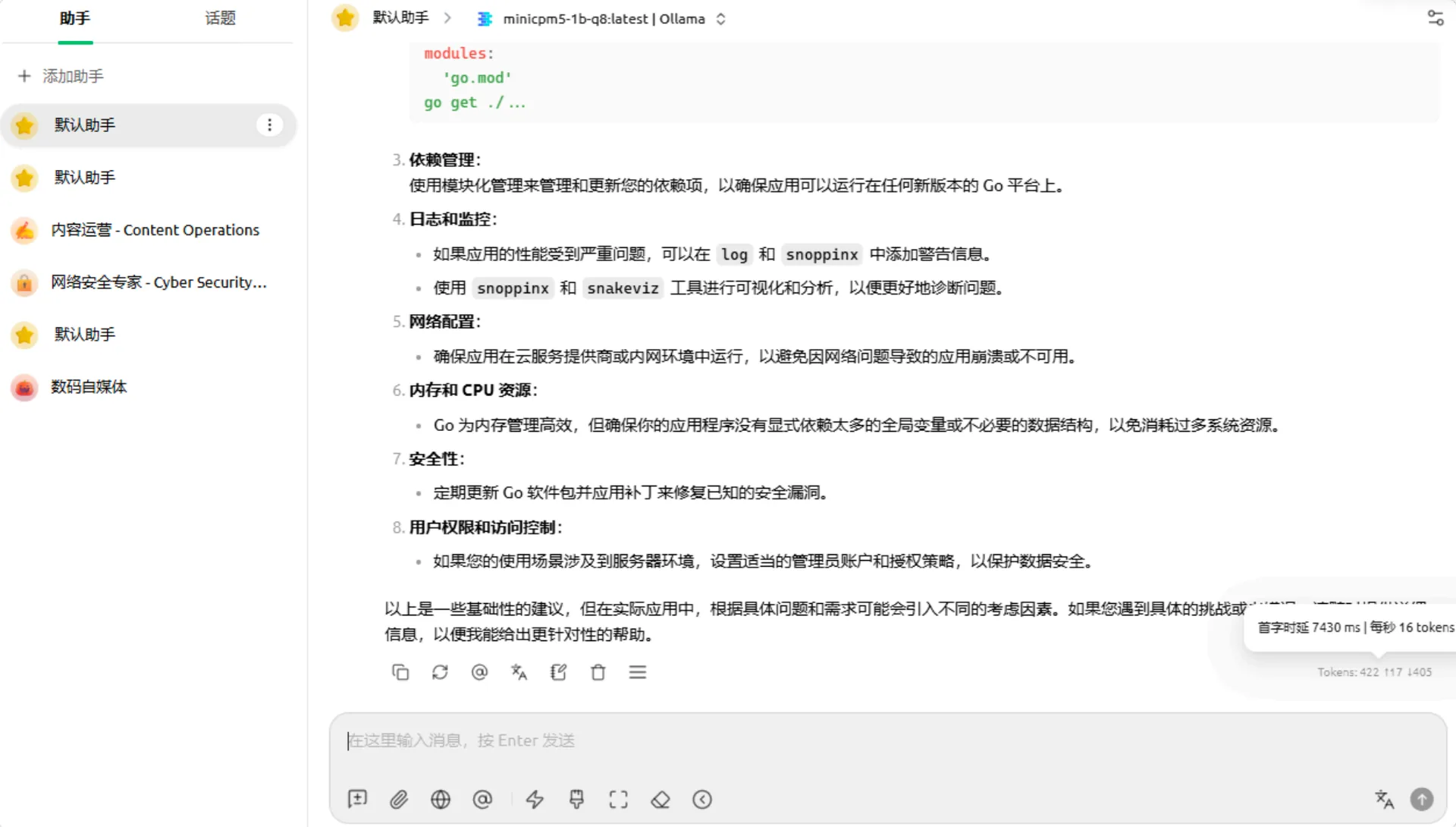
I actually tried it. The MiniCPM5-1b "little powerhouse" uses less than 2GB of memory. Running it as a local Ollama model connected to CherryStudio, the time to first token was 7430ms, at 16 tokens per second.
QNAP NAS units come with Container Station, a built-in container workstation dedicated to running Docker applications.
Deployment is simple: run an Ollama container locally, then load the MiniCPM5-1b "little powerhouse" into Ollama. Besides the text LLM, you can also add a bge-m3-q4 embedding model.
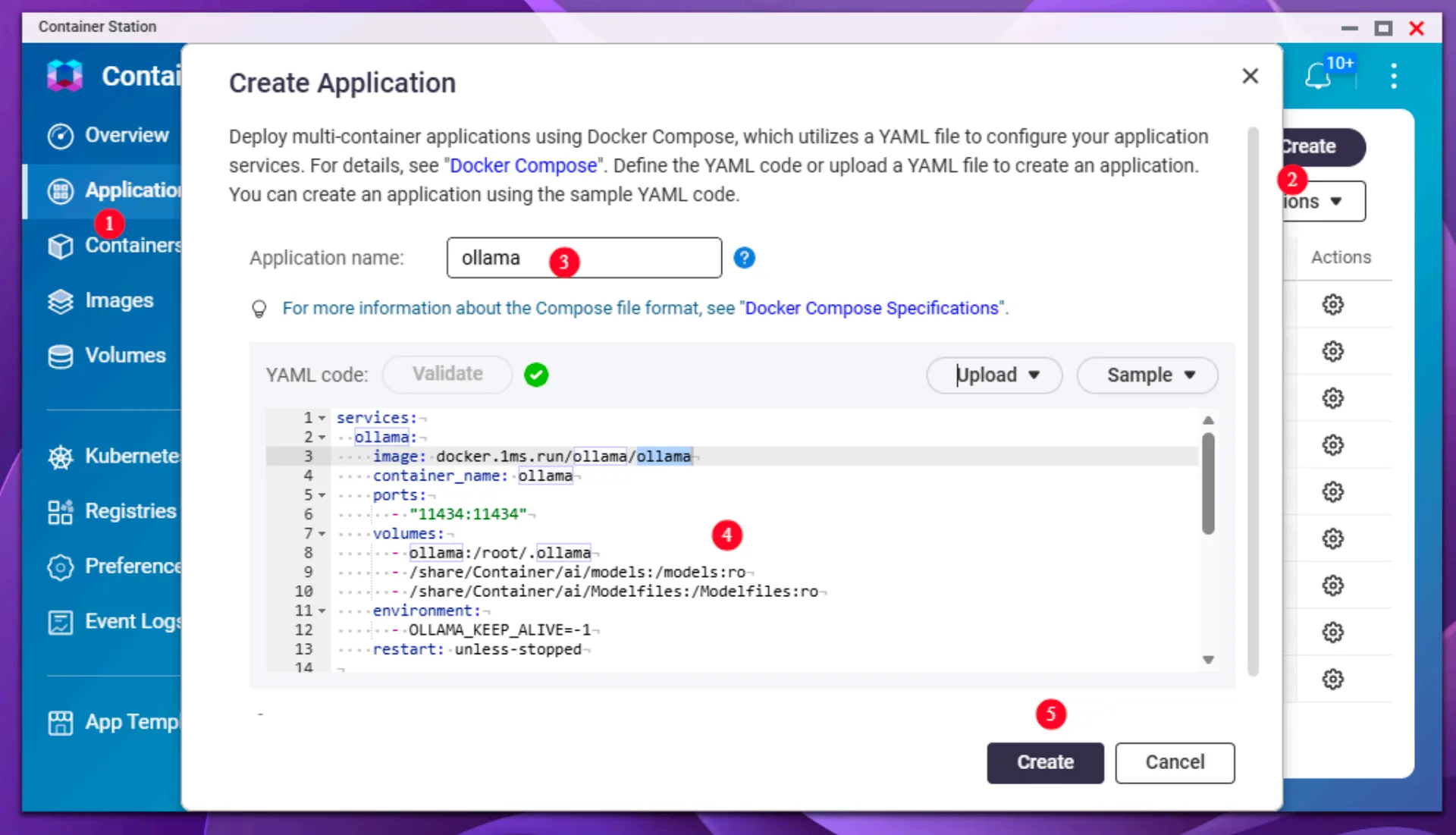
Paste the docker-compose.yaml file below into a Container Station application and deploy it.
services:
  ollama:
    image: docker.1ms.run/ollama/ollama
    container_name: ollama
    ports:
      - "11434:11434"
    volumes:
      - ollama:/root/.ollama
      - /share/Container/ai/models:/models:ro
      - /share/Container/ai/Modelfiles:/Modelfiles:ro
    environment:
      - OLLAMA_KEEP_ALIVE=-1
    restart: unless-stopped

  chroma:
    image: docker.1ms.run/chromadb/chroma:1.5.10.dev92
    container_name: rag-chroma
    ports:
      - "18000:8000"
    volumes:
    - /share/Container/ai/chroma:/chroma/chroma
    environment:
      - IS_PERSISTENT=TRUE
      - PERSIST_DIRECTORY=/chroma/chroma
      - ANONYMIZED_TELEMETRY=FALSE
    restart: unless-stopped

volumes:
  ollama:
When deploying, if you want to limit Ollama's CPU/memory usage, open 「高级配置 - 资源」(Advanced Settings - Resources) below to configure it.
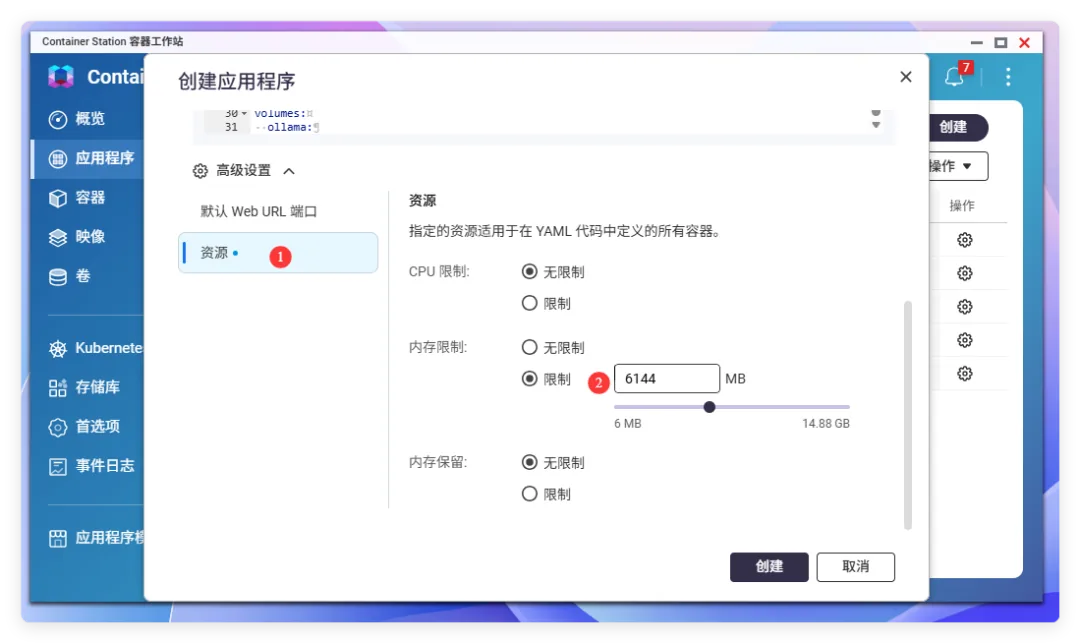
Once the containers are running, switch to root in an SSH session, then run the following commands to register the two models with Ollama.
docker compose exec ollama ollama create minicpm5-1b-q8 -f /Modelfiles/Modelfile-minicpm5

docker compose exec ollama ollama create bge-m3-q4 -f /Modelfiles/Modelfile-bge-m3
Back in Cherry Studio or other third-party model clients, you can now run both models through the Ollama instance deployed on the QNAP.
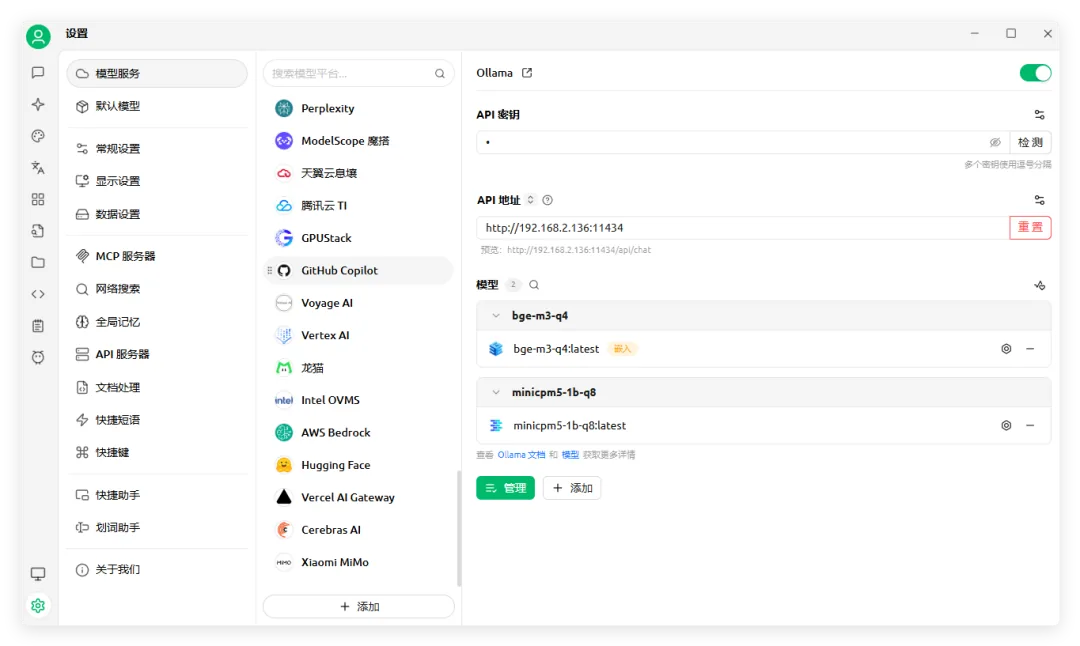
2. Connect the NAS to WorkBuddy, and the NAS Comes Alive Again
That covers how an N150 NAS runs local models. Now let's talk about connecting the NAS to WorkBuddy, Tencent's "lobster" agent.
As everyone knows, agents have three magic weapons: SKILL, MCP and CLI.
Right now, CLI is the foundation of everything, SKILL is the distillation of experience, and MCP is the standard by which agents connect to everything.
In WorkBuddy, MCP is called a connector, and custom connectors are supported.
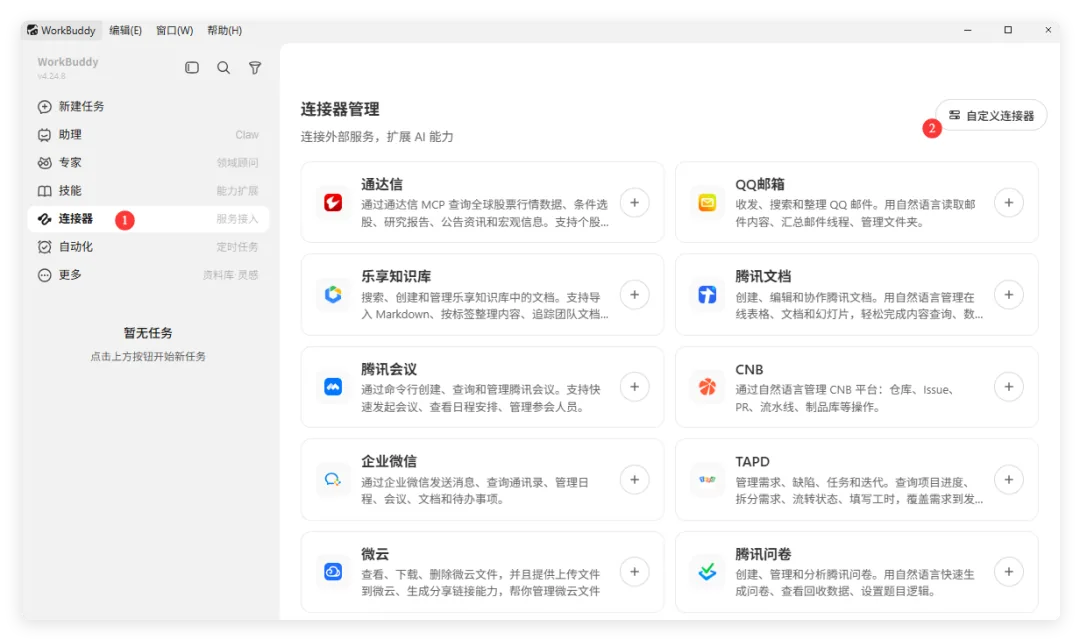
Back to the QNAP Qu605-N150-16G. QNAP is currently the only NAS product that officially provides an MCP service, called MCP Assistant. It provides dozens of MCP tools, including NAS status, user/group management, shared folder management, file management and the Qsirch API, allowing external agents to control the NAS directly.
First, create a credential for WorkBuddy. Token mode is generally recommended, and check the corresponding permissions.
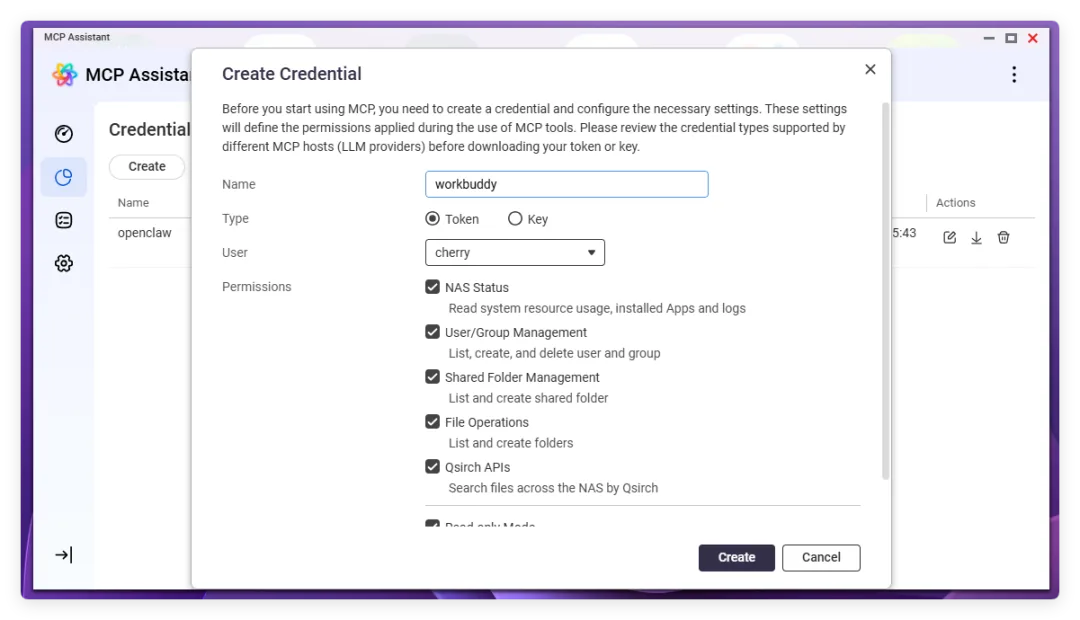
After it's created, click the download button to the right of the credential to get a Configure MCP Host configuration block, which includes the QNAP NAS IP, MCP port, key and so on.
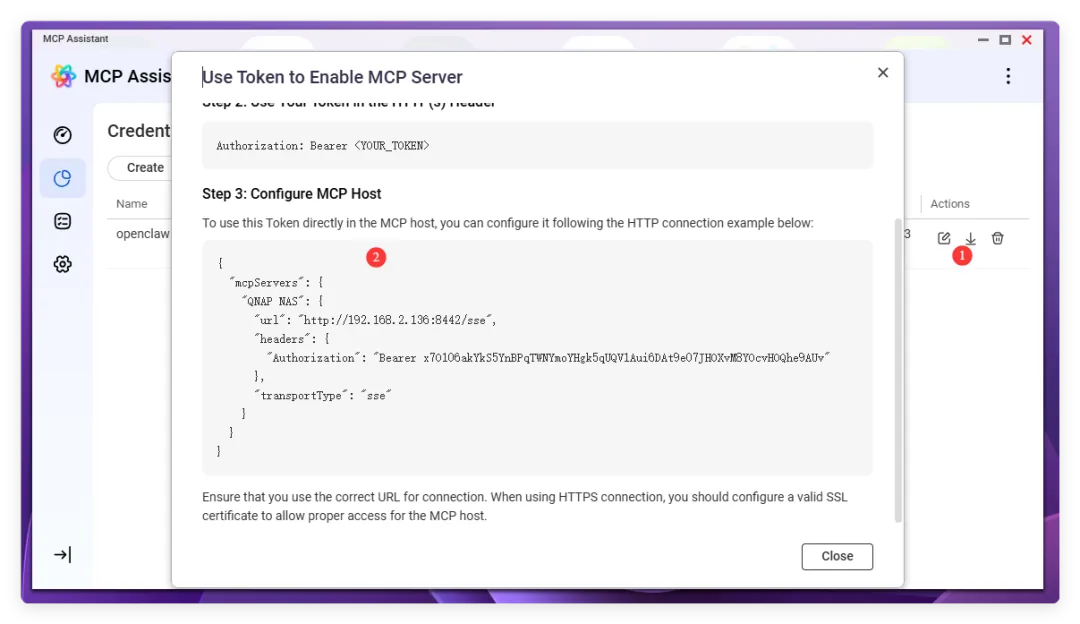
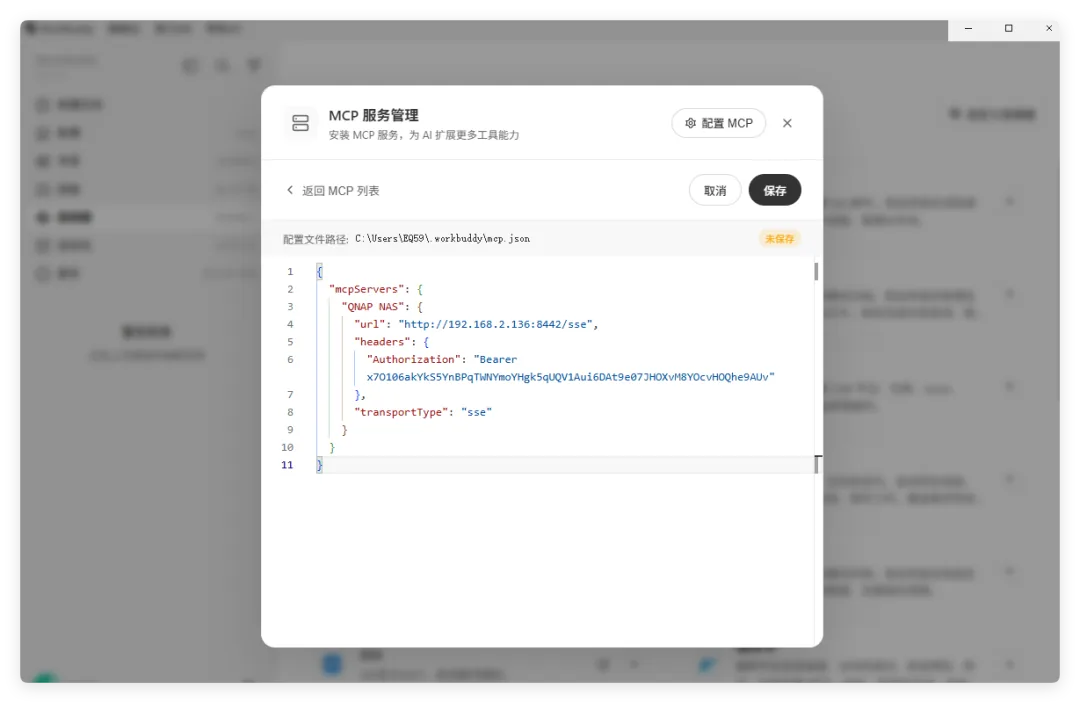
Copy this content straight into a custom MCP service in WorkBuddy and save it. From then on, we can control this NAS over the network permanently.
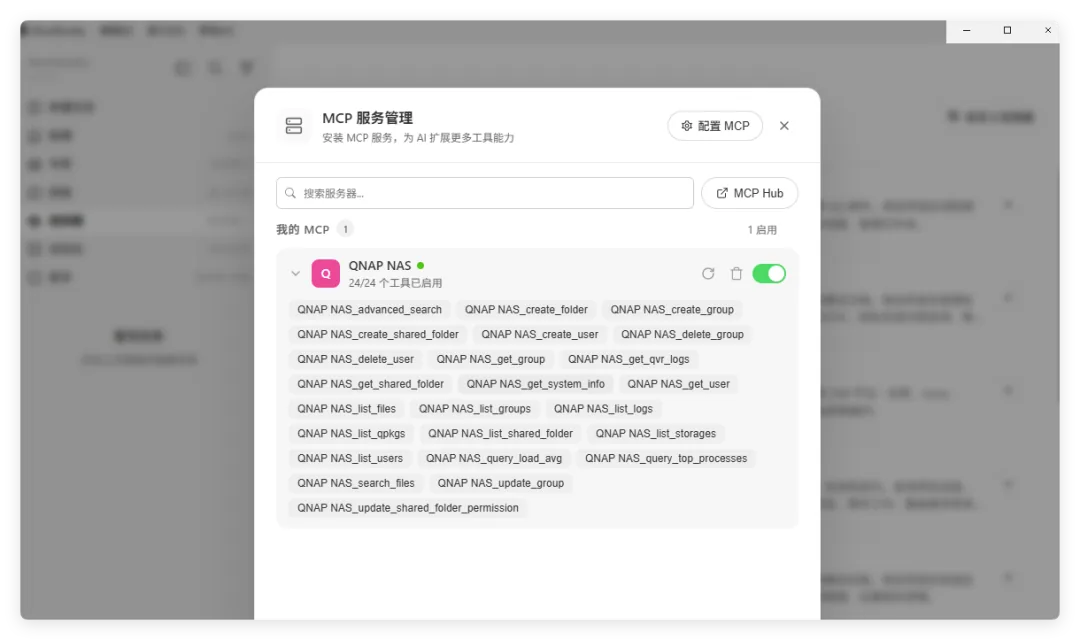
Take a quick look at the tools: there are 24 in total. The one most worth mentioning here is actually the permission for the Qsirch application.
QNAP is not only the first NAS to offer the MCP protocol, but also the first NAS to expose its own applications through MCP permissions. That degree of openness is genuinely impressive.
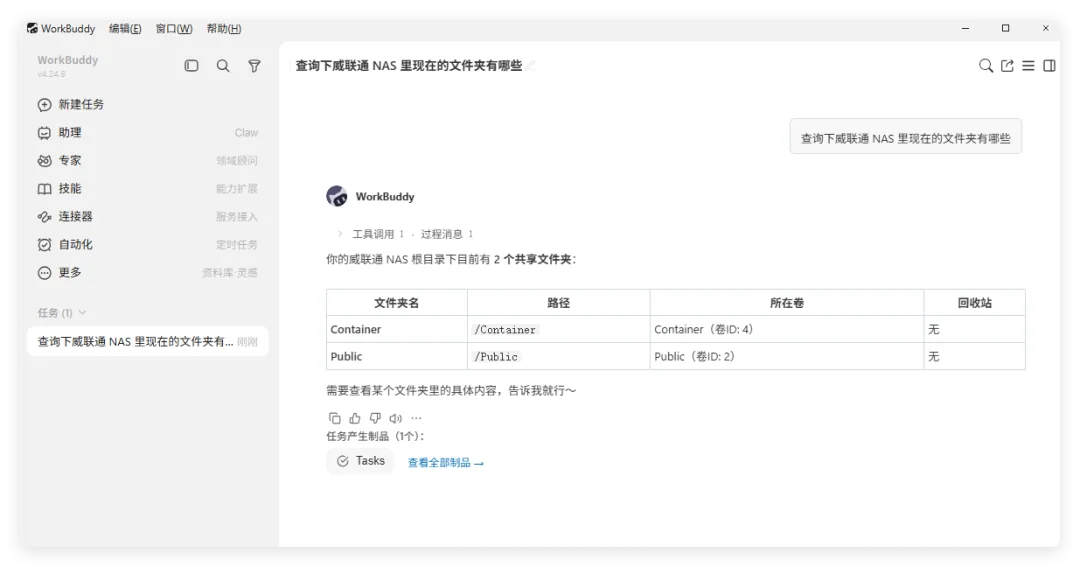
To see how well it works, let's go back to WorkBuddy and start a conversation. Just ask:
Check which folders are currently on the QNAP NAS.
You can see WorkBuddy prints out the list of shared folders almost instantly using the List tool.
Cloud API + local agent + remote NAS: just like that, an AI-based file collaboration system is up and running.
Now for something even more impressive. I first created a new admin-group account via MCP, then gave the account credentials to WorkBuddy as LAN access authorization.
Then I asked it to do one thing for me:
Search my QNAP for how many first-grade textbooks there are and where they're all stored. If there's a math one, find a way to send me a copy. Some are stored pretty deep, so try a RAG search to check.
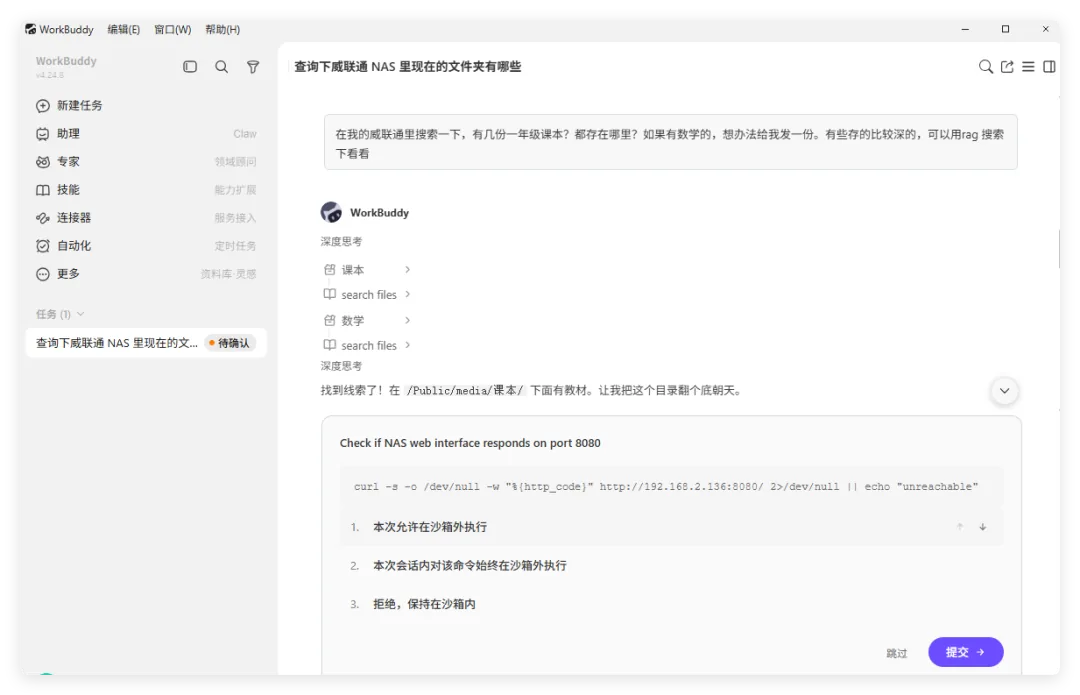
Alright, I authorized it to run outside the sandbox.
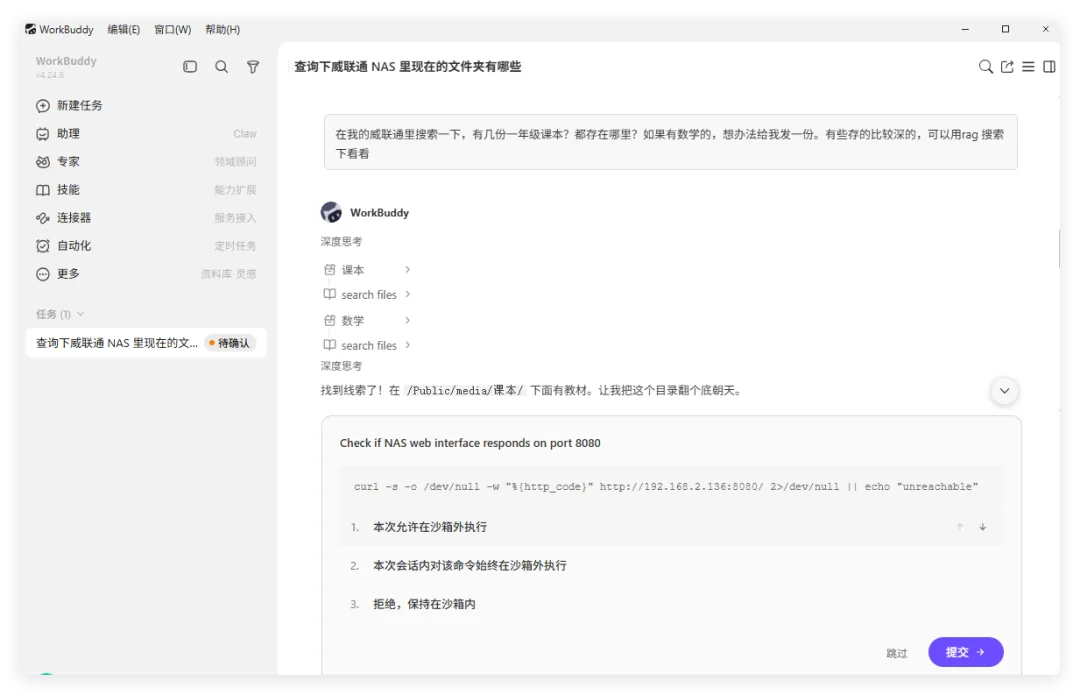
Here's the result. WorkBuddy gave me the storage locations of all the first-grade textbooks on the NAS, five in total. It also told me there was only the first volume of math, not the second.
And then, and then! Right inside the WorkBuddy client, it sent me the 《数学一年级下册.pdf》(Grade 1 Math, Volume 2.pdf) that I had stored on the NAS! I could open it directly.
Impressive? I think it's pretty impressive.
3. A Local AI Knowledge Base Built on the NAS
Since external agents can access files through the QNAP NAS's MCP service, does QNAP itself also offer a corresponding service?
It sure does, my friend: the brand-new Qsirch intelligent AI search app.
But honestly, I don't think QNAP named it well, because at first glance you'd think it's just a search tool, at most with full-text search added. I think of it as a local NAS knowledge base: a super personal knowledge base that collects everything on your NAS.
First, the surface
Qsirch supports color search, image semantic search and OCR text search (multilingual).
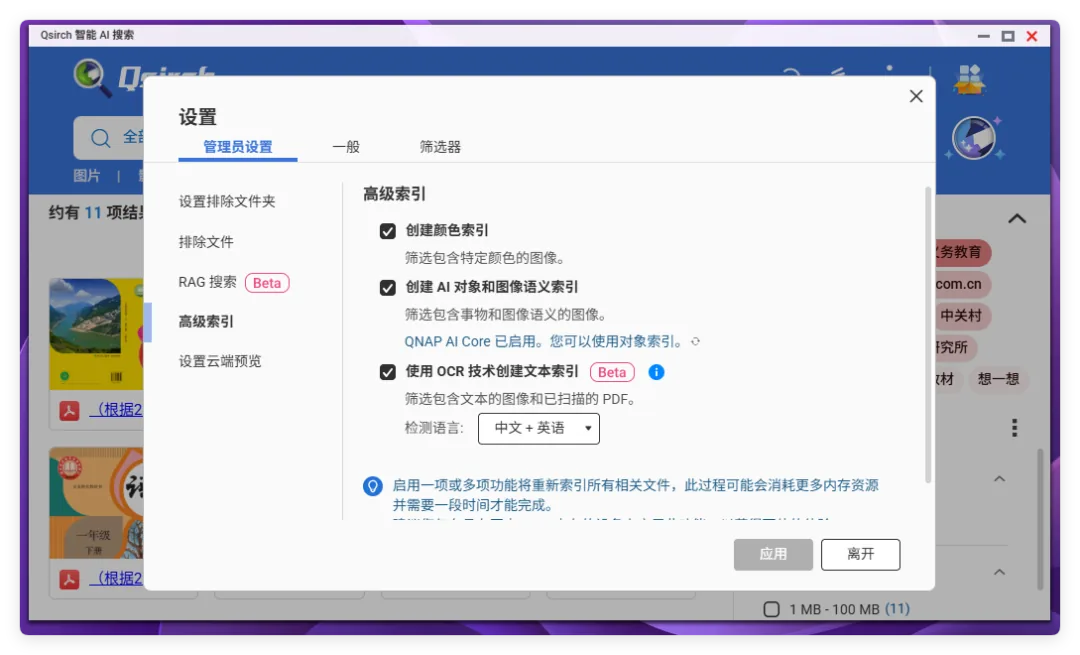
Within that, it supports categorized search across many types such as images, videos, music, documents, PDFs and email. The combination of type + keyword + full-text search makes Qsirch one of the most powerful apps on QNAP.
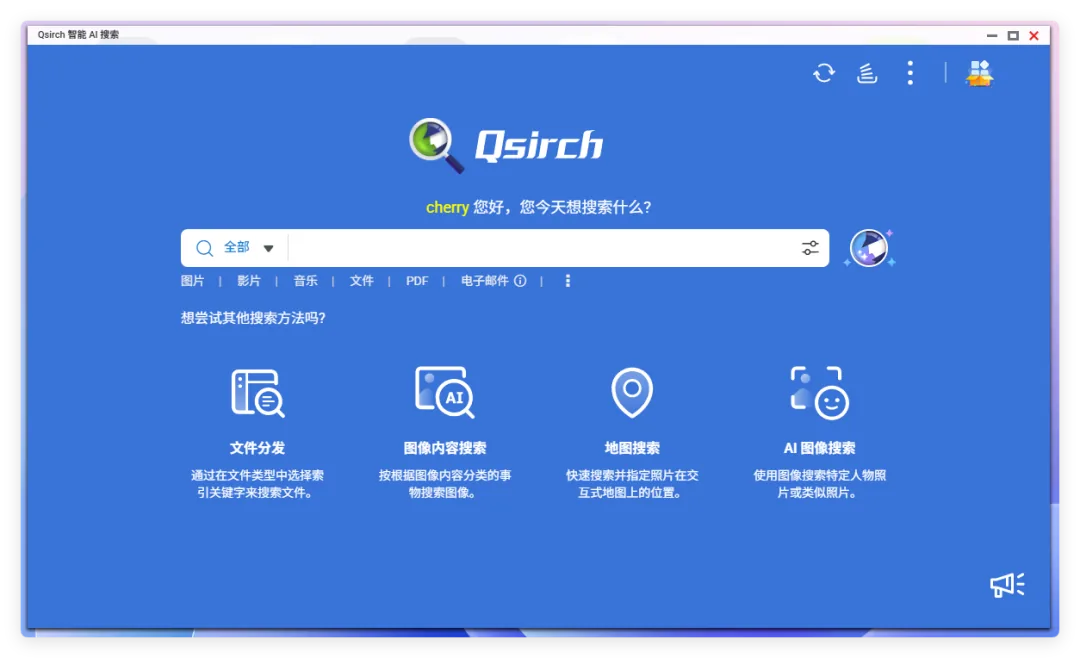
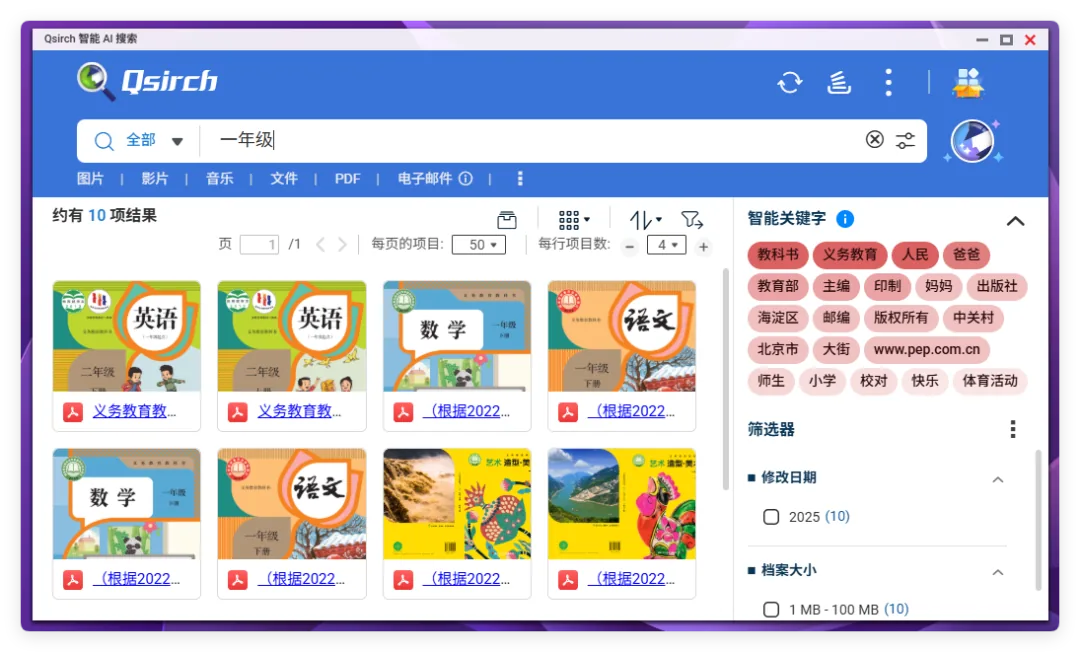
I can simply search by file name to see which materials match a keyword. For each item you can see smart keywords on the right, such as "textbook" and "compulsory education"; these are how the QNAP NAS Qsirch app classifies the material.
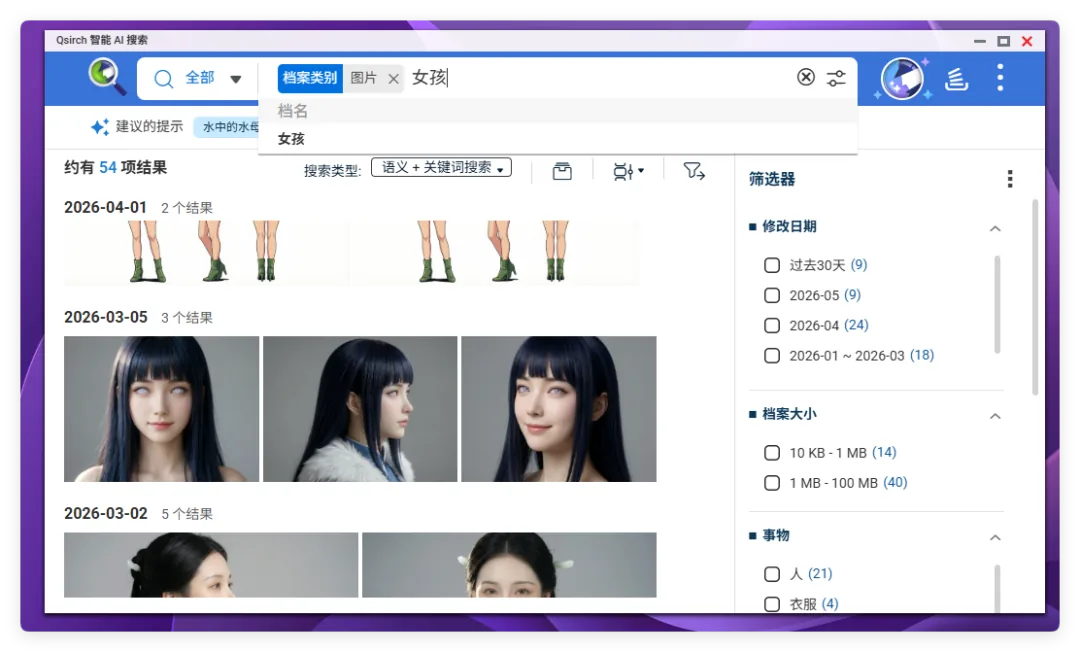
I can also search all related photos and images using image + natural-language search. Results can be further refined by date,
size and object type.
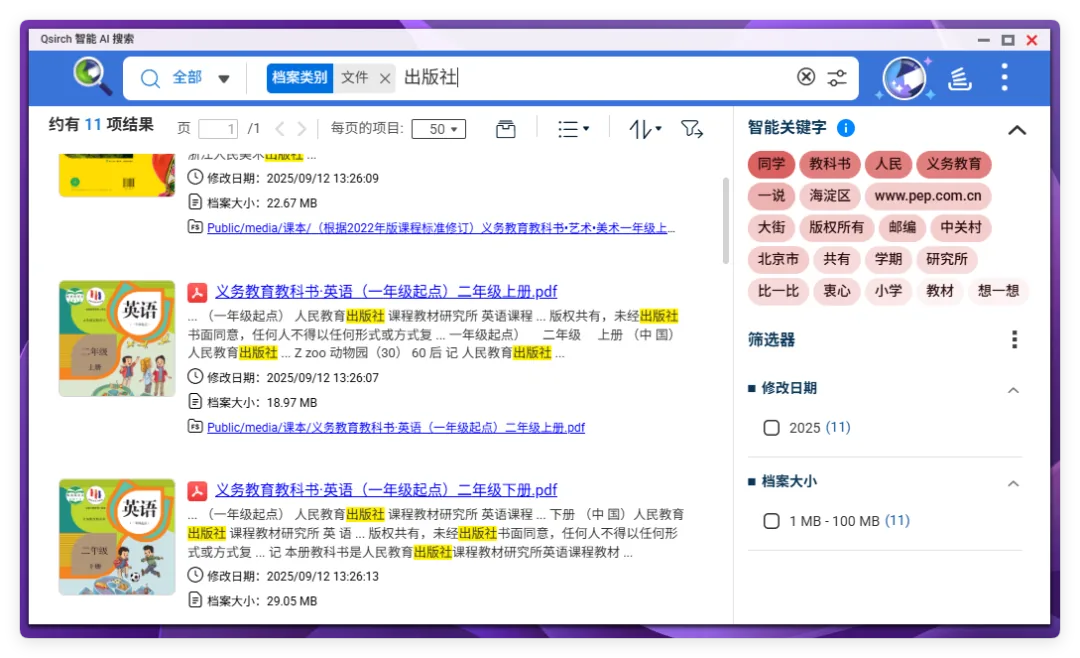
There's also full-text keyword search: QNAP uses its built-in RAG to index every document. So the whole search process is very fast, basically finishing in seconds.
Now, the substance
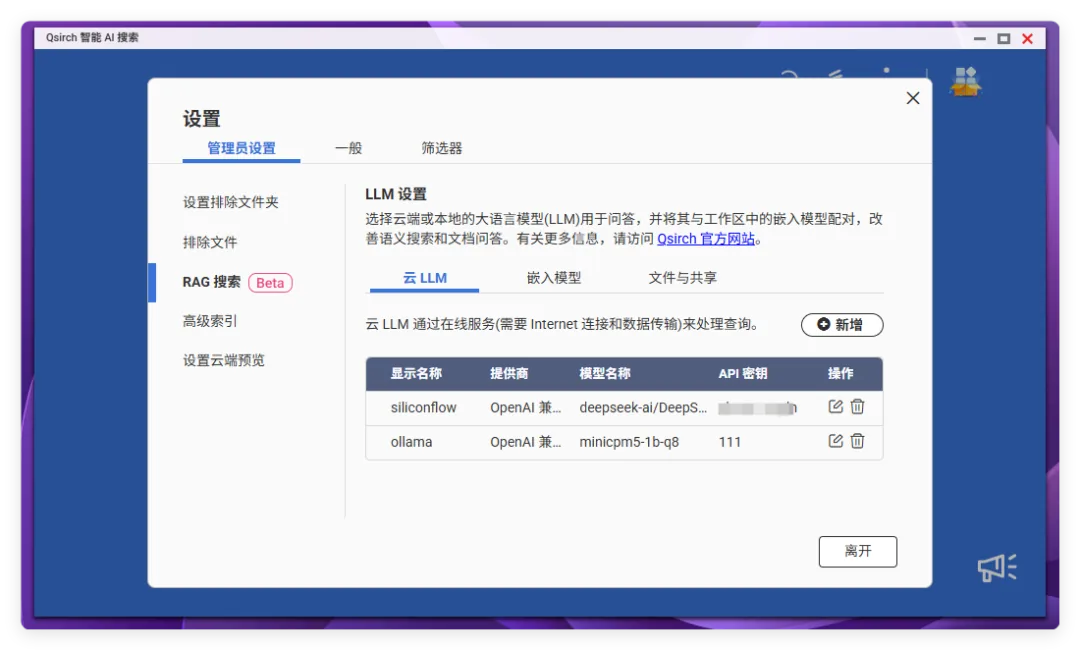
Qsirch's RAG search supports plugging in cloud or local LLM services. Here we choose an OpenAI-compatible provider, which lets us freely configure the model.
You can choose the Ollama instance we just set up locally to provide the LLM.
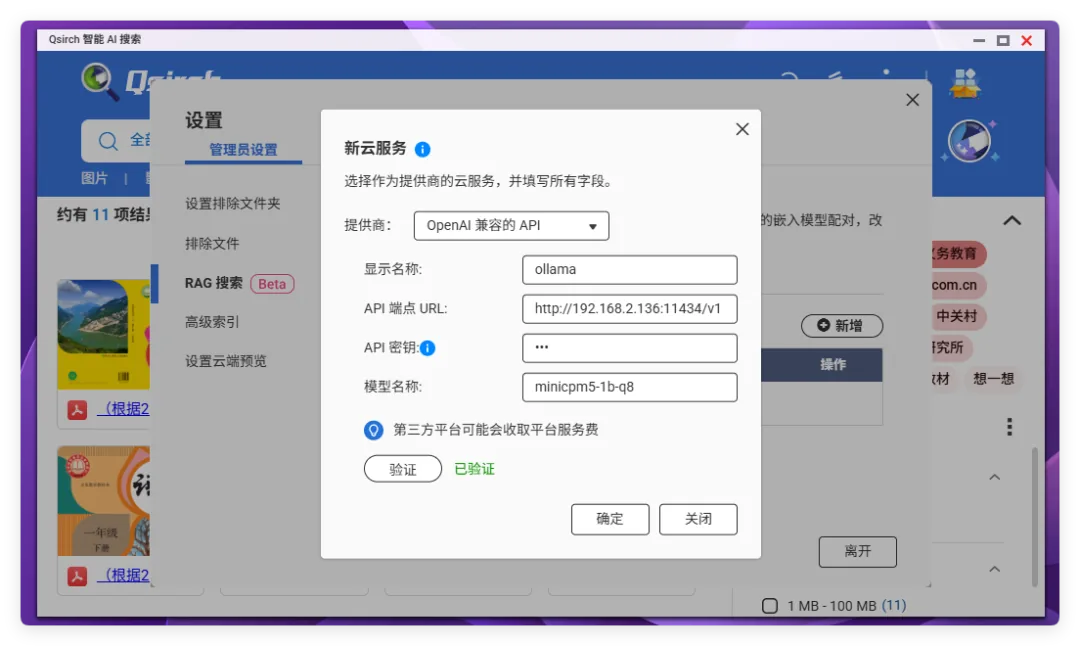
Or you can connect the more powerful cloud DeepSeek-V4 to the NAS. It's entirely up to you.
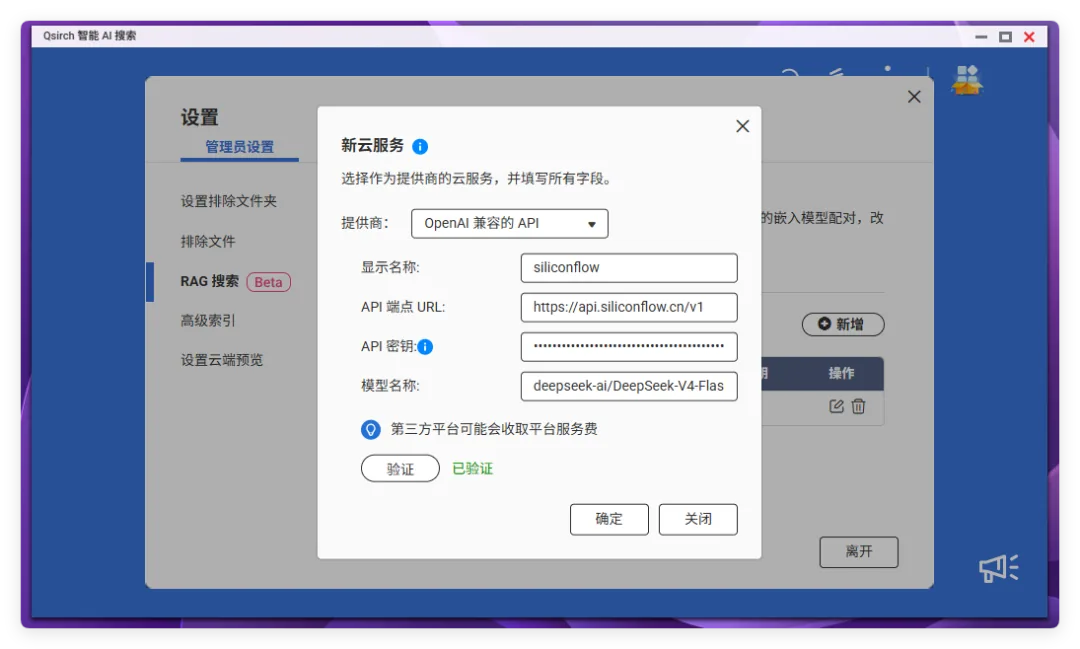
Unfortunately, though, the embedding model can't be customized yet, so if you don't want to use the cloud, you can only use QNAP's built-in vector model.
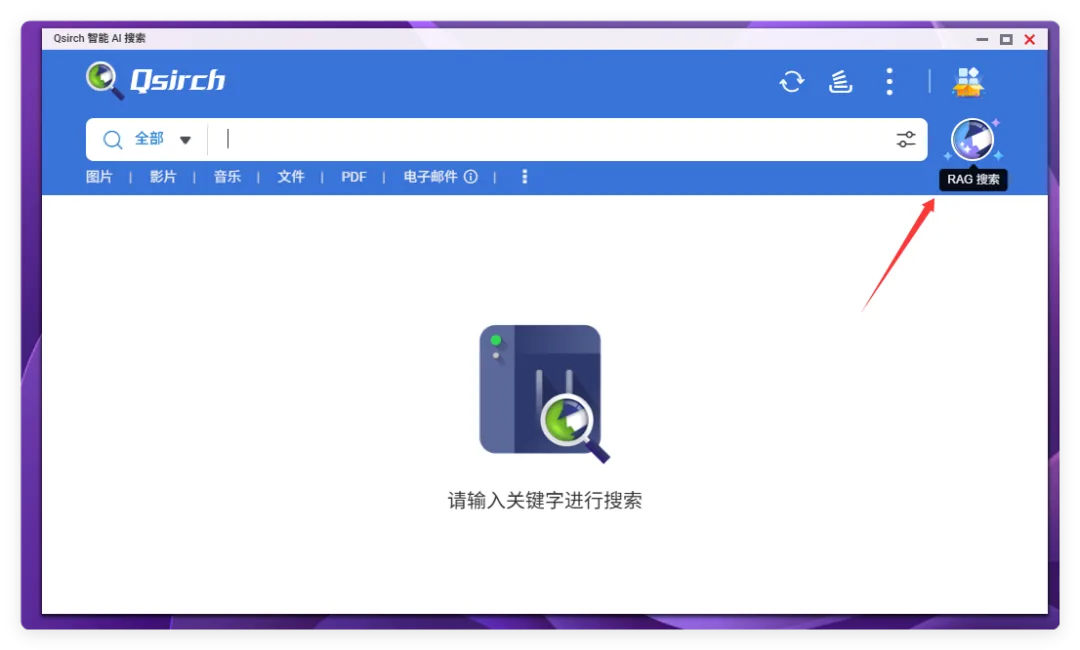
Now for the main event. Click RAG search next to the search box to enter the inner mode: the NAS super personal knowledge base.
RAG search is essentially an intelligent Q&A system based on RAG data; you can also think of it as a knowledge-base Q&A system. All the material on your NAS is indexed by RAG into knowledge, stored locally, so security is top-notch. The LLM chat model then answers your questions using the RAG index.
For example, I asked:
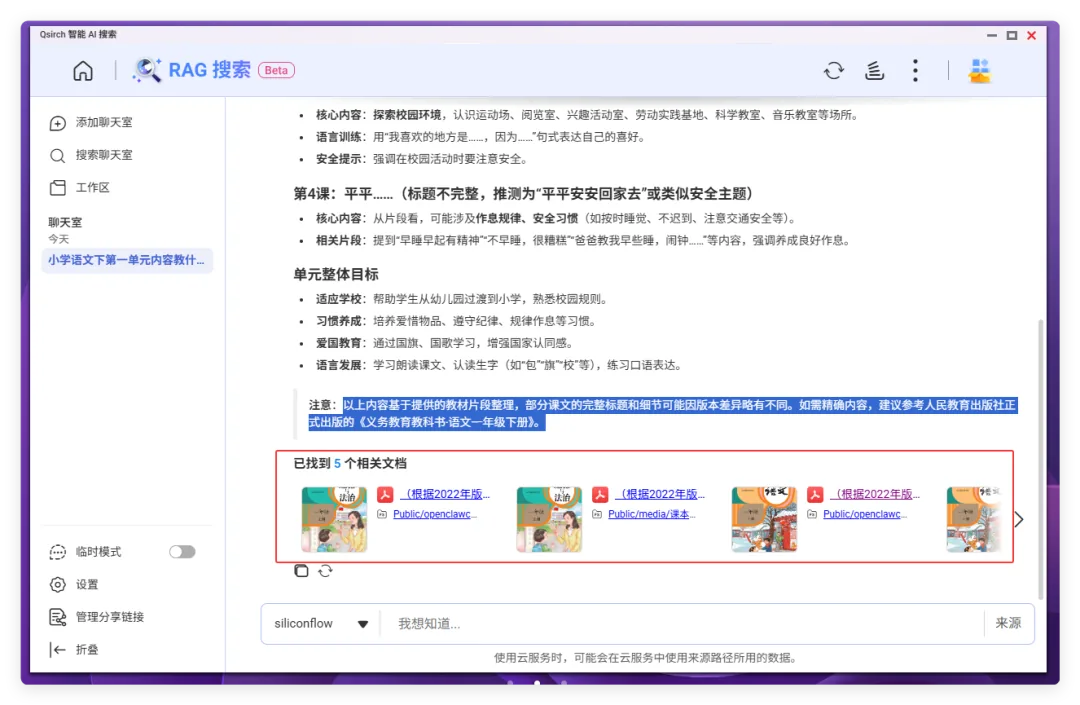
What is taught in Unit 1 of the Grade 1 Volume 2 primary-school Chinese textbook?
This requires a deep understanding of the full text. But the LLM answered quickly, matching the syllabus outline exactly.
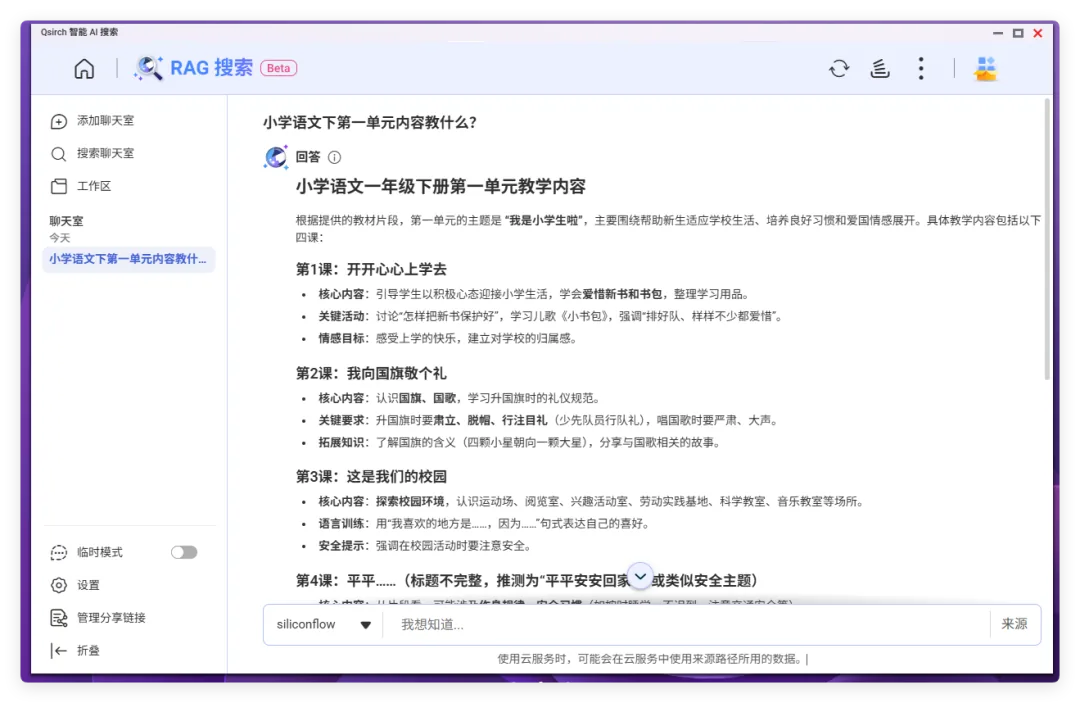
And at the end of the knowledge-base answer, it also shows the sources, giving the specific origin of the information. That's great: you can tell whether an answer is an LLM hallucination or actually came from searching your local files.
Why build a separate local knowledge base? Isn't a super knowledge base built from the NAS's own RAG retrieval plus a cloud API more powerful than third-party ones?!
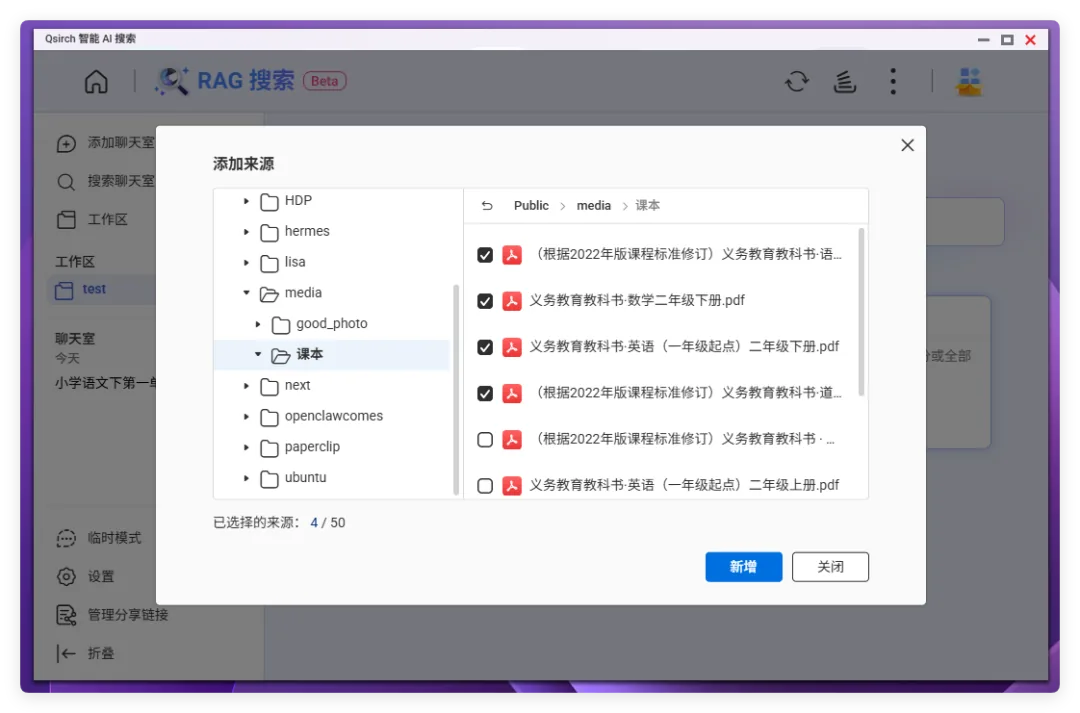
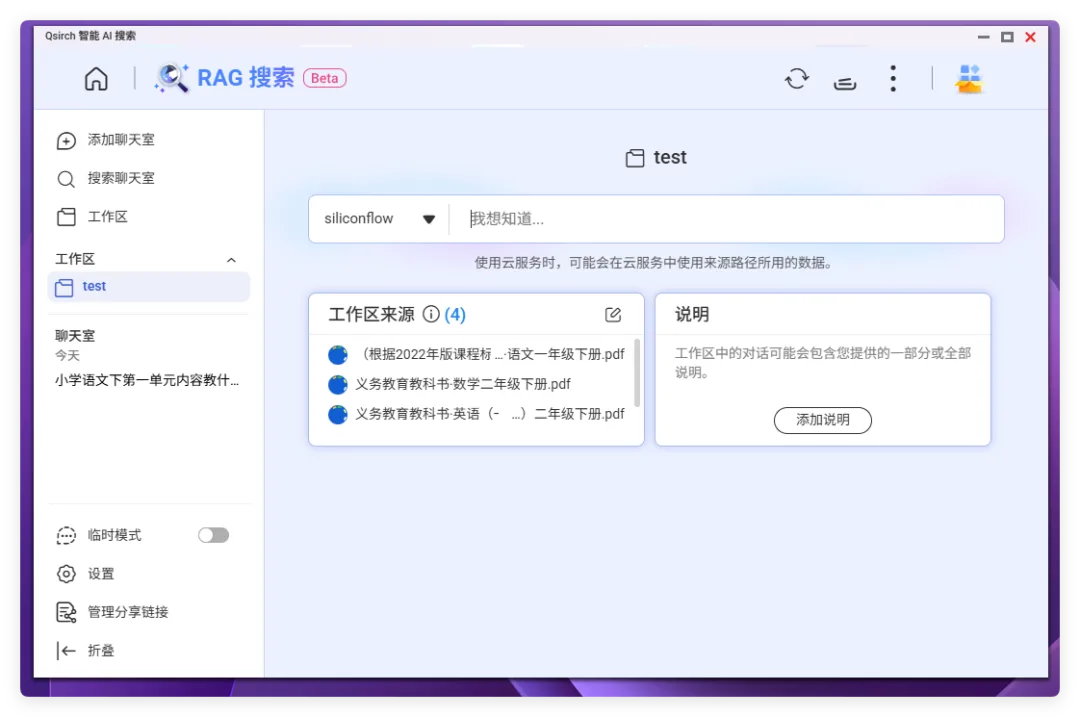
It goes beyond simple conversation. Qsirch RAG search also offers the concept of a workspace, quite similar to the AgentWorkSpace we use day to day.
Here we can import specific files, and all subsequent Q&A will be answered based on the files in that workspace,
without mixing in other content.
If the NAS is shared by a team, assign different workspaces to different project groups and project stages, and you've got a team knowledge base too.
4. The Familiar AI Core
After seeing the QNAP Qu605-N150-16G's own Ollama LLM capabilities, the MCP Assistant service and the Qsirch super knowledge base,
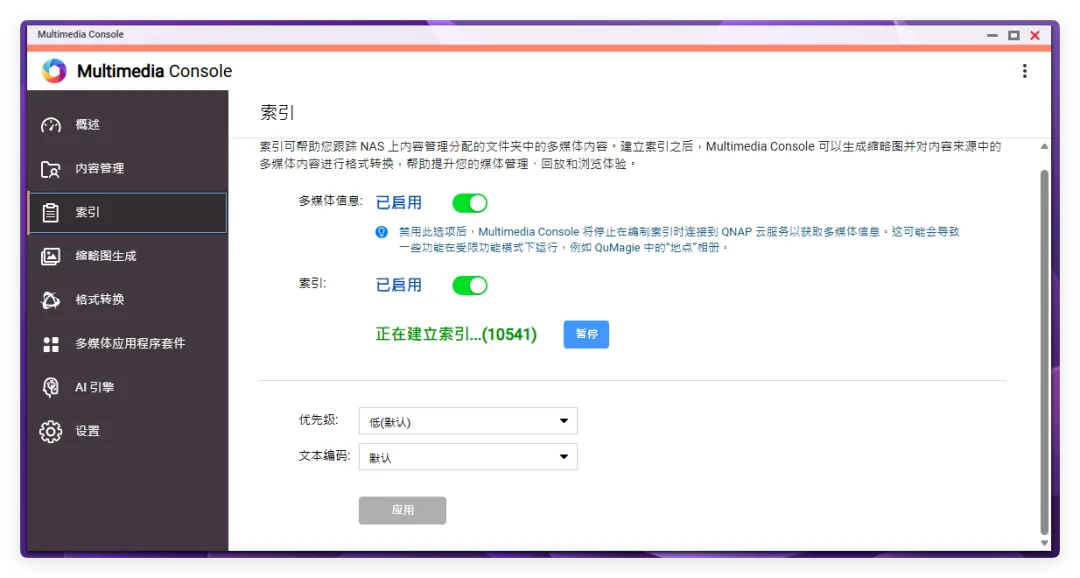
the more commonly used AI photo album no longer seems so special to me. For AI media, QNAP provides an app called AI Core, which was formerly Multimedia Console.
Here you can configure AI image recognition, as well as Qsirch's searchable scope and more.
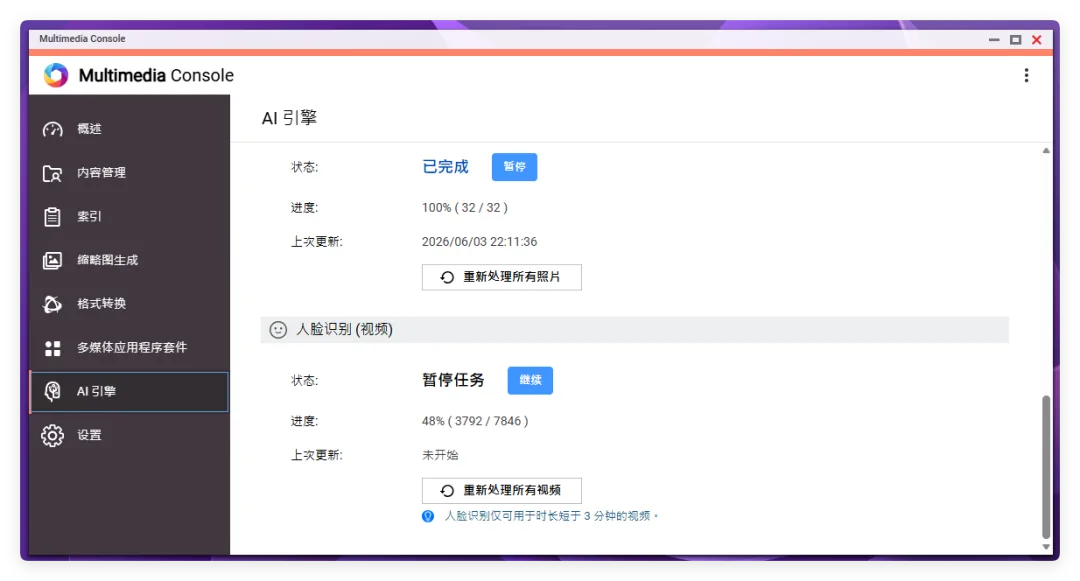
The system generates thumbnails and builds indexes based on default rules, and provides format conversion.
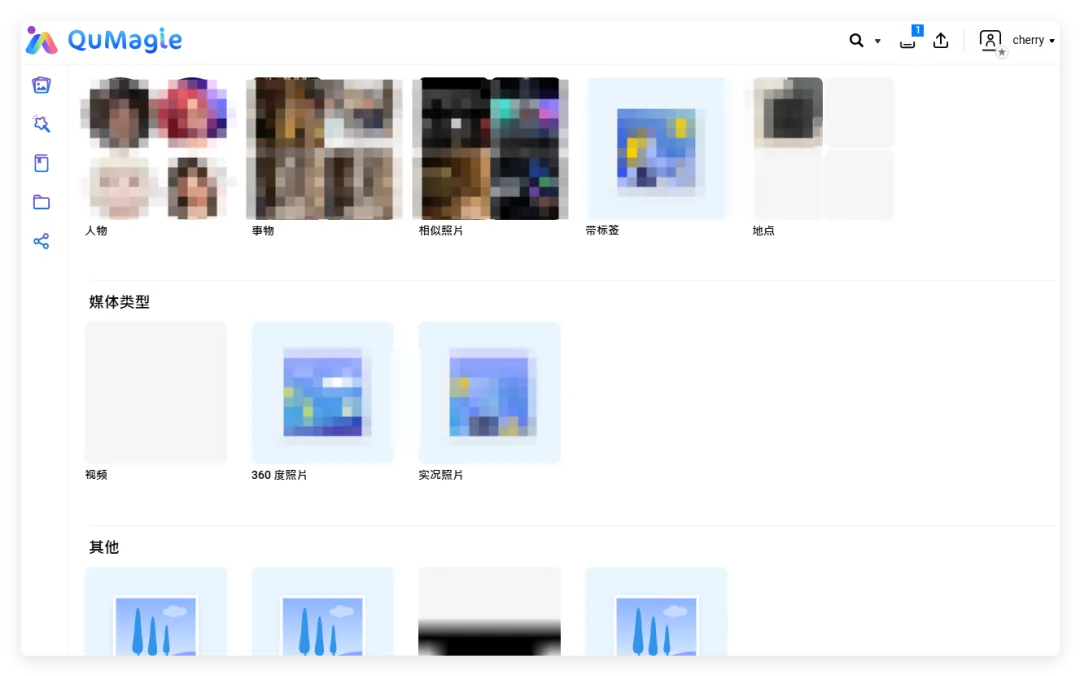
All images and videos can be viewed in QuMagie, the brand-new AI photo album app. It supports face recognition, location and object search not only for images but also for videos.
Final Thoughts
As a device that stays on 24/7, the NAS is the absolute best product for bringing AI on-premises and serving it locally.
There are many ways to combine AI and NAS. Back when DeepSeek first came out, it was all about running local models, using the NAS as a token output machine. But as cloud APIs grow ever stronger and local models fall further behind, using limited performance to run limited capabilities doesn't seem to make much sense.
Later came the approach of cloud API + organizing local NAS files: mount the NAS on Windows or Linux, then connect directly over SSH via OpenClaw / Hermes and the like to read and operate on files. Convenient, but not secure.
Now QNAP has proposed a whole new way to use AI + NAS. The NAS stores the data, serves small local privacy-preserving models, builds the local knowledge base and provides the MCP service; external agents and cloud APIs read, write and organize files within their permissions. This model, which combines security and convenience, seems better suited to those of us who chose a NAS precisely because of data privacy.
Either way, I think AI + NAS as a topic is only just getting started. In the future there will surely be NAS devices of all shapes and forms offering countless services.