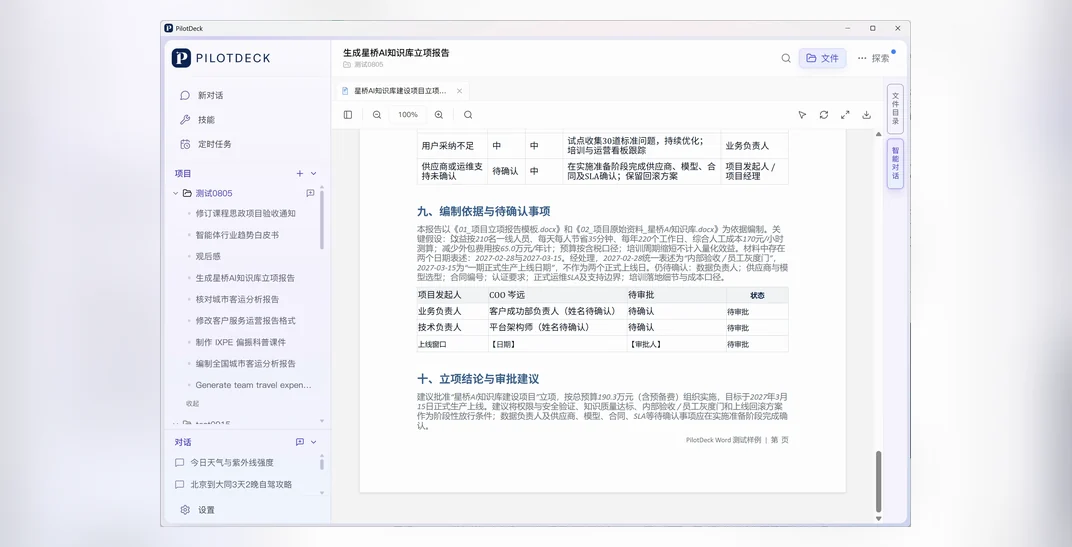
Office documents usually involve two kinds of task: filling information scattered across your material into a fixed template, and then revising an existing file based on feedback. This case study shows how to do both with PilotDeck: generate a report from a template and the raw material, then apply QA or review comments accurately to the original file.
1. Generating a Word File from a Template
When to use it and what to prepare: suitable for documents with a fixed format, such as project proposals, applications and reports. The input for this case is two Word files — a project proposal template and the project's raw material — and the goal is to produce 《星桥AI知识库建设项目立项报告》(Xingqiao AI Knowledge Base Project Proposal) for management approval.
How to do it:
- Put the template and the raw material in the same project, and tell PilotDeck which file governs the layout and which one provides the factual content.
- Specify the page size, heading styles, headers and footers and table styles that must be preserved, and list the sections and tables the report must include.
- Explain how to handle conflicting material and how figures should be calculated; uncertain information should be written as "待确认" (to be confirmed), so nothing is finalized on the user's behalf.
- Open the generated DOCX, check the structure, figures, table pagination and approval wording, then request any further adjustments needed.
Example instruction:
Please use 《01_项目立项报告模板.docx》as the baseline for layout and structure, and generate a Word project proposal from 《02_项目原始资料_星桥AI知识库.docx》. Preserve the template's page setup, heading levels, headers and footers and table styles; complete every section plus four tables covering project KPIs, implementation milestones, budget and benefits, and major risks. Calculate the budget and benefits according to the rules given in the raw material, and where information conflicts or is missing, clearly mark how it was handled and what remains to be confirmed. Deliver a DOCX file ready for management review.
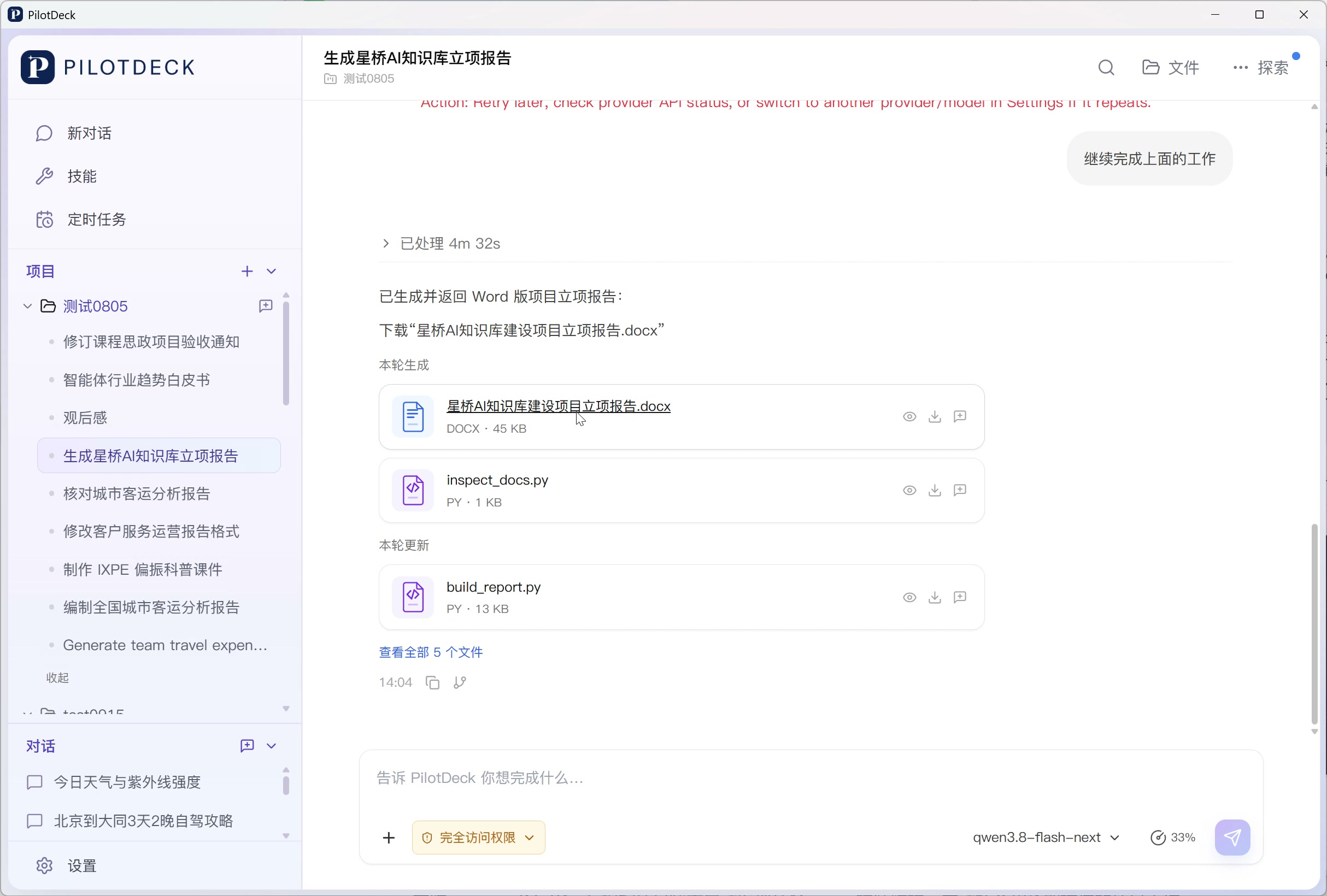
Process and results: this case shows the task requirements, where the generated file is returned, and the process of opening the Word preview in PilotDeck to check the sections and tables. The output is a DOCX file that can be downloaded or edited further. After generation, it's worth re-checking complex layouts and table pagination in Word, especially the amounts, dates and to-be-confirmed fields in an approval document.
2. Applying QA or Review Comments to the Original File
When to use it and what to prepare: suitable when you already have a formal document and need to revise it comment by comment while keeping a review trail. This case uses 《课程思政项目验收通知_原稿.docx》(Curriculum Ideology Project Acceptance Notice, Original Draft) and 《领导修改意见.txt》(Manager's Revision Comments) to show how to write feedback back into the original file item by item.
How to do it:
- Provide the original draft and the comments file, and make clear that only the content called out should change, while the untouched page setup, paragraphs, tables and official document formatting are preserved.
- Require Word's track changes mode, so insertions, deletions and other edits can be traced; add visual highlighting to the changed text to make it easy to locate.
- When revising interrelated statements such as dates and acceptance categories, check the whole document at the same time to avoid inconsistencies.
- Append a "修改意见处理表" (Revision Comment Tracking Table) at the end listing each comment, how it was handled, where the change was made and its status, then deliver the DOCX with tracked changes.
Example instruction:
Please revise 《课程思政项目验收通知_原稿.docx》according to 《领导修改意见.txt》. Make minimal changes to the original file and preserve the existing page setup, paragraphs, tables and official document formatting; use Word's track changes mode for all edits. For content involving dates and acceptance categories, check the related statements throughout the document. Add a "修改意见处理表" at the end that explains, item by item, how each comment was handled, where the change was made and its status, and deliver the DOCX with tracked changes.
Process and results: this case first shows the revision task and the file returned, then opens the highlighted preview to verify where changes were made, and checks the tracked changes, the untouched content and the tracking table. For formal review, each change should be accepted or rejected individually in Word.
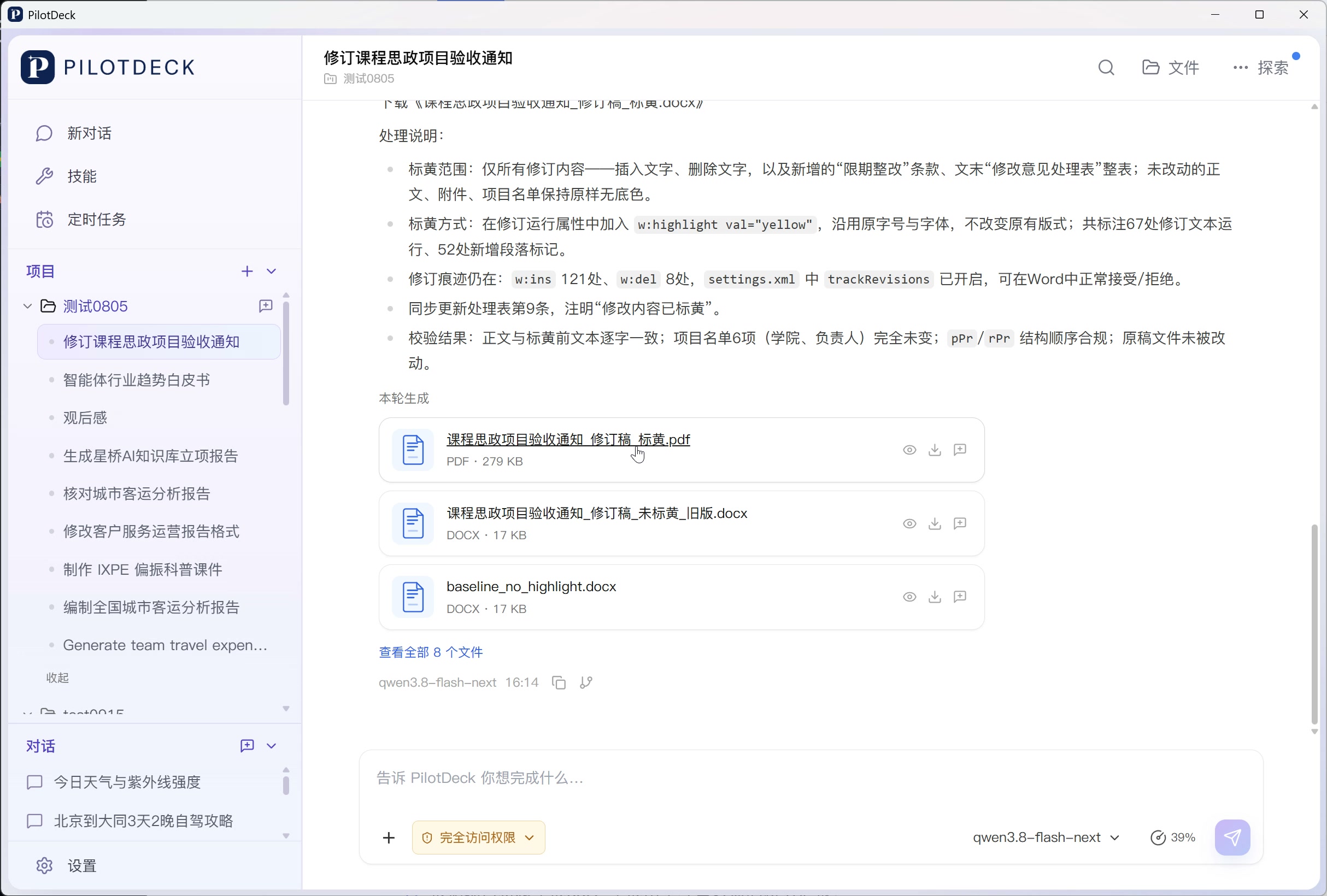
The yellow highlighting in this case is for quickly scanning the changes; whether the file meets formal review requirements still has to be checked against the tracked changes and the final DOCX in Word.
3. Usage Tips
- Clarify each file's role first: the template determines structure and styling, the raw material provides the facts, and the comments file defines the scope of the changes.
- Write the delivery standard into the instruction: the file format, the layout that must be preserved, the tables to check and the tracked changes required — try to state them all up front.
- Iterate with diffs: after generation, simply point out the sections, fields and wording to add or adjust; there's no need to describe the whole task again.
- Do a final manual check: review amounts, dates, names and complex formatting one last time before submitting the document officially.