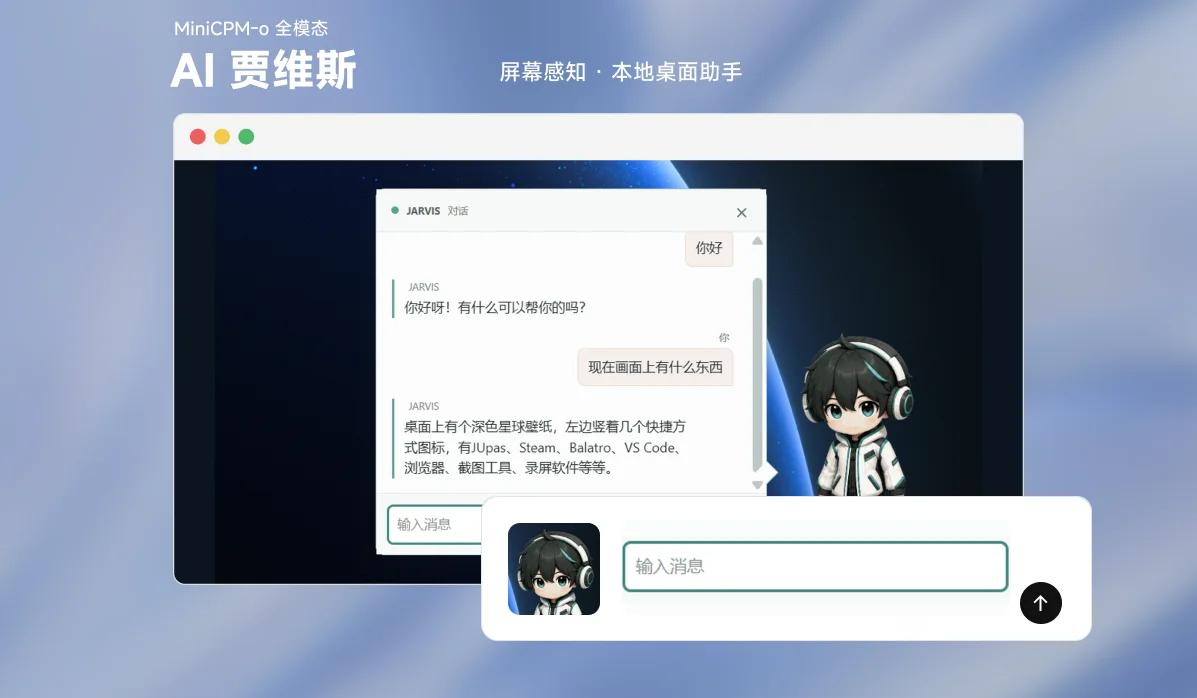
AI Jarvis is a desktop-pet assistant for Windows that uses a locally running MiniCPM-o 4.5 to continuously understand what is on your screen and what your system is playing, then helps through pet speech bubbles, in-game overlay comments, or lecture notes depending on the scene. Everyday screen and audio perception and core inference all happen on your machine, so data does not need to leave it by default — keeping responses fast and private.
Highlights
| Capability | Description |
|---|---|
| Desktop companion | Understands the current scene from the live screen and system audio, and offers short reminders or comments at the right moment. |
| Active chat | Press Ctrl+M to open a chat box next to the pet and ask the local model questions directly. |
| Game companion | Recognizes live game scenes and gives tips and interaction through transparent overlay comments that don't get in the way; per-game companion profiles can be configured. |
| Online-class notes | Gives reminders during a lecture and, when it ends, produces a Markdown note with key frames and summarized knowledge points. |
| Local memory | Builds an activity timeline and daily summary from stable scene-perception results; raw screen frames and audio are never written to long-term memory. |
| Schedule image | With a compatible image-generation API configured, turns the day's summary into a visual schedule image. |
| Privacy mode | Double-click the pet to pause or resume screen and audio perception; while paused, the model cannot see or hear anything. |
Chatting with AI Jarvis
Press Ctrl+M to open or close the chat window; AI Jarvis talks with you using what it sees on screen in real time.

Visual schedule
The schedule image turns the day's activity timeline into a single picture that is easy to review. This feature is off by default and only goes online when the user configures an image-generation API and generates one explicitly.

How it works
The project uses the MiniCPM-o 4.5 GGUF model, whose language model (LLM), vision model (VPM) and audio model (APM) jointly process text, screen and sound.
Roughly once per second the model receives one screen frame plus the last second of system audio, and continuously chooses:
LISTEN: keep observing without disturbing the user;SPEAK: output one short line of text grounded in what is currently on screen or in the audio.
This is not a traditional question-and-answer loop. The input stream keeps advancing, and the model can wait until intervening is actually useful.
Structured scene judgement and full-duplex conversation use isolated model contexts:
DXGI screen frames + WASAPI system audio
                 |
                 +-- structured perception context -> scene / game / class / memory
                 |
                 +-- full-duplex context           -> LISTEN / SPEAK -> model reply
The current version is text-first: there is no spoken output or real-time voice conversation. The game companion only observes, hints and interacts — it never controls the game or plays on the user's behalf.
Privacy and data
- Ephemeral inference: screen frames and system audio are used only for the current inference; normal operation does not keep raw captures long-term.
- Lecture notes: class mode saves only the selected key frames, the organized knowledge points and frame captions.
- Optional network access: only when you explicitly generate a visual schedule are the day's recap and the project's character reference image sent to the image API you configured.
Quick start
Requirements
- 64-bit Windows 10/11;
- an x64 CPU with AVX2 support;
- at least 12 GiB of free disk space;
- network access on first launch to download about 6.32 GiB of model files.
Using the installer (recommended)
- Download
AI-Jarvis-Setup-0.1.2-x64.exefrom the project's releases page. - Run the installer.
- Launch AI Jarvis and click "Start AI Jarvis".
The installer bundles the Python backend and a compiled C++ inference runtime, so you don't need Python, Git, CMake, Visual Studio or CUDA. Model weights are not included: on first launch the MiniCPM-o 4.5 model is downloaded automatically (with resume support) and verified, after which it runs directly.
GPU acceleration
The installed version prefers its bundled NVIDIA CUDA inference runtime and decides how much to offload to the GPU based on available VRAM. If CUDA fails to initialize or there is no compatible NVIDIA GPU, it automatically falls back to CPU and tells you through the pet; text generation and continuous perception will then be noticeably slower.
Troubleshooting startup
Normally you just install and launch. Only if startup fails, CUDA falls back automatically, or the log explicitly reports a missing DLL, go through the steps below.
All Windows users
- Make sure you're on 64-bit Windows 10/11 with an AVX2-capable CPU and at least 12 GiB of disk space.
- Install Microsoft's Visual C++ 2015-2022 x64 runtime.
- Restart Windows, then launch AI Jarvis.
- The first launch downloads about 6.32 GiB of model files to
%LOCALAPPDATA%\AIJarvis\models\MiniCPM-o-4_5-gguf; don't kill the program while it is downloading and verifying.
NVIDIA GPU users
- Install the latest driver from the NVIDIA driver download page or the NVIDIA App, then restart Windows.
- Run
nvidia-smiin PowerShell. If you see the GPU name, driver version and VRAM, the driver works; if the command is missing or errors out, fix the driver first. - Launch AI Jarvis again. It tries CUDA first; on success the runtime log shows that NVIDIA CUDA acceleration is enabled.
- If the log reports missing
cudart64_*.dll/cublas64_*.dllor a CUDA initialization failure, install CUDA Toolkit 13.x (the default Runtime and Development components are enough) and restart Windows. - If CUDA still can't initialize, the program switches to CPU and shows a bubble from the pet. Everything still works, but first-frame perception and text generation may take tens of seconds to several minutes longer.
For RTX 50-series cards, CUDA 13.x and the latest driver are recommended. On 8 GiB of VRAM the model should not be force-loaded entirely; AI Jarvis picks the number of GPU layers from currently available VRAM. If browsers, games or other AI programs are using a lot of VRAM, close them and try again.
Checking whether the GPU is really used
- Launch AI Jarvis and wait until the UI says environment perception is ready.
- In Task Manager → Performance → GPU, look at the "CUDA" graph and "Dedicated GPU memory" — not just the default "3D" graph.
- Or run
nvidia-smiwhile it is running. If only CPU usage rises, GPU memory doesn't grow noticeably, and the pet shows a CPU notice, it has fallen back to CPU.
Stuck on "checking local model"
- On first download, wait for the download and hash verification to finish; HDDs or real-time antivirus scanning can make verification much slower.
- Make sure the disk holding
%LOCALAPPDATA%\AIJarvishas at least 8 GiB free. - Fully quit AI Jarvis, confirm in Task Manager that no
AI Jarvis,jarvis-launcherorjarvis-native-workerprocesses remain, then relaunch. - Check
%LOCALAPPDATA%\AIJarvis\runtime\native-worker.log. Common fixes:
| Log message or symptom | What to do |
|---|---|
CUDA initialization failed, out of VRAM | Close VRAM-heavy programs and restart; if it still fails, allow the CPU fallback |
Missing cudart / cublas DLL | Update the NVIDIA driver; install CUDA Toolkit 13.x if needed |
Missing VCRUNTIME140.dll / MSVCP140.dll | Install the Visual C++ 2015-2022 x64 runtime |
| Model verification failed | Quit, delete the incomplete model directory and download again |
| Log stays on vision or audio encoding for a long time | Usually a CPU fallback; fix CUDA or wait for the current inference to finish |
Running from source
Running from source requires Python 3.12+, Git, CMake 3.24+, Visual Studio C++ Build Tools, and the current Node.js LTS with npm. Building the Windows installer additionally requires CUDA Toolkit 13.1 or newer; the CUDA runtime libraries are copied into the installer, so end users don't need the Toolkit.
From the project root:
cd desktop
npm run deps:install
cd ..
.\start-real.cmd
Once the desktop app opens, click "Start AI Jarvis". When the service is ready you can drag the pet around and toggle the chat box with Ctrl+M.
Development and build
Building the Windows installer
Release builds need Python and a C++ toolchain. The following builds the static MSVC/CPU native runtime, freezes the Python backend, and produces an NSIS installer:
cd desktop
npm run deps:install
npm run build
The output is desktop/dist/AI-Jarvis-Setup-<version>-x64.exe. Release builds don't include source code, compilers or local runtime data in the installer.
After building, you can run an isolated install check. It installs the program to a temporary directory, checks the self-contained runtime with Python, virtualenv and build-tool environment variables removed, and uninstalls afterwards:
npm run verify:installer
To also verify the first model download, the native inference process and backend health:
npm run verify:installer -- -FullStartup
Project structure
AIJarvis/
├── desktop/             Electron desktop app, pet, overlay comments, system tray
├── src/jarvis_backend/  FastAPI orchestration, scene policies, classes, local memory
├── native/              C++20 screen/audio capture, scheduling, local inference
├── config/              default configuration
├── docs/                project docs and showcase images
└── tests/               Python tests
For the full architecture, data flow and capability boundaries, see the project overview (in Chinese).
Links
- GitHub: LYiHub/pub-local-jarvis
- Local inference runtime: tc-mb/llama.cpp-omni
Built by LYiHub. Local inference is powered by tc-mb/llama.cpp-omni (MiniCPM-o GGUF inference on llama.cpp / ggml; the project pins an upstream version and wires in the LLM, VPM and APM with speech output disabled), and the model capabilities come from MiniCPM-o 4.5 in OpenBMB/MiniCPM-V. Source code is released under the MIT License.