PilotDeck
Open-source agent workspace
Learn to use the workspace, memory, skills and always-on tasks step by step. Get familiar with the basic interface and working modes first, then enable routing, memory, scheduled tasks and message channels as your project requires.
Only basic usage is covered here — explore the advanced easter eggs on your own
1. Interface basics
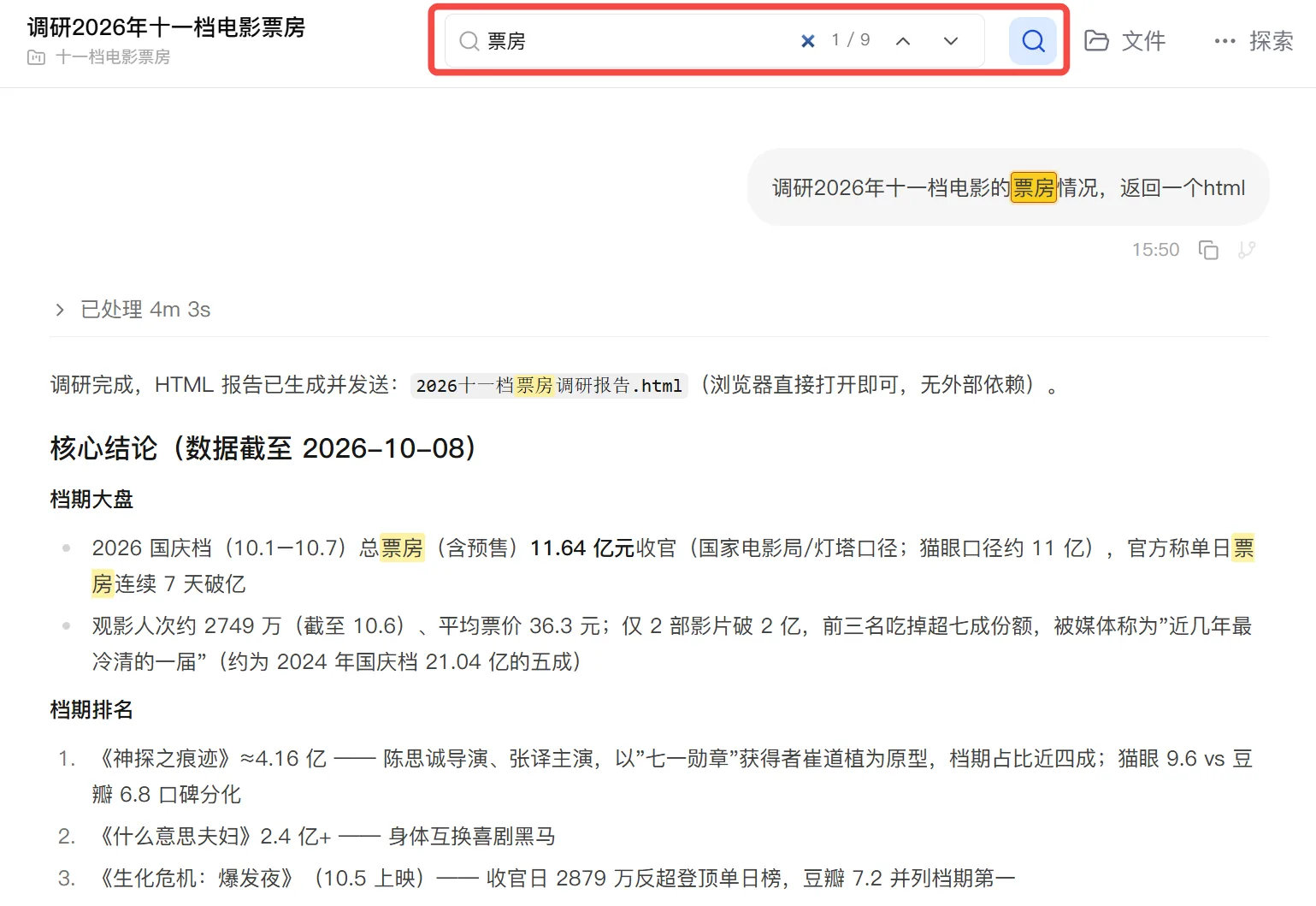
The PilotDeck interface is split into two areas: the project directory on the left and the chat area on the right. The top-left corner has quick entries such as starting a new conversation and viewing skills; the top-right corner shows details about the current project, including project files, project memory, always-on task status and routing usage. Click the search button in the top-right corner to run a fuzzy search over conversation content.
Projects and workspaces
Each project corresponds to one workspace in which PilotDeck reads and saves files. It mainly contains project files, project memory, project skills and project sessions, so that projects do not interfere with each other. General conversations suit lightweight tasks such as ad-hoc questions; when you need to read and write files, build up context over the long term or revise deliverables repeatedly, we recommend explicitly creating a project.
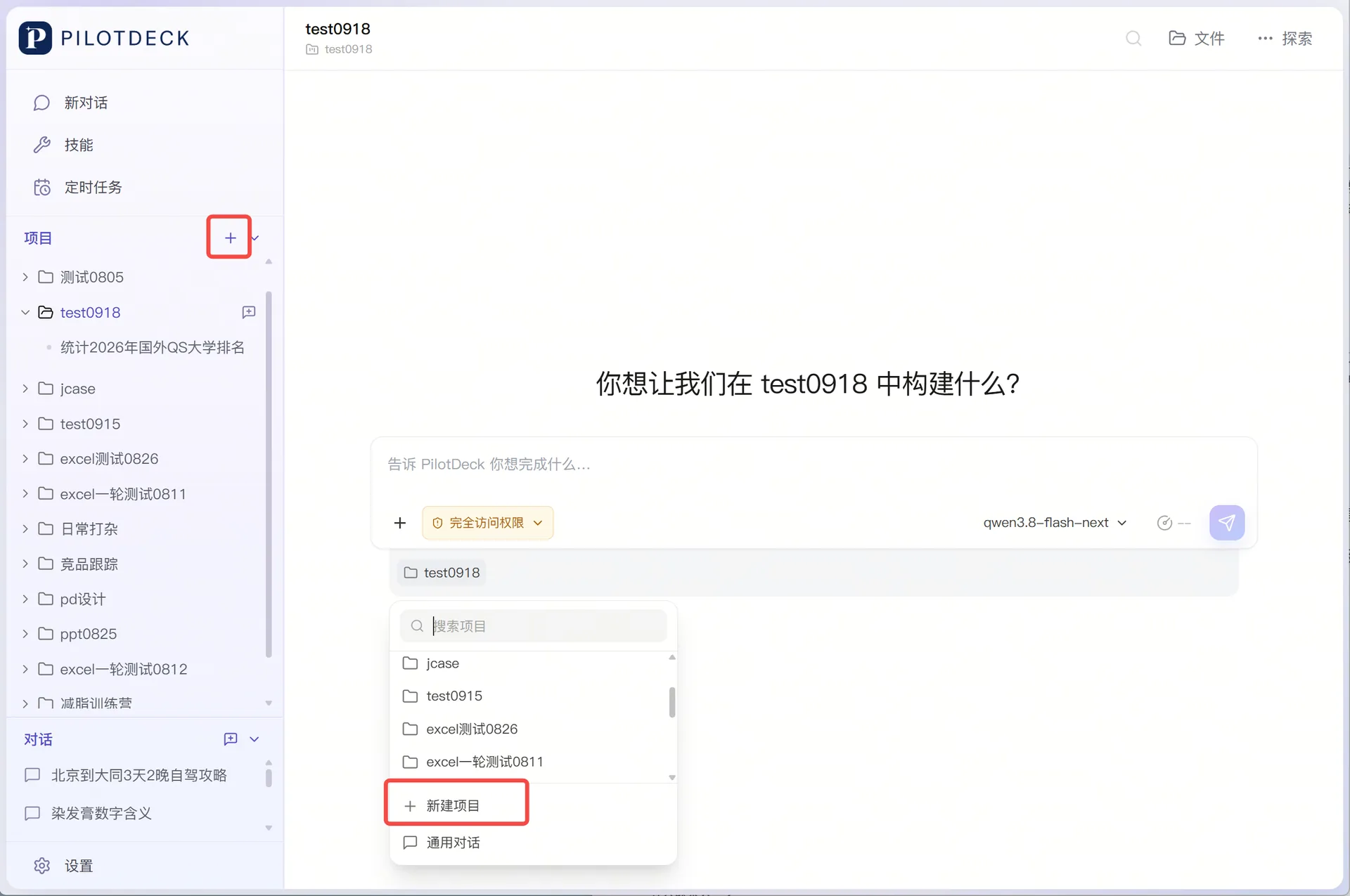
To create a project, click the + to the right of the "Project" heading on the left, or click "New project" in the project selector below the input box.
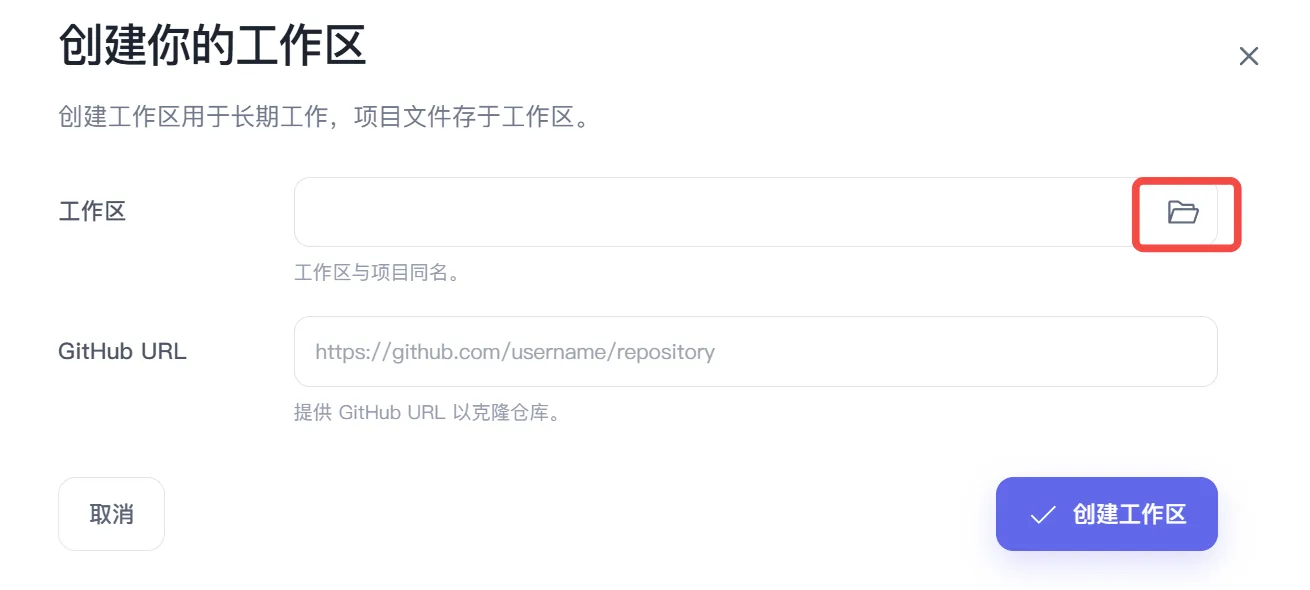
In the creation wizard, click "Select folder" next to the workspace and choose an "existing folder" or a "new folder"; you can also optionally fill in a GitHub URL to clone from a repository.
Switching projects:
- Sending a new conversation: Click the project name below the input box, then search for and select the target project in the list.
- Viewing past tasks: Click the project name on the left, then click the new conversation button next to the project to create a new conversation, or click a conversation to review its history.
Working modes
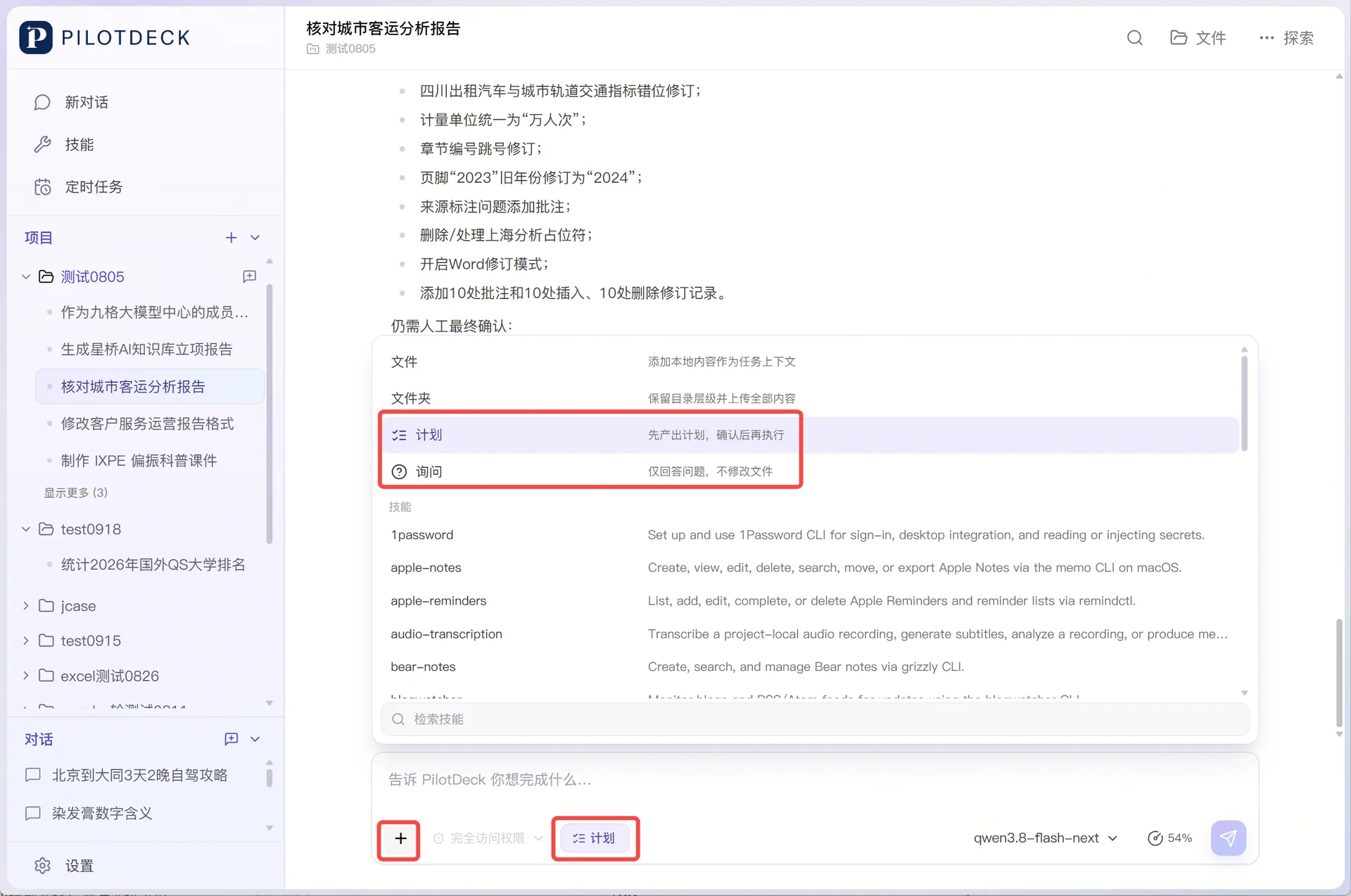
Three modes are currently available — "Agent", "Plan" and "Ask" — switched via the + in the bottom-left corner of the input box.
| Mode | How it works | When to use it |
|---|---|---|
| Agent | Understands the request and calls tools directly to complete the task | Tasks with a clear goal and a well-defined scope |
| Plan | Breaks the goal down and presents an implementation plan first, then executes it after confirmation | Complex, long-running or high-impact tasks |
| Ask | Focuses on explaining, analyzing and answering questions without modifying files | Conceptual questions, file interpretation and other tasks that only need analysis and answers |
Switching models
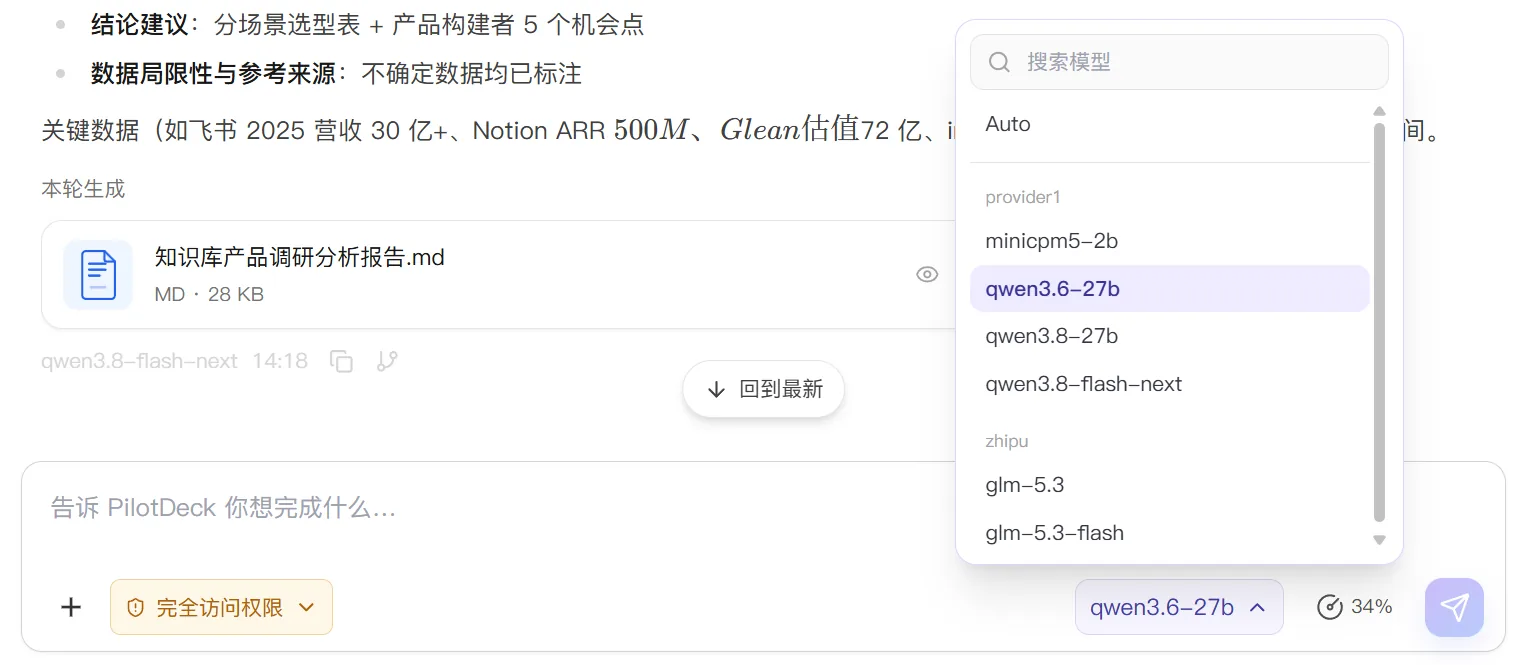
Click the model name and reasoning-effort button shown in the bottom-right corner of the input box ("Auto" means models are chosen automatically according to the configured routing strategy), then search for and select the target model in the list; the models you use must be configured in advance under "Settings → Model Pool". Conversation history is preserved when switching models, but watch out for context overflow when switching from a model with a large context window to one with a smaller window.
Operation permissions
Under "Default permissions", routine operations are executed according to the rules and risky operations are confirmed with you first; "Full access" skips confirmation and allows broader file, command and network operations. Click the permission button below the input box to switch between them.

Input box interactions
There are three ways to add files / folders:
-
Click the
+in the bottom-left corner of the input box and choose "File" to add local content as task context, or choose "Folder" to preserve the directory hierarchy and upload all of its content.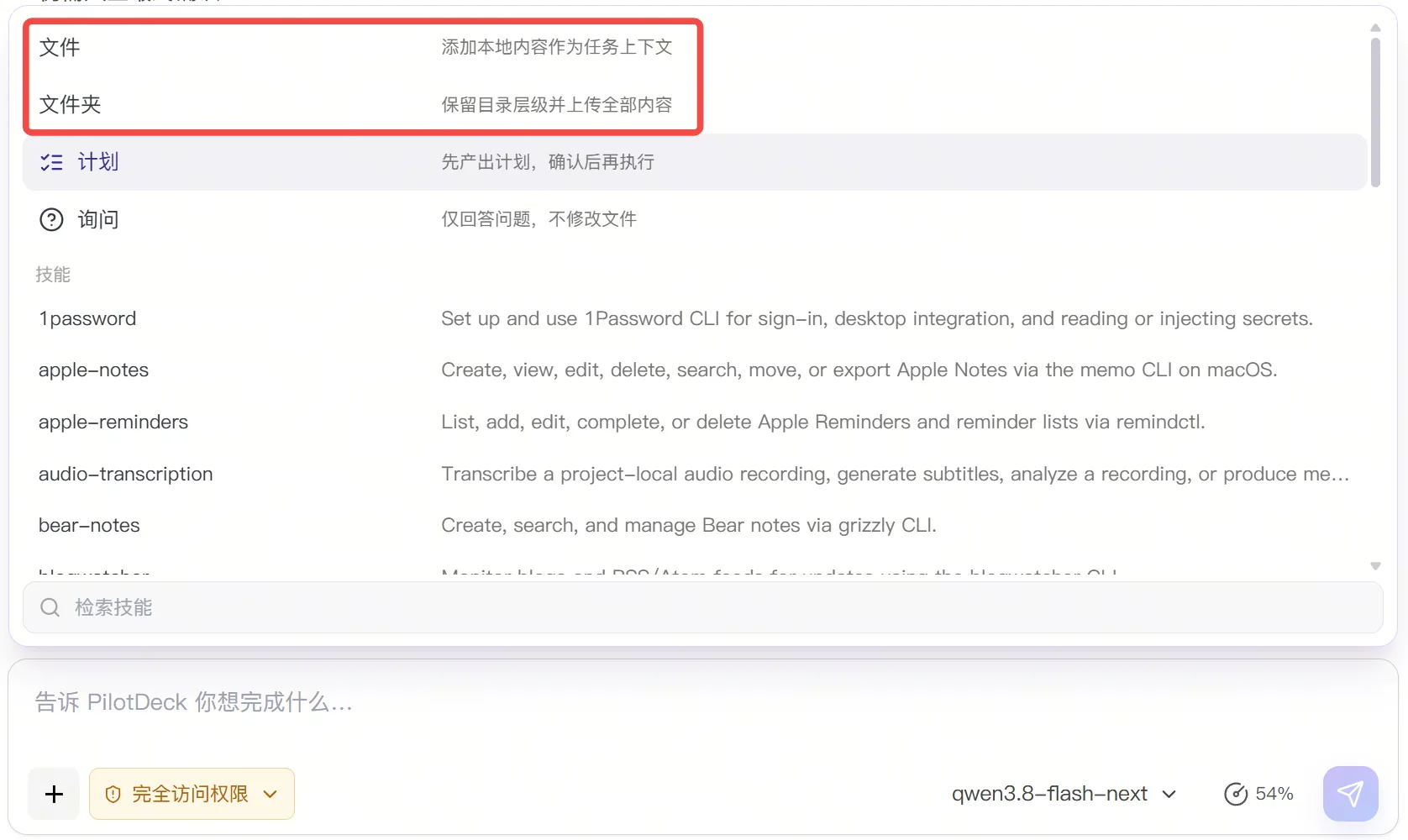
-
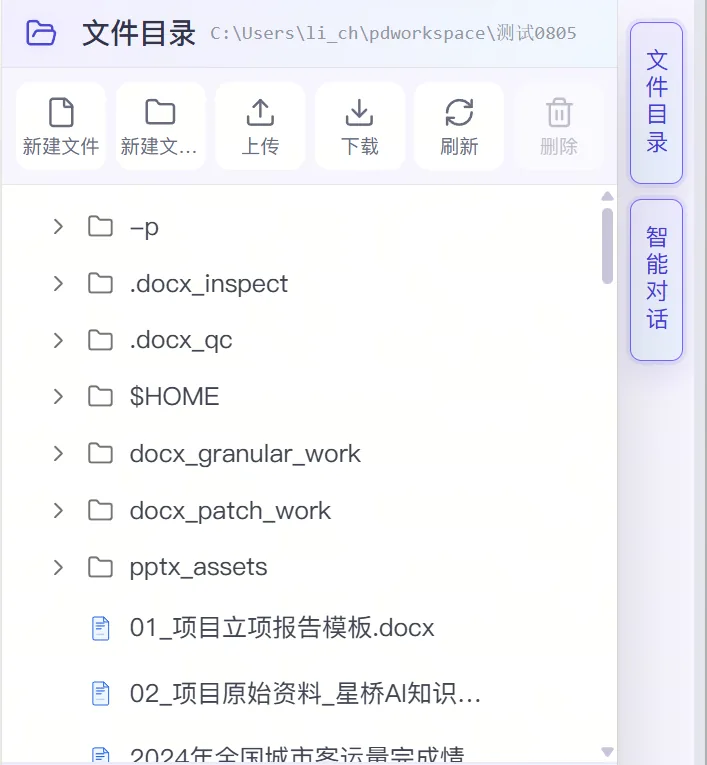
Click "Files" in the top-right corner and drag files or folders directly into the workspace directory.
-
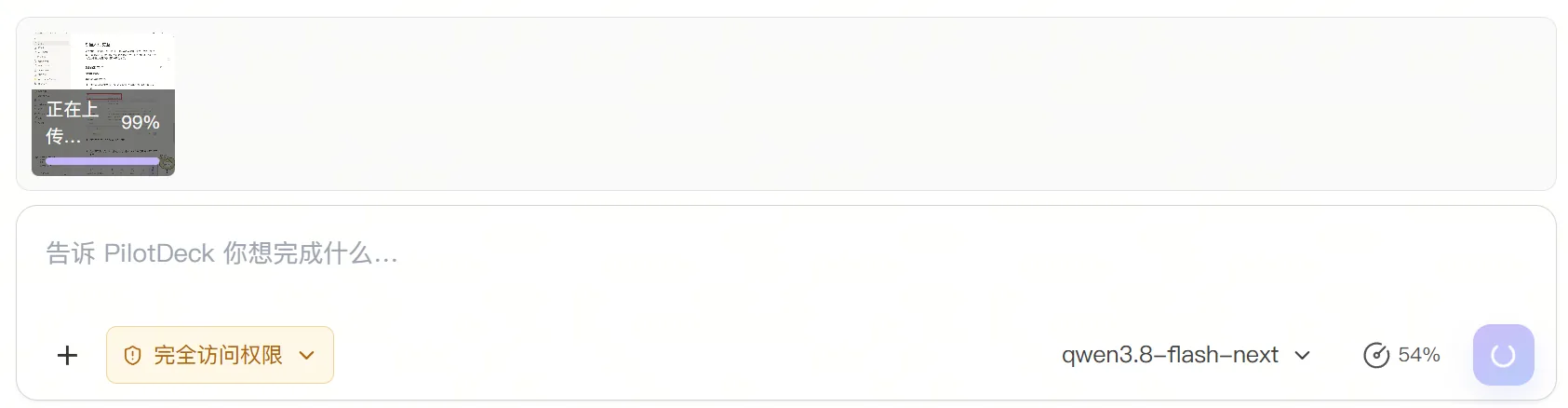
Drag them straight into the chat box.
Referencing skills
- Automatic selection: PilotDeck decides which skills are needed based on your task description and uses them automatically.
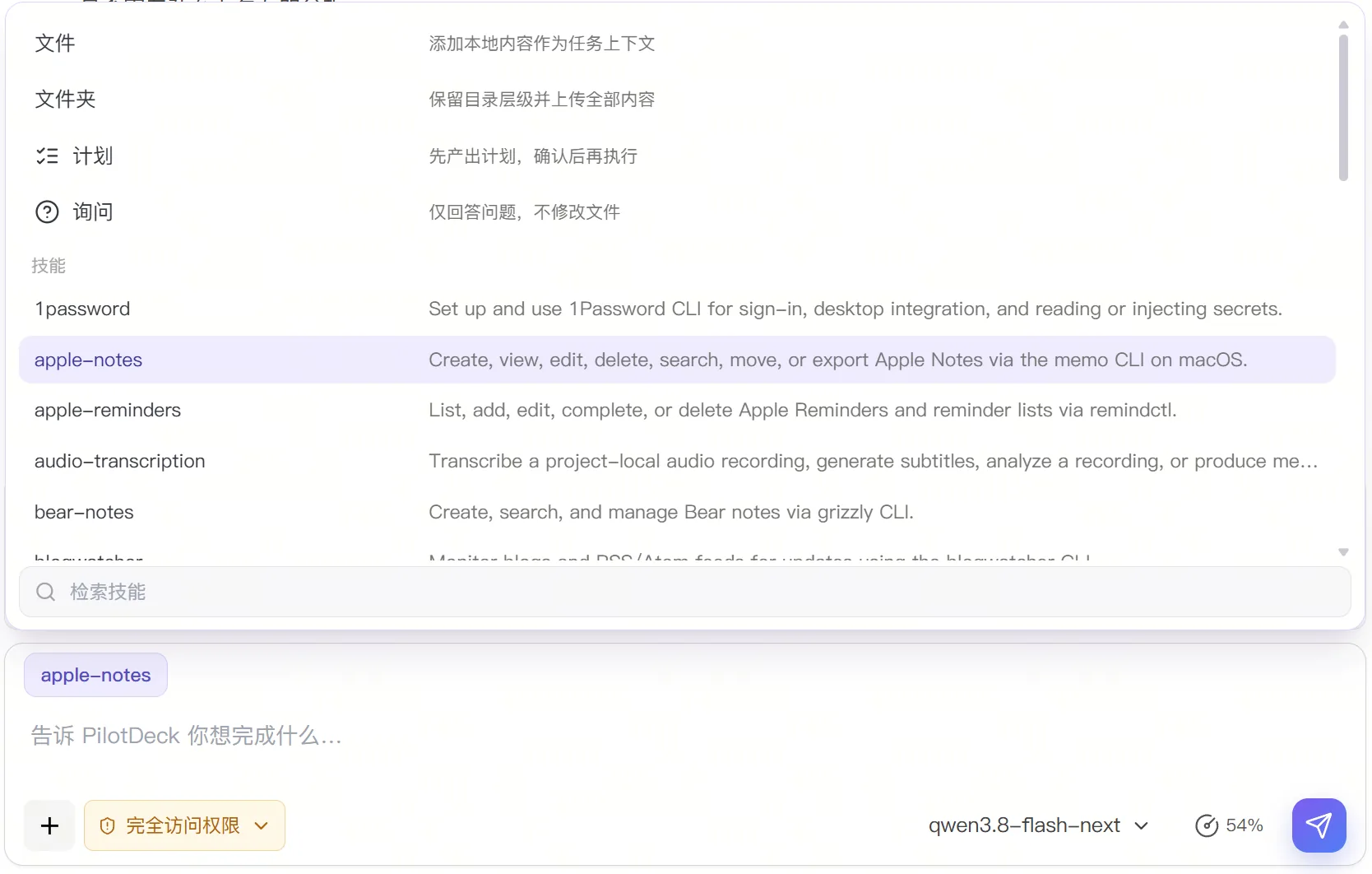
- Manual selection: Click the
+in the bottom-left corner of the input box, search for and select a skill suited to the current task, confirm that the skill tag has been added after selecting it, then describe the specific goal and send.
Invoking slash commands
Commands are common operations or standard workflows predefined in PilotDeck. Typing / in the input box opens the list of currently available commands. Keep typing keywords to filter the list, select the target command and then enter your request in natural language.
Follow-up messages
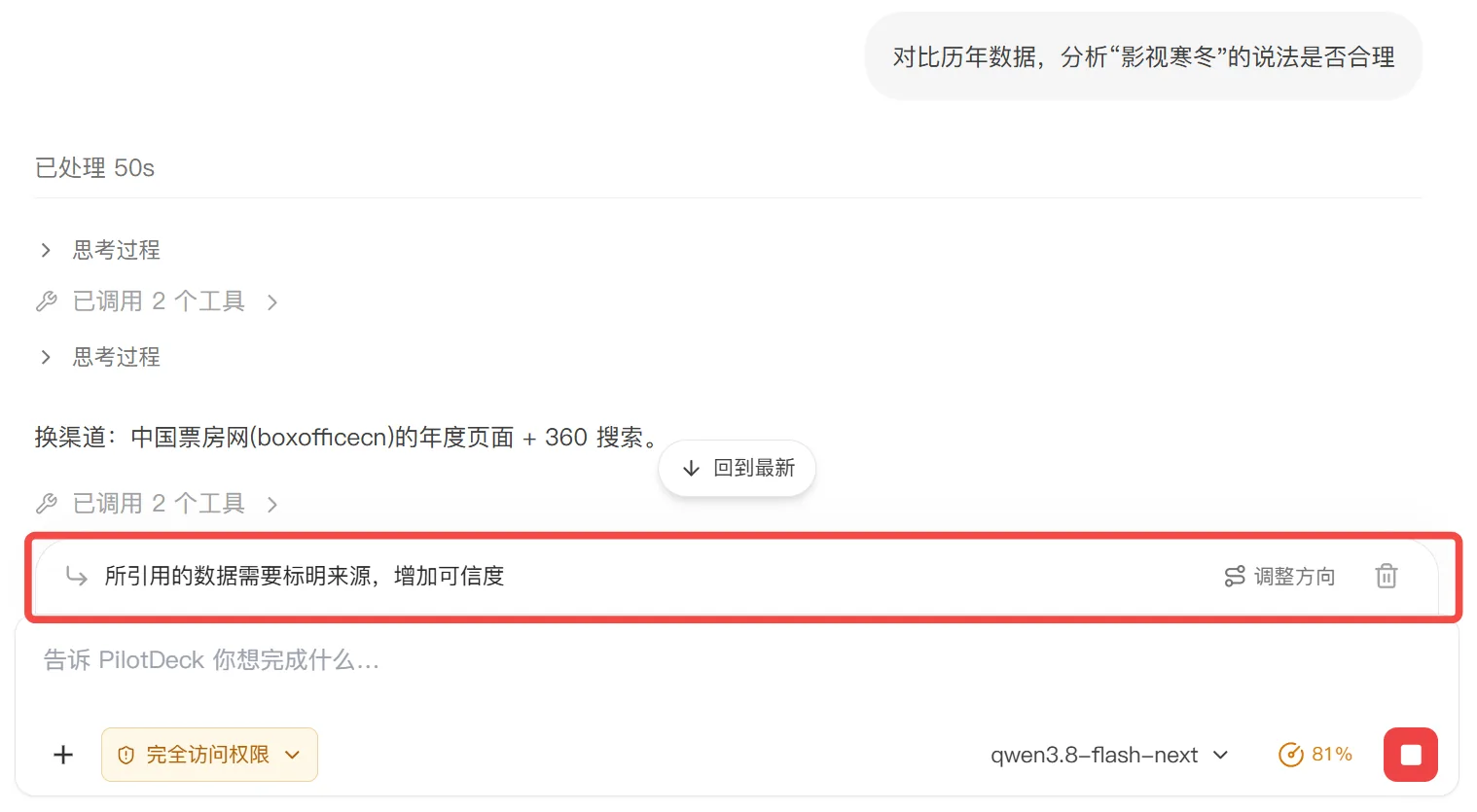
Follow-up messages let you add new requirements, correct misunderstandings or add constraints while PilotDeck is executing a task. The additional content can be merged into the current task via "Steer", and PilotDeck adjusts its subsequent work accordingly without starting another round of conversation.
- While the task is running, write the new requirement and send it; the new content appears above the chat box.
- Click "Steer" above the chat box to add the new content to the conversation. If you do not click it, the content is sent and executed only after the current task finishes.
- Keep watching the agent's execution steps and tool activity to confirm that subsequent work follows the new direction.
Searching conversations
Click the search button in the top-right corner to run a fuzzy search over the context.
2. Always-on background work
Always-on means that when you have not actively sent a new task, PilotDeck can periodically check the projects where it is enabled, find work worth taking forward, complete tasks and produce reports in the background, and archive them only after you confirm whether to keep the results.
The basic always-on workflow is:
- PilotDeck periodically checks the projects where always-on is enabled.
- It looks for work it can take forward based on project files, memory, recent conversations and existing plans.
- If a suitable task exists, it generates a plan.
- It executes the plan in an isolated workspace.
- It produces an execution report and displays the results in the always-on view.
- After reviewing the results, you decide whether to apply or archive this round of work.
How always-on differs from ordinary conversations and scheduled tasks:
| Feature | How it is triggered | Suitable tasks |
|---|---|---|
| Ordinary conversation | The user actively sends a request | Clearly defined tasks that need to be handled immediately |
| Always-on | PilotDeck discovers tasks automatically based on project status | Ongoing maintenance, proactive gap-filling and long-running project work |
| Scheduled tasks | Executed when the time you set is reached | Fixed tasks that repeat daily, weekly or at a specified time |
Enabling always-on and setting trigger conditions
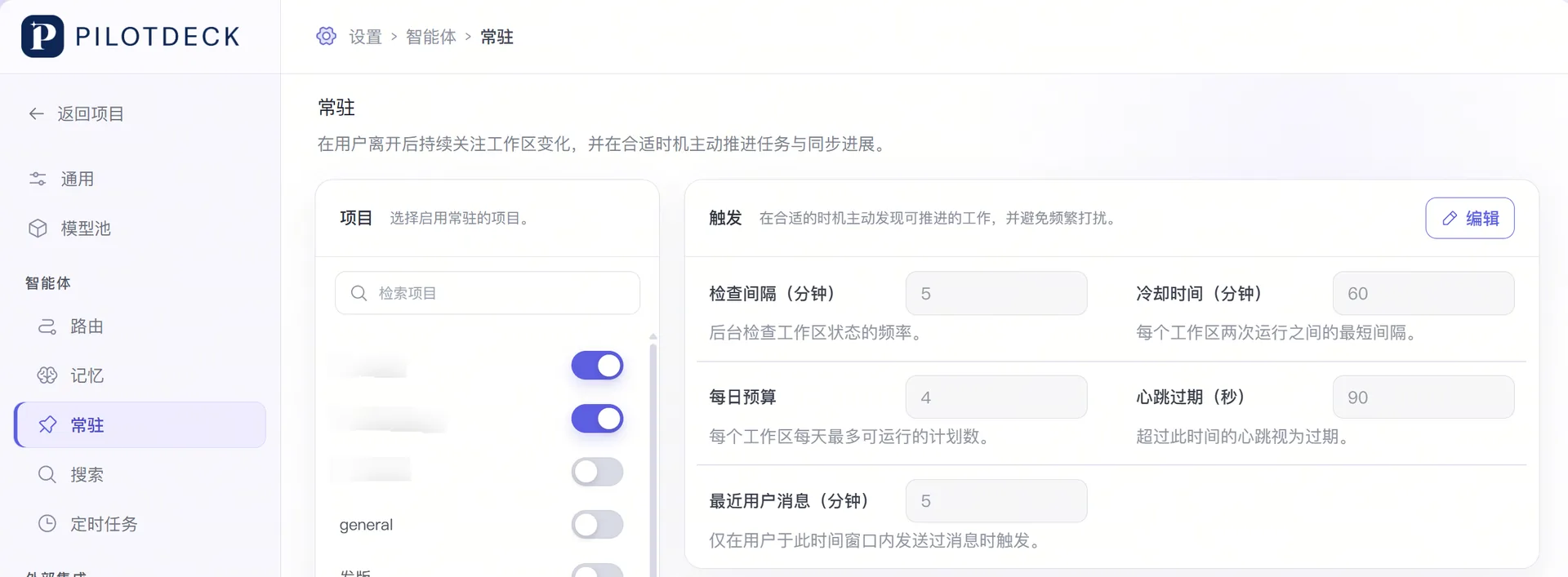
Always-on is enabled per project. Go to "Settings → Agents → Always-on", find the target project in the project list on the left and turn on the always-on switch to its right. Click "Edit" in the "Trigger" area to adjust the following parameters:
| Parameter | Purpose |
|---|---|
| Check interval | The minimum time between two checks |
| Cooldown | How long to wait after one round of always-on work before triggering again |
| Daily budget | The maximum number of always-on tasks a single project can run per day |
| Heartbeat expiry | The time threshold used to decide whether the previous round of always-on work was interrupted |
| Recent user message | The time since the last user message, used to avoid conflicting with an ongoing conversation |
We recommend keeping the default parameters when you first start. To reduce how often models are called, extend the check interval and cooldown, or lower the daily budget.
Viewing the always-on panel
Select any project and click "Explore → Always-on" in the top-right corner to open the always-on panel, which contains 2 kinds of content:
- Dashboard: Shows the overall status of always-on work, mainly always-on events, the number of events today, active projects and currently running tasks.
- Plans: The plans already generated for each project, along with their work cycle, creation time, status and available actions.
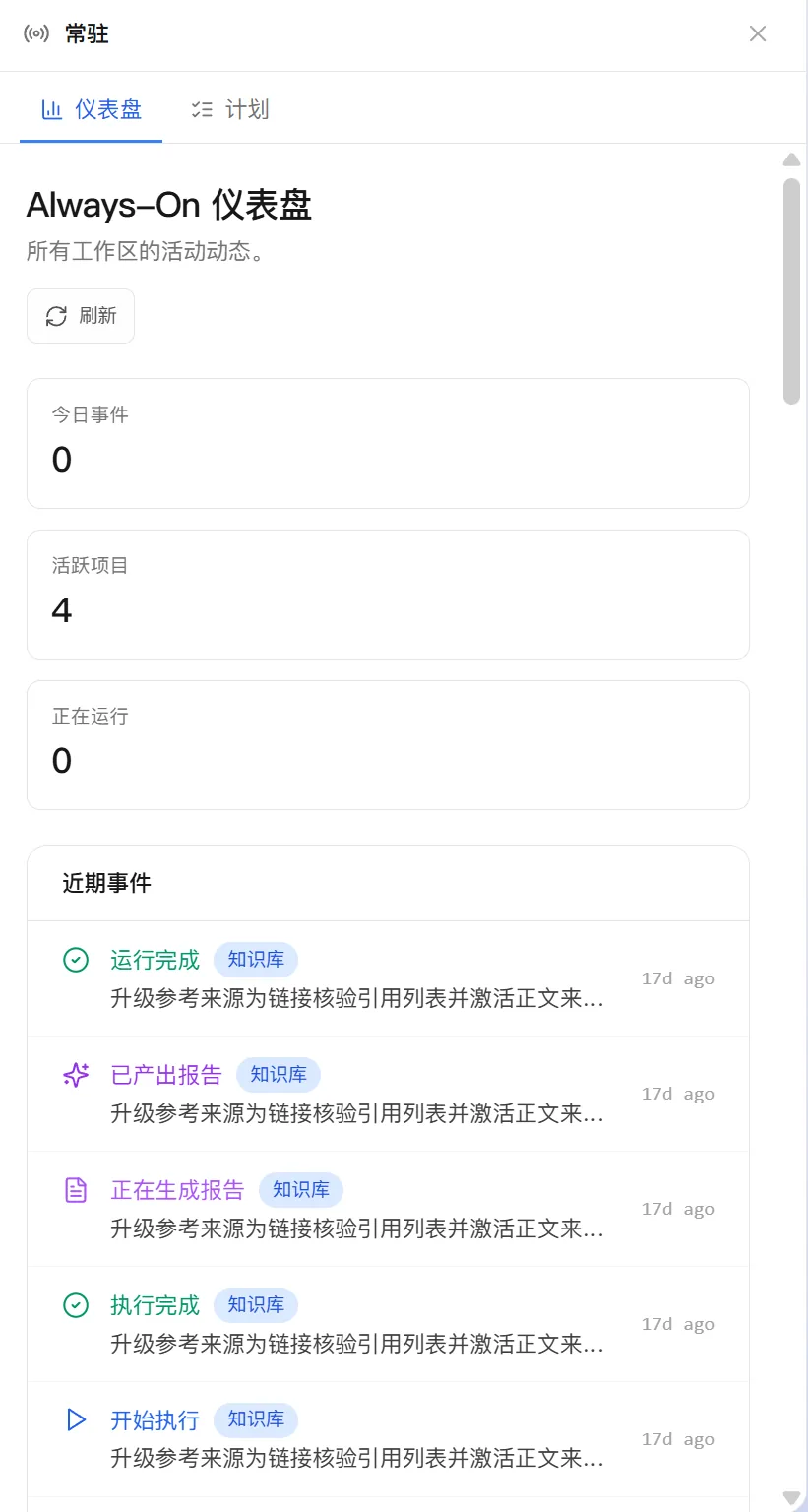
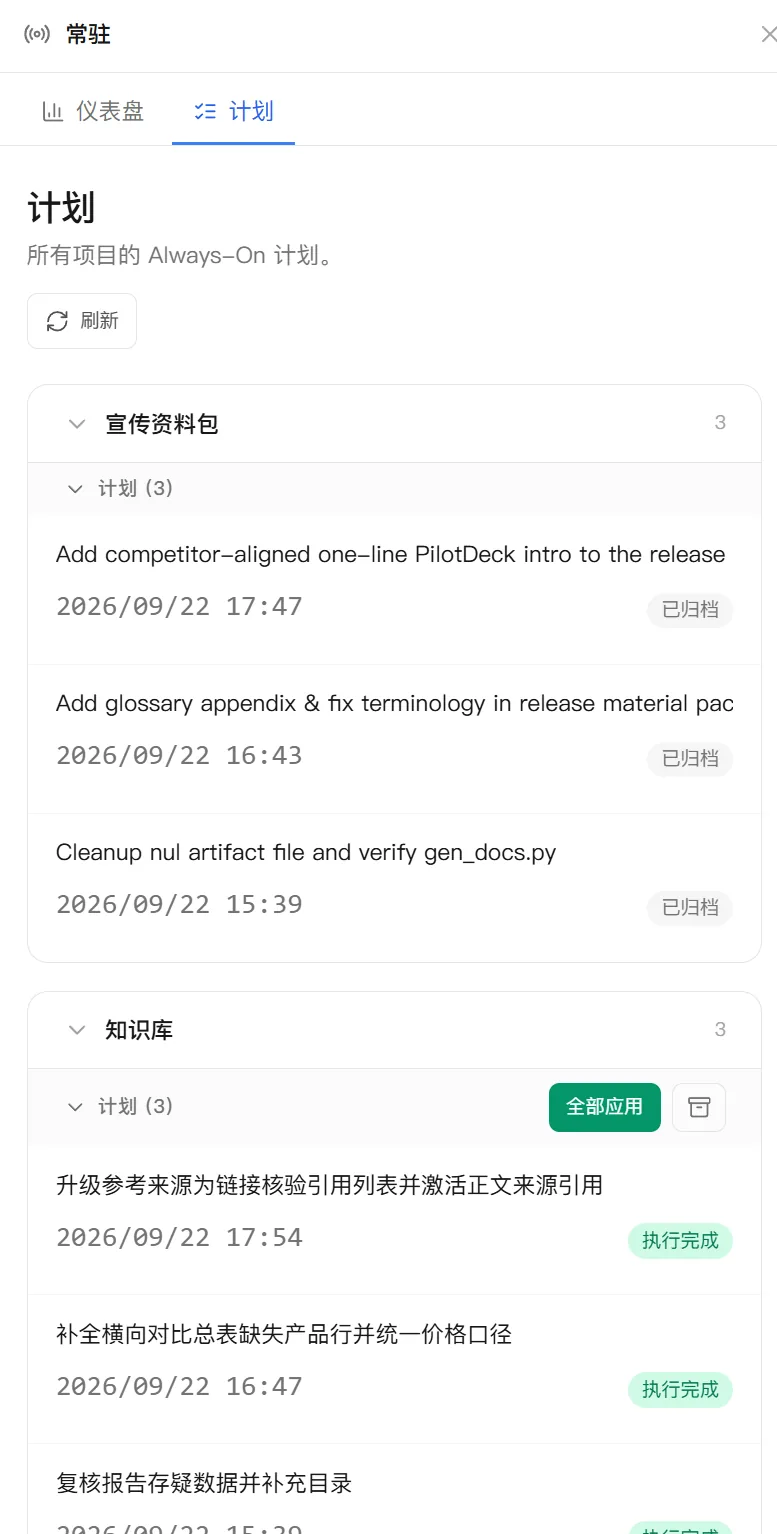
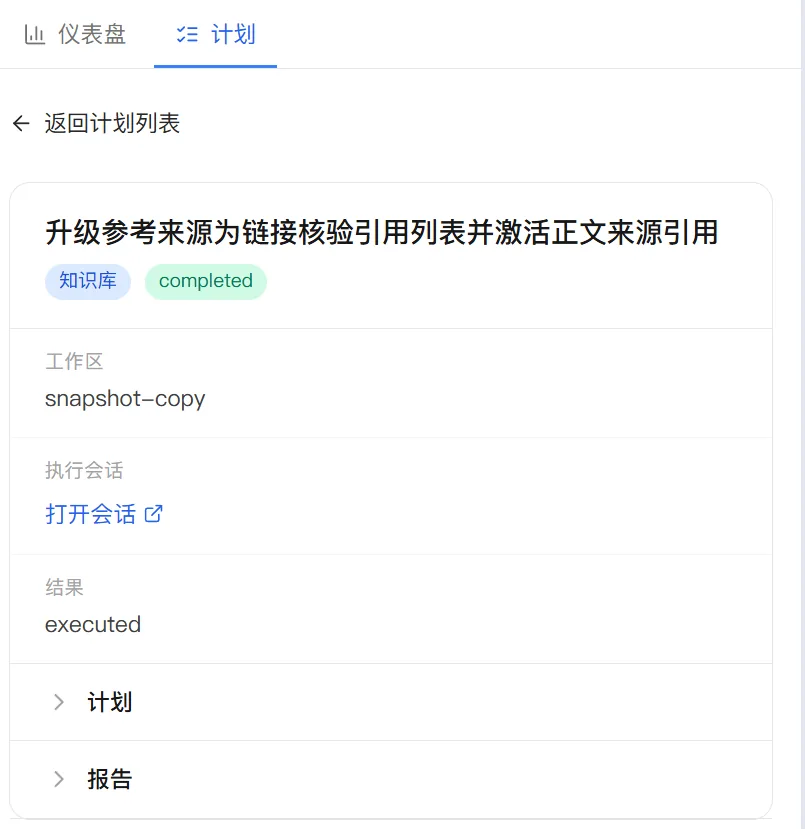
Click a specific task in the plan list to view the plan and report it produced, and to jump to the session page.
Applying or archiving results
Always-on tasks run in an isolated workspace by default. When the page shows "Execution complete", the changes have not yet entered the main workspace. Once you have confirmed that the results are correct, click "Apply all" on the corresponding work cycle on the "Plans" page to apply that cycle's changes to the main workspace. A work cycle may contain several plans, and "Apply all" handles the cycle's results as a whole.
If you do not want to keep this round of results, archive the corresponding work cycle. Failed plans can be re-run by clicking "Re-run", but re-running calls models and tools again, so check the cause of the failure first.
3. Memory
PilotDeck extracts information with long-term value from conversations and tasks, indexes it, and retrieves the relevant content when later tasks need it — for example your long-term preferences, project background, confirmed decisions and collaboration requirements. PilotDeck's memory is white-box: auditable and traceable.
Memory typically includes the following:
| Type | What is recorded | Example |
|---|---|---|
| Project memory | Project progress, key facts and current status | Delivered report versions, unresolved issues |
| General memory | Stable information that can be reused across projects | Commonly used document structures, habitual toolchains |
| Collaboration feedback | The user's preferences, constraints and acceptance rules for deliverables | Reports must cite data sources; terms are explained before being expanded on |
| User profile | The user's long-term identity, role and working habits | Responsible for documentation site content, prefers Chinese output |
Memory applies at different scopes:
- Project memory: Information relevant only to a specific project.
- General memory and user profile: Stable information that can be reused across multiple projects.
Enabling memory
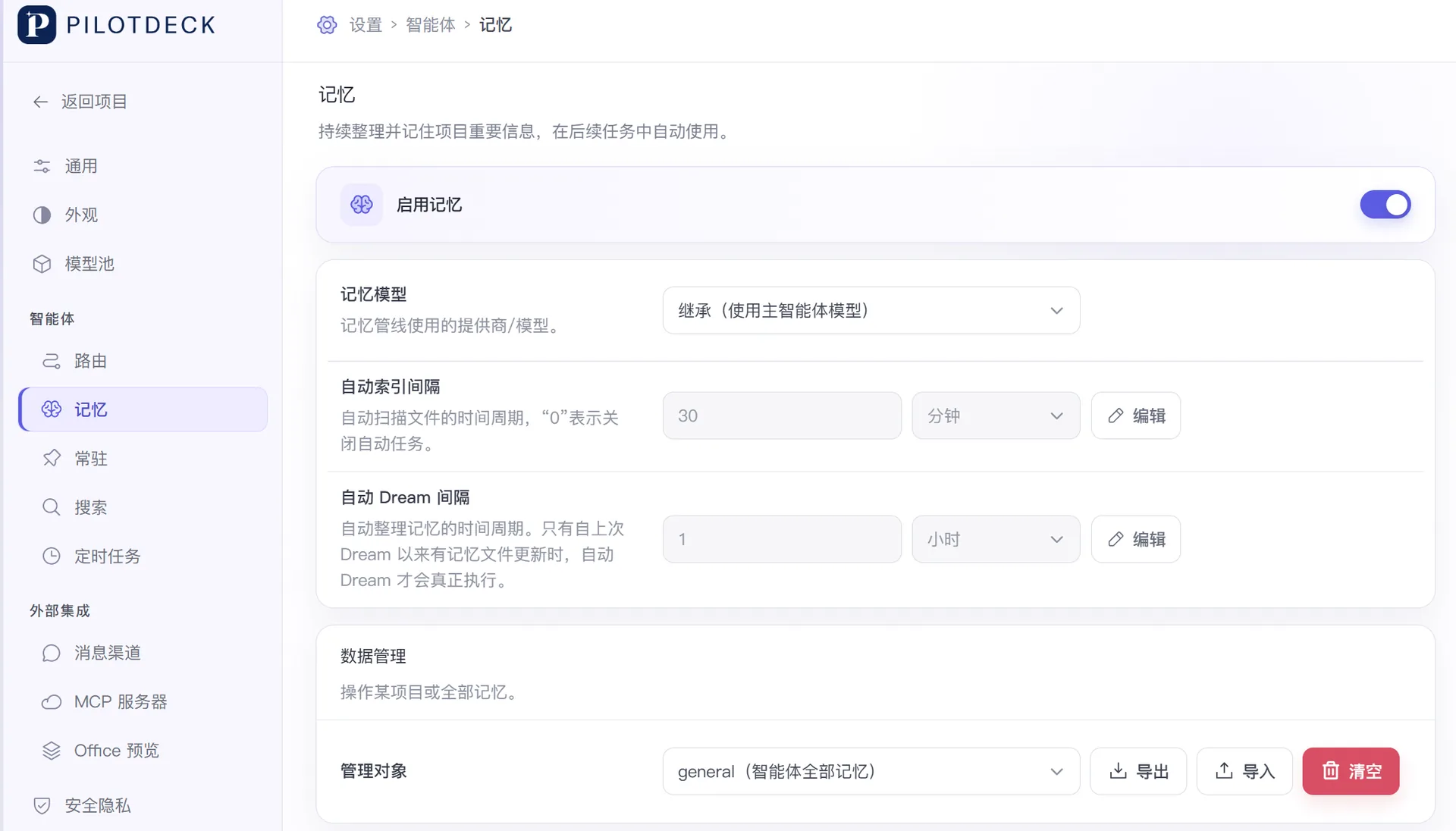
Before first use, go to "Settings → Agents → Memory":
- Turn on the "Enable memory" switch.
- Set the model used to process memory; by default it inherits the main agent's model.
- Set the intervals for automatic indexing and automatic Dream. Setting the automatic indexing or automatic Dream interval to
0turns the corresponding automatic task off.
Writing and recalling memory
Simply talking to PilotDeck creates memories. For content you want kept long term, we recommend clearly stating the fact, its scope and how it should be used. For example:
Please remember: in the "官网文档" project, every feature description is written for users trying PilotDeck for the first time.
When a technical term appears, explain in one sentence what it is before describing the steps.
Extracting and indexing memory may take some time. If a requirement must be followed in the current task, also write it into this prompt rather than relying on long-term memory alone.
When you start a new task in the same project, PilotDeck retrieves the relevant project memory and user information based on the current question. PilotDeck only recalls content it judges to be relevant to the current task, so the existence of a record in the memory store does not mean every task will use it.
Viewing memory and memory tracing
Select a project in the project list on the left (memory cannot be viewed for general conversations) and click "Explore → Memory" in the top-right corner; the memory panel opens on the right, where you can view project information, project memory and collaboration feedback.
- Project information: Project name, project summary, project status and project path.
- Project memory: Progress, facts and status records for the current project.
- Collaboration feedback: The user's preferences, constraints and delivery rules for the current project.
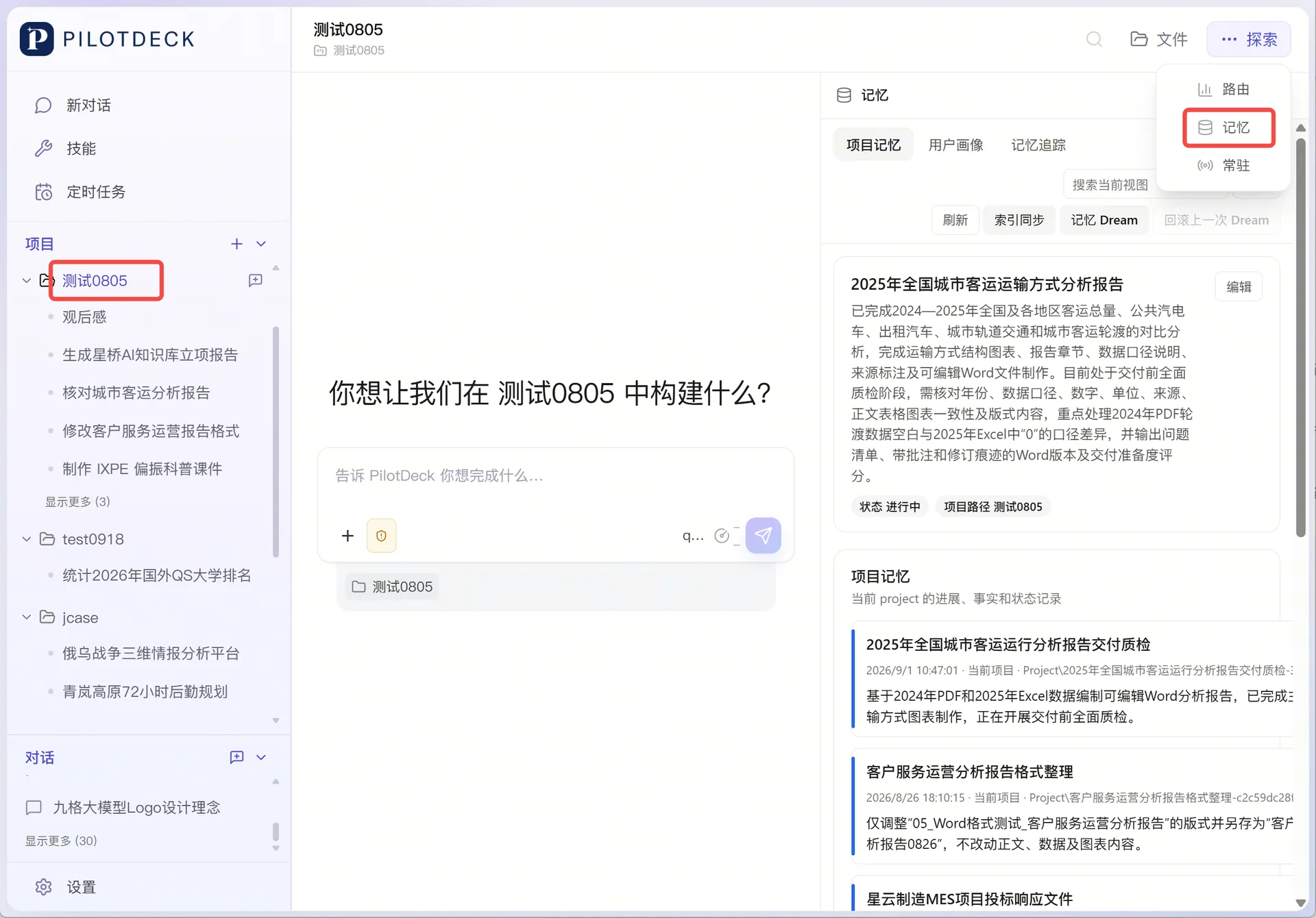
PilotDeck supports searching project memory — just enter keywords in the search box at the top. Click "Explore → Memory → Memory tracing" in the top-right corner to see how PilotDeck generates, uses and organizes memory, which makes memory auditable. When the agent's answer does not look right, memory tracing helps you locate the problem.
4. Smart routing
Smart routing picks a suitable model for each round of requests based on task complexity: simple tasks go to fast, low-cost models, while complex tasks can use more capable models, reducing unnecessary token consumption while keeping task quality. The key routing concepts are:
| Concept | Purpose |
|---|---|
| Judge model | Determines which task tier the current request belongs to; its main job is classification |
| Task tier | Describes tasks of different complexity |
| Default tier | The tier used when a task tier cannot be matched clearly |
| Tier model | The model that executes tasks in that tier |
| Sub-agent policy | Determines whether sub-agent tasks re-evaluate the task tier |
| Model pricing | Used to estimate the call cost of different models |
PilotDeck comes with four preset task tiers:
| Tier | Suitable tasks |
|---|---|
| Simple | Quick Q&A, confirmations, light rewriting and simple file operations |
| Medium | Single tool calls, short text generation, small file edits and routine code changes |
| Reasoning | Multi-file analysis, long context, data analysis, research and deep reasoning tasks |
| Complex | Work that needs to be broken down or handed to several sub-agents running in parallel |
Preparing models
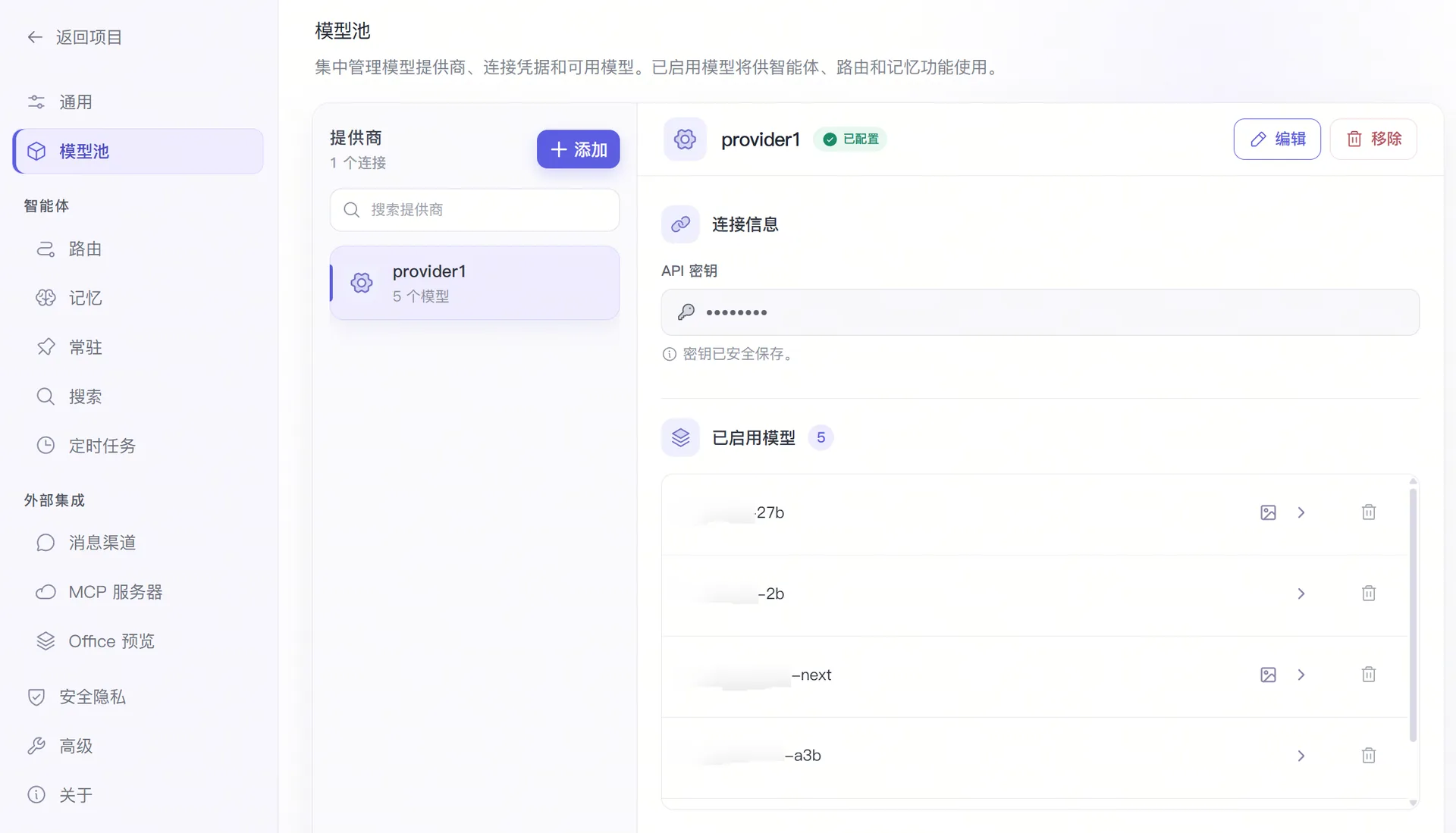
Under "Settings → Model Pool", add the models you want routing to use; we recommend preparing at least 2 models.
Turning on routing
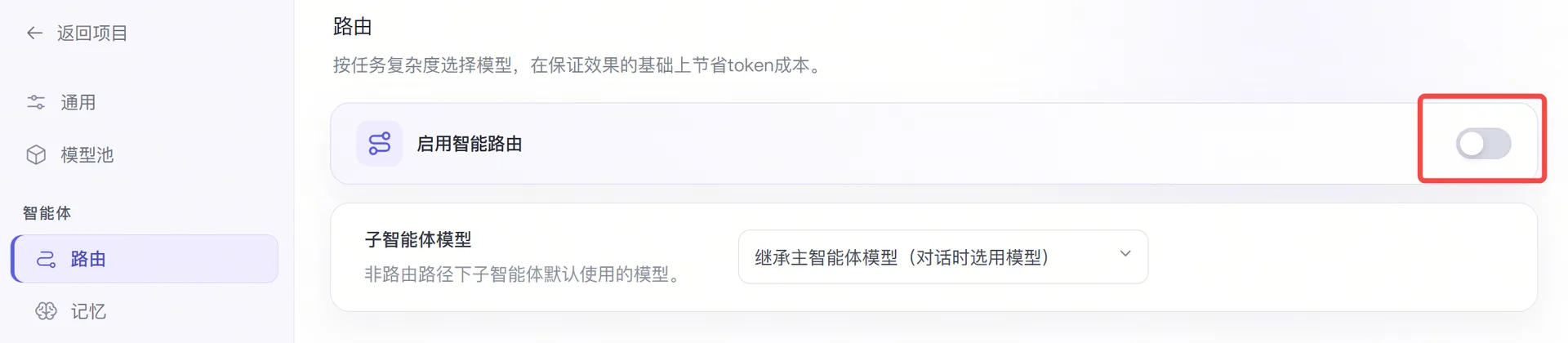
Go to "Settings → Agents → Routing" and turn on "Enable smart routing". When smart routing is off, the main agent directly uses the model selected for the current conversation, and sub-agents inherit the main agent's model by default but can be switched to other models.
Choosing a judge model
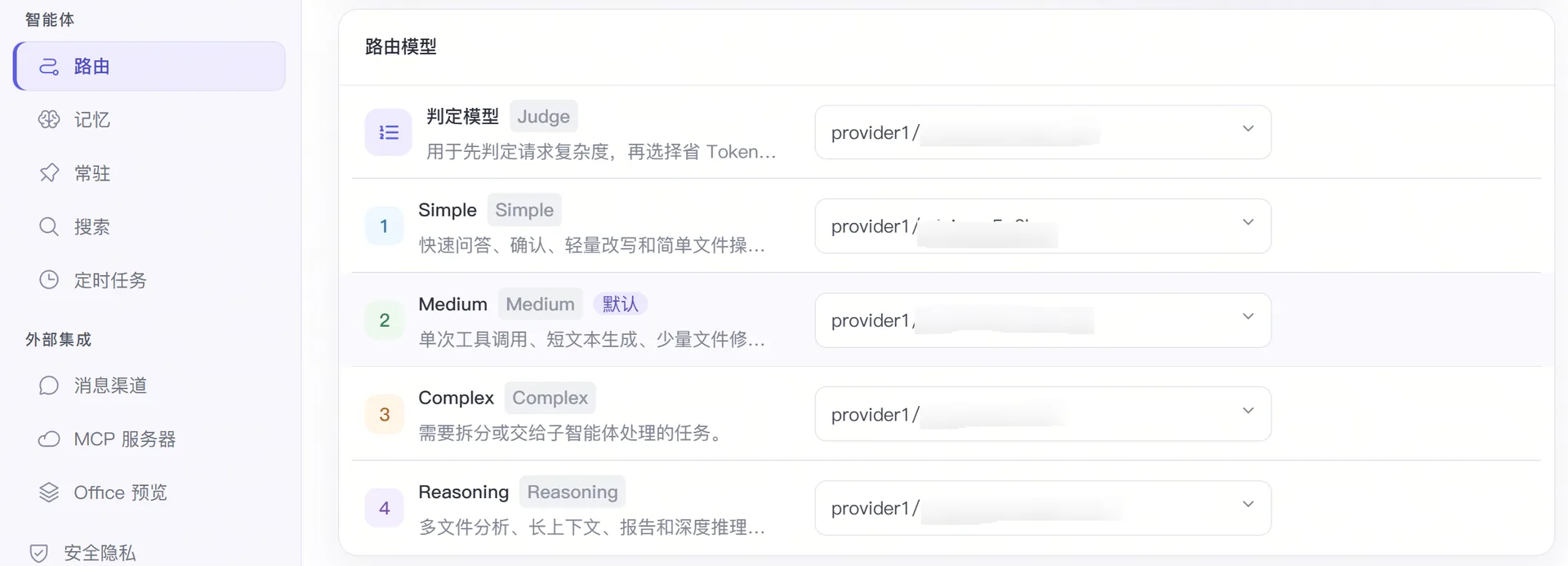
Under "Routing models", select a model for the "Judge model". The judge model needs to understand requests quickly and assess their complexity, so a fast, low-cost model with basic instruction-following ability is usually a good choice.
Assigning models to task tiers
Select an execution model for each of the 4 task tiers: Simple, Medium, Reasoning and Complex. When choosing models, confirm that they have the capabilities the task requires, such as image input, tool calling and a sufficient context length. Click "Set as default" next to a tier to use that tier when the task tier cannot be determined; setting Medium as the default tier usually strikes a good balance between cost and capability.
Starting a task
Once configured, switch the model in the bottom-right corner of the chat box to "Auto" to run tasks with the routing strategy.

Viewing routing results
Click "Explore → Routing" in the top-right corner to open the routing dashboard and review routing usage, mainly including:
| Metric | Meaning |
|---|---|
| Requests | The number of model requests handled by the router |
| Tokens | The input and output tokens produced by model calls |
| Cost | The call cost estimated from model pricing |
| Sessions | Main agent, sub-agent and model usage in each session |
| Recent calls | The time, project, provider, model and token count of recent requests |
The cost area also compares "actual spend" with "spend without the router". "Spend without the router" is an estimate assuming all routed tokens had gone to the main model. You can switch between "Project" and "Total" to view routing usage for a project or overall.
Advanced settings
Sub-agent policy: Most users can start as soon as the judge model and the per-tier models are configured. For further adjustments, expand "Advanced settings" under "Settings → Agents → Routing". PilotDeck supports two sub-agent policies:
judge: Every sub-agent task evaluates the task tier and selects the corresponding model.skip: Sub-agents no longer re-evaluate and always use the "sub-agent model", which must be set in this case.
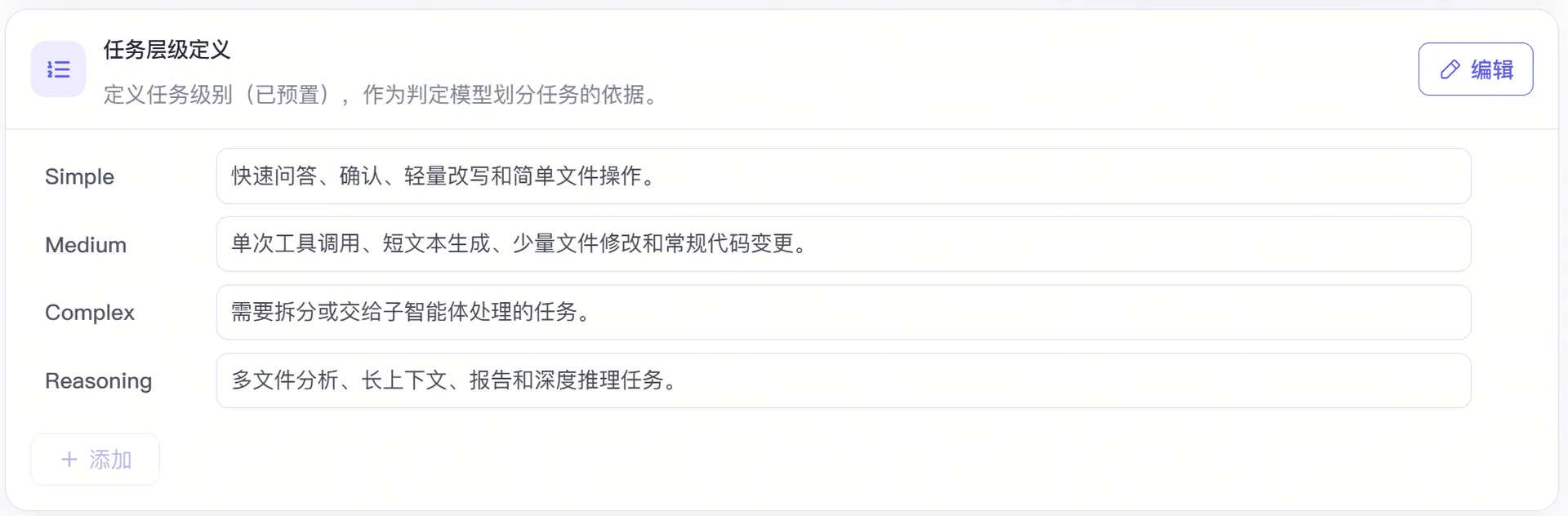
Task tier definitions: Click "Edit" next to the task tier definitions to change tier names and descriptions, or to add custom tiers. The tier description is an important basis for the judge model's classification, so it should clearly state which tasks the tier is suited to. After adding a task tier, configure the model used to execute it under "Routing models" above.
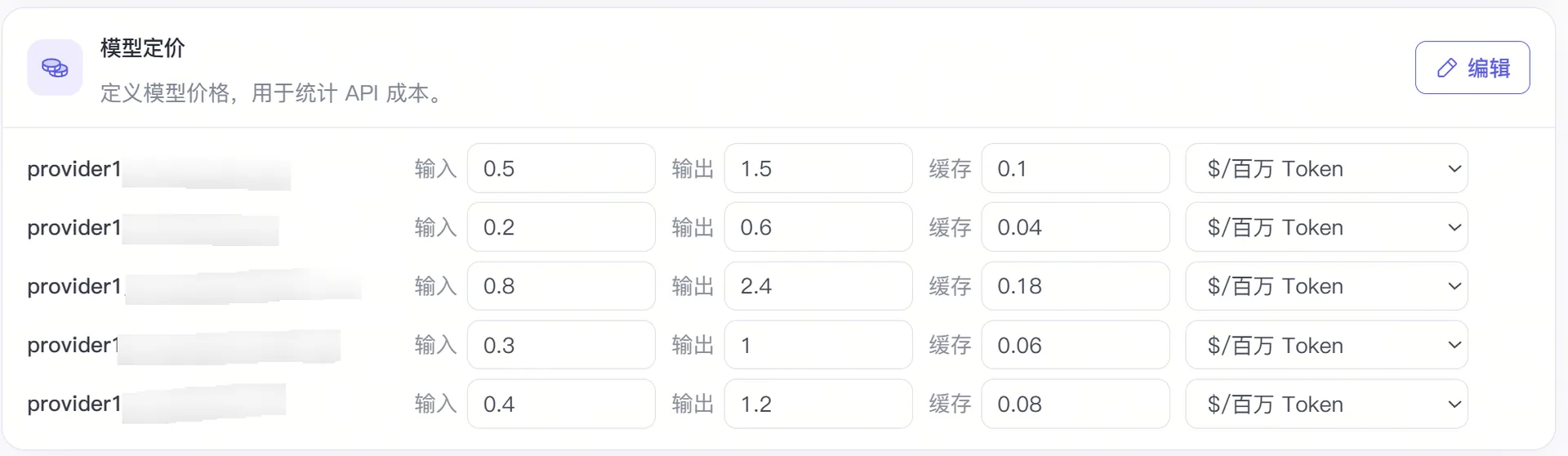
Model pricing: Model pricing is used to calculate the cost figures in the routing dashboard. You can set input, output and cache-read prices for each model and choose US dollars or Chinese yuan as the display unit.
5. Skills
Skills are PilotDeck's capability extension mechanism. A skill packages the methods, steps and caveats needed for a class of tasks into a reusable workflow, helping the agent complete tasks more accurately and consistently. Skills can:
- Make specialized tasks easier: Skills can give the agent domain-specific methods of working.
- Reduce repeated explanations: Frequently used formats, steps and acceptance rules can be put into a skill, so you do not have to restate the full requirements in every conversation when doing similar tasks later.
- Make results more consistent: Skills give the agent a clear execution order and checking standards, which reduces missed steps, inconsistent formatting and variation between tasks.
- Capture personal and project experience: Personal working habits can be saved as user skills and reused across workspaces, while terminology, conventions and processes specific to one project can be saved as project skills and used together with that workspace over time.
Using skills
- Automatic use: When a task clearly matches a skill's purpose, the agent can decide whether to use it based on the skill description. If the task is important, or you want the agent to follow a specific process strictly, we recommend selecting the skill manually and stating it explicitly in the prompt.
- Manual selection: Click the
+in the bottom-left corner of the input box, search for and select a skill suited to the current task, confirm that the skill tag has been added after selecting it, then describe the specific task and send.
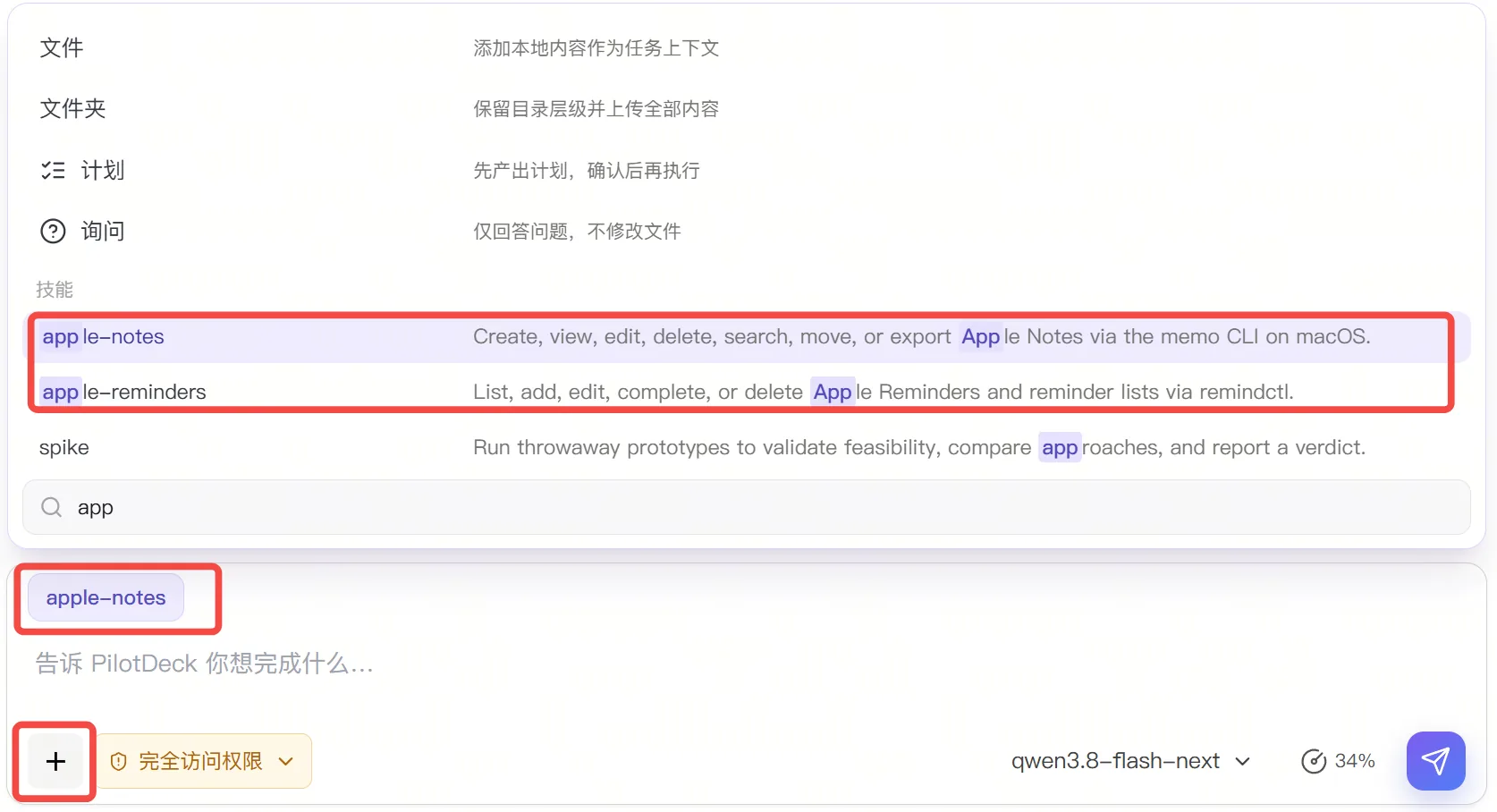
To confirm that a skill has taken effect: before sending, check that the selected skill appears in the input area; after sending, judge whether the skill's requirements were applied by looking at the execution process and the final deliverable.
Skill categories
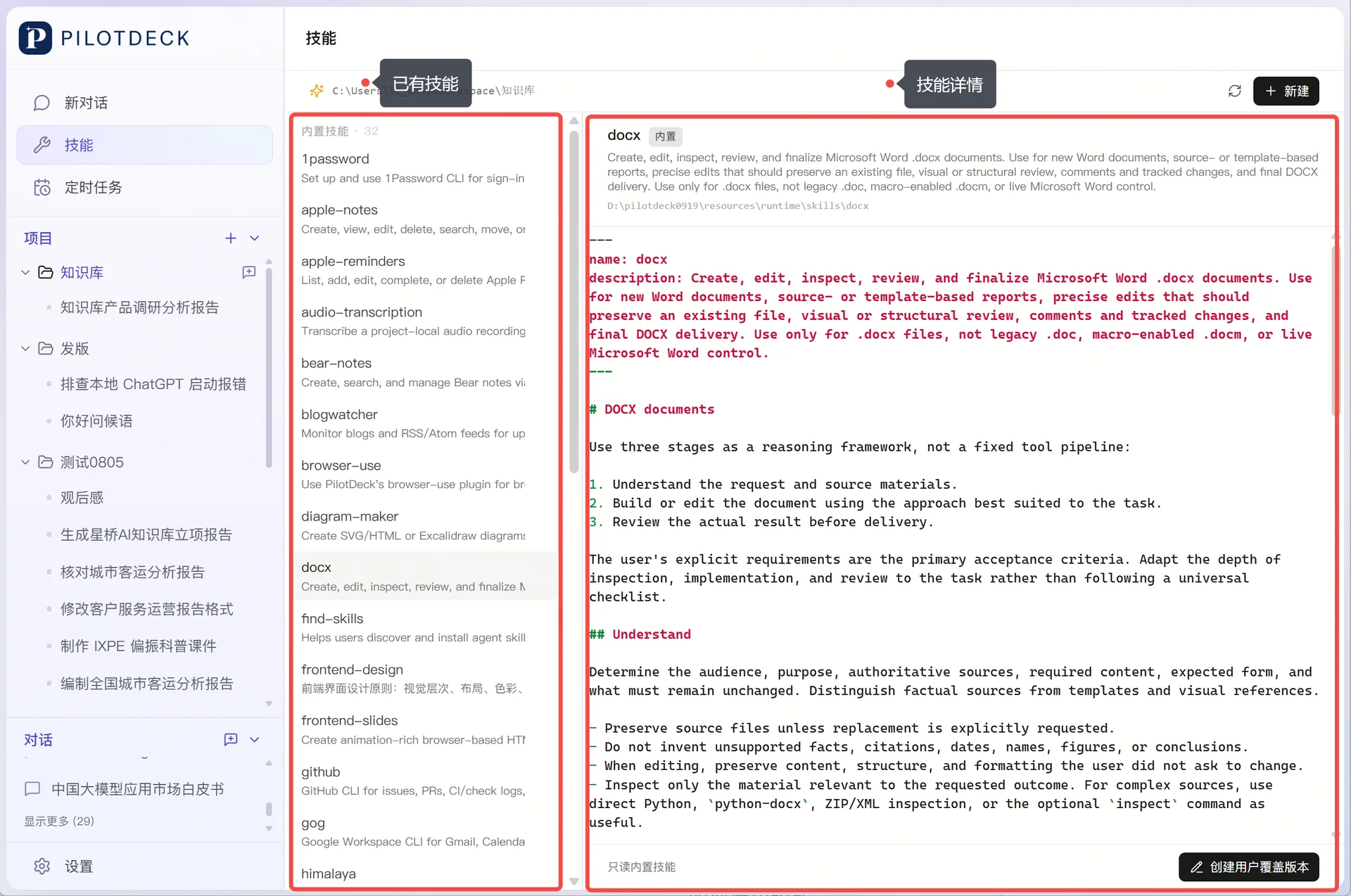
Click the "Skills" button in the left navigation bar to see the currently available skills. Select a skill to see which kinds of tasks it suits and the requirements it follows during execution. Skills in PilotDeck fall into 2 categories:
- User skills: Global skills that can be used across projects, such as common, general-purpose skills for documents and spreadsheets.
- Project skills: Skills used only in the current project, such as project terminology or writing conventions.
When a conversation is not tied to a specific project, only user skills are available; once you enter a project, that project's project skills are available as well. If two skills share the same name, the priority is: project skills → user skills.
Adding and editing skills
Click "Skills → New" to open the new skill page. PilotDeck offers three methods: install from ClawHub, import from a folder and write your own.

Selecting a skill on the skill management page shows its path and SKILL.md: to modify a built-in skill, first create a user override version and then edit the override; user skills and project skills can be edited and saved; skills can also be deleted and their scope (user or project) changed.
Deleting a skill removes the entire skill folder — double-check the contents before deleting.
6. Scheduled tasks
PilotDeck automatically wakes the agent at the time you set and runs a prompt you wrote in advance, which suits work with clear timing and fixed rules such as weekly reports, periodic checks and reminders at fixed times. Two creation methods are supported.
Creating from a conversation
In a conversation within the target project, clearly ask to "create a scheduled task" and state the task content, execution time, time zone, and whether it runs only once or repeats on a fixed schedule, then send the creation request. For example:
Create a recurring scheduled task for the current project, running every Friday at 18:00 (Asia/Shanghai). Read "进展记录.md" and "项目计划.md" in the current workspace, summarize the items completed this week, the risks and next week's plan, and save them to "周报/YYYY-MM-DD.md", using the date of the execution day as the file name. Do not modify the source files; if a file does not exist, explain why — do not make up data or create an empty report.
If you only need it to run once, change the timing requirement to a specific date, time and time zone and note "run only once"; if the conversation asks for more task details, provide them before continuing. After creation, open "Scheduled Tasks → Task list" to confirm the task appears, and check the workspace, prompt, execution rules and "Next run" time. The actual record in the task list is authoritative — receiving only a textual plan does not mean the task was created successfully.
Creating from the scheduled tasks page
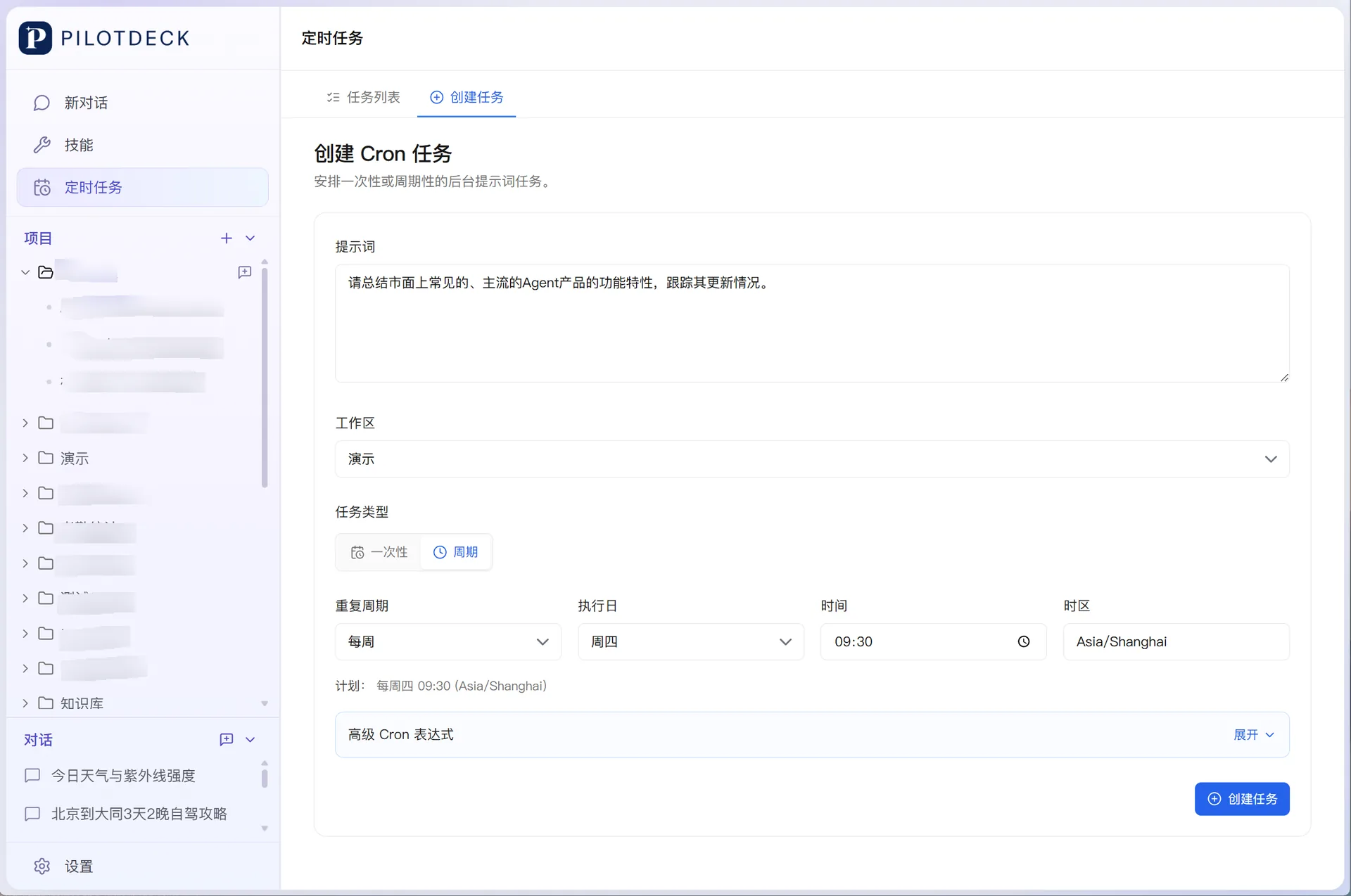
Go to the "Scheduled Tasks" page and switch to "Create task":
- In "Prompt", state the task goal, the scope to process, the output location and the completion criteria.
- In "Workspace", select the project (workspace) the task should use.
- Choose the task type. One-time task: triggers once on the specified date and time, which suits release checks, deadline reminders or appointment handling; once triggered and finished it is no longer kept as a pending task, and you need to set the execution date, execution time and time zone. Recurring task: triggers repeatedly according to the rules you set, and you need to set the repeat cycle, execution day, time and time zone, or use an advanced Cron expression.
- Click "Create task" and the task appears in the "Task list". Check that the "Next run" time matches your expectations.
Managing scheduled tasks
- Task list: Open "Scheduled Tasks → Task list" to view the tasks you have created by project. In the status column, "Scheduled" means the task is waiting to be triggered and "Running" means it is executing; you can run a task immediately, stop, edit or delete it.
- Viewing execution results: When the run time arrives, PilotDeck automatically opens a new conversation in the project and sends the task prompt; the agent executes the task and reports the results.
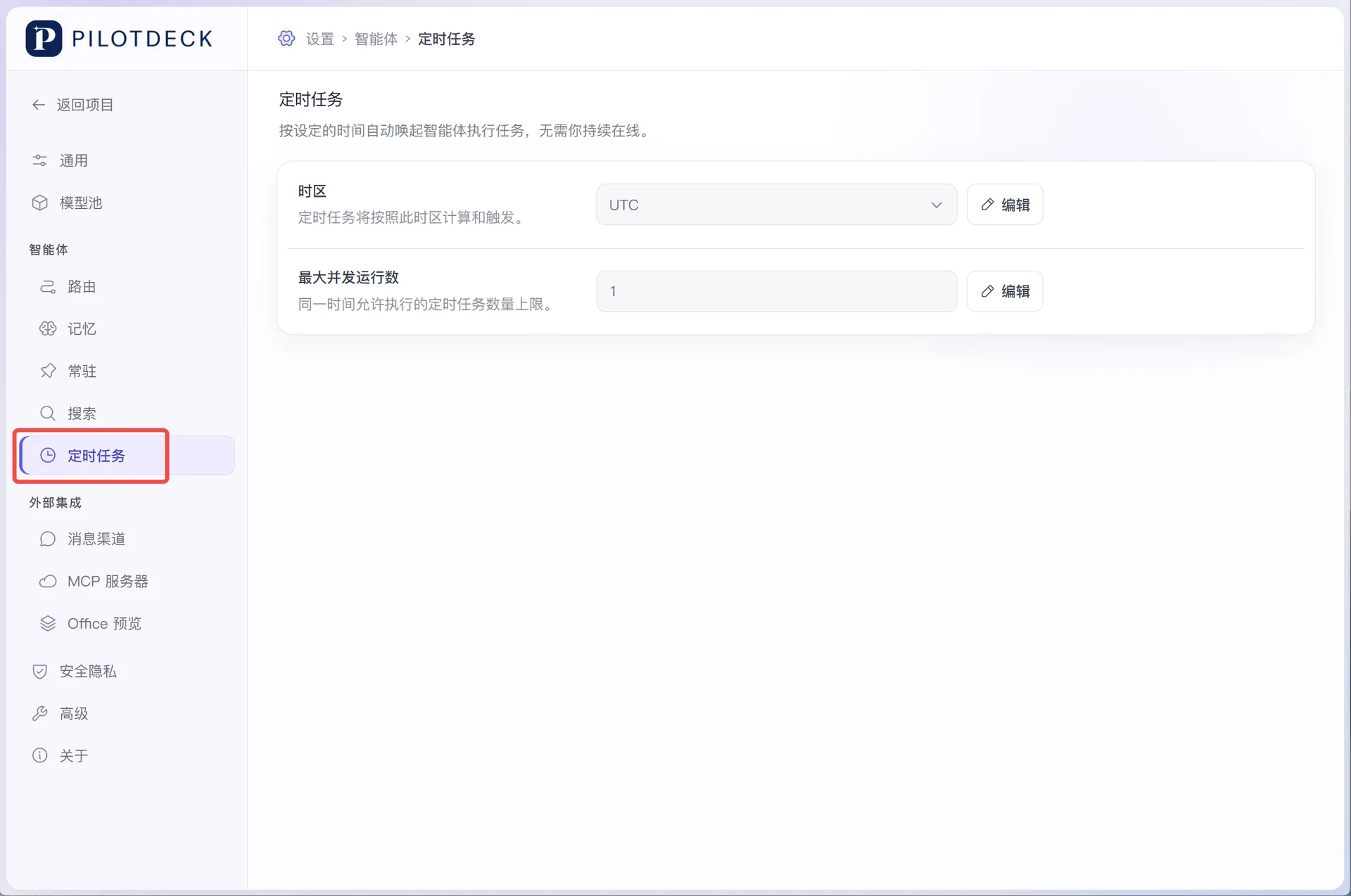
- Global settings: Go to the "Settings → Agents → Scheduled Tasks" page to set the time zone and the maximum number of concurrent runs.
How to write prompts for scheduled tasks
Scheduled tasks run in the background and cannot pause to ask you for missing information, so the prompt should be self-contained. We recommend stating the following clearly:
| Content | Example wording |
|---|---|
| Target objects | Read "进展记录.md" and "项目计划.md" in the current workspace |
| Time range | Only count content added or modified since the last weekly report |
| Specific actions | Extract completed items, risks and next week's plan |
| Output format | Use a Markdown table, sorted by priority |
| Output location | Save to "周报/YYYY-MM-DD.md" |
| Error handling | Explain why if a file does not exist; do not make up data or create an empty report |
| Modification boundaries | Do not modify the source files; only add the weekly report file |
A prompt suited to scheduled execution should avoid phrasing that depends on immediate context, such as "handle this for me" or "do it the way we did before". Rules, file names and save paths that need to be referenced should be written directly into the prompt.
Usage notes
Scheduled tasks depend on a running PilotDeck service. The computer or server running the service must stay powered on, with the network, model service and project directory accessible. Quitting the PilotDeck service, putting the computer to sleep or shutting it down, network outages, model unavailability and insufficient quota can all prevent a task from triggering or cause it to fail.
Scheduled tasks cannot wake a computer that is already shut down or asleep.
If a task does not run on time, check the following in order:
- Whether the task is still in the list and whether its status and "Next run" look normal;
- Whether other tasks are occupying all of the concurrent run slots;
- Whether the task's time zone is correct;
- Whether the PilotDeck service and the computer or server running it have stayed online;
- Whether the model, network and the selected workspace are accessible.
7. Message channels
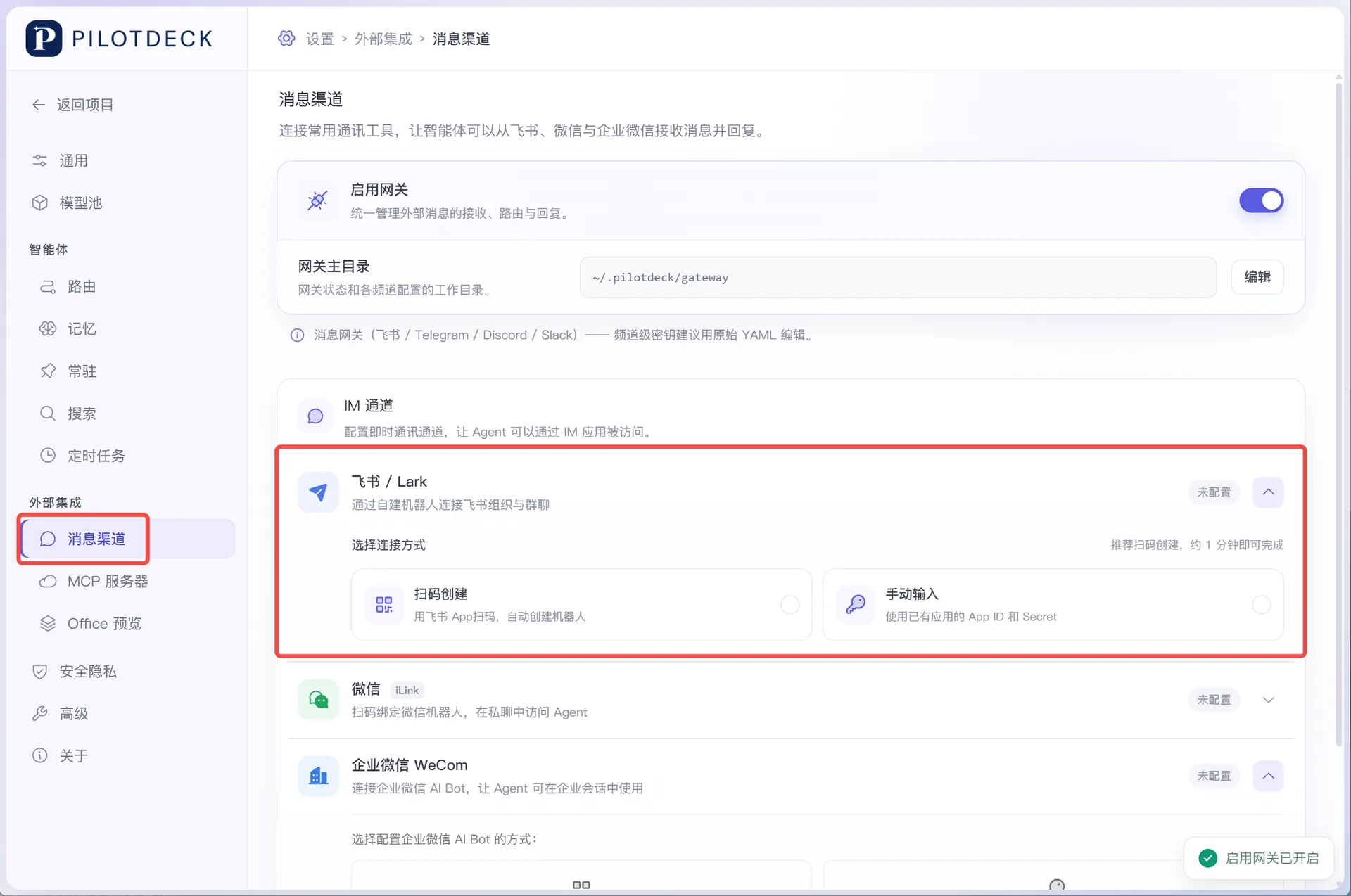
PilotDeck lets you remotely control PilotDeck on your computer from instant-messaging apps on your phone (Feishu / Lark, WeChat, WeCom) to run tasks. Go to "Settings → External Integrations → Message Channels", turn on "Enable gateway", then follow the guidance to scan a QR code or enter app credentials to connect the corresponding channel. Message channels only provide a new interaction entry point; tasks are still executed by the computer or server running PilotDeck, and the models and skills come from that runtime environment's configuration.
Before you connect
Before configuring message channels, make sure that:
- The PilotDeck service is running normally, model configuration is complete, and ordinary conversations reply as expected;
- You have permission to create, install or use agents in the corresponding messaging app.
The message gateway handles receiving, routing and replying to external messages. Most users do not need to change the "gateway home directory" and can keep the default value.
Sending messages through Feishu / Lark
PilotDeck supports two ways of connecting to Feishu: creating an app by QR code and connecting an existing app.
Create by QR code: Go to "Settings → External Integrations → Message Channels", click "Feishu / Lark" and choose "Create by QR code". Set the domain to feishu.cn or larksuite.com depending on the messaging app you actually use, and click "Generate QR code". Scan the QR code with the corresponding Feishu or Lark app and complete the authorization as prompted. Return to PilotDeck and wait for the page to show "App created successfully — configuration saved and enabled", and confirm that the Feishu channel status shows as "Enabled". If your organization restricts members from creating or installing apps, an administrator needs to approve it, or you need to use an app that has already been created.
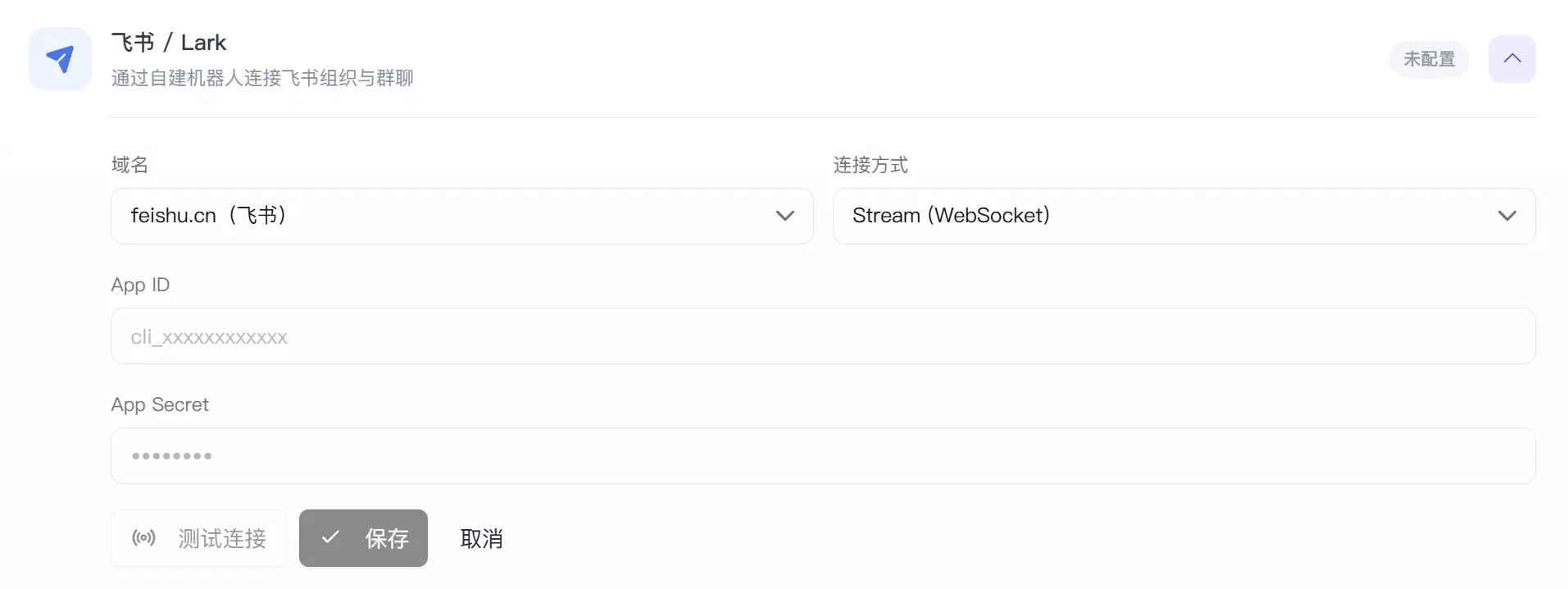
Connect an existing app: Go to "Settings → External Integrations → Message Channels", click "Feishu / Lark", choose "Manual input" and fill in the domain, connection method, App ID, App Secret and other details in turn.
| Connection method | Description |
|---|---|
| Stream (WebSocket) | PilotDeck establishes a long-lived connection itself, with no public callback address required; suits desktop and ordinary server deployments |
| Webhook | Feishu sends events to a callback address, so Feishu must be able to reach PilotDeck's public service |
In most cases Stream (WebSocket) is recommended; only choose Webhook if you already have a public callback service ready. Once the fields are filled in, click "Test connection" to check that the app works, then click "Save".
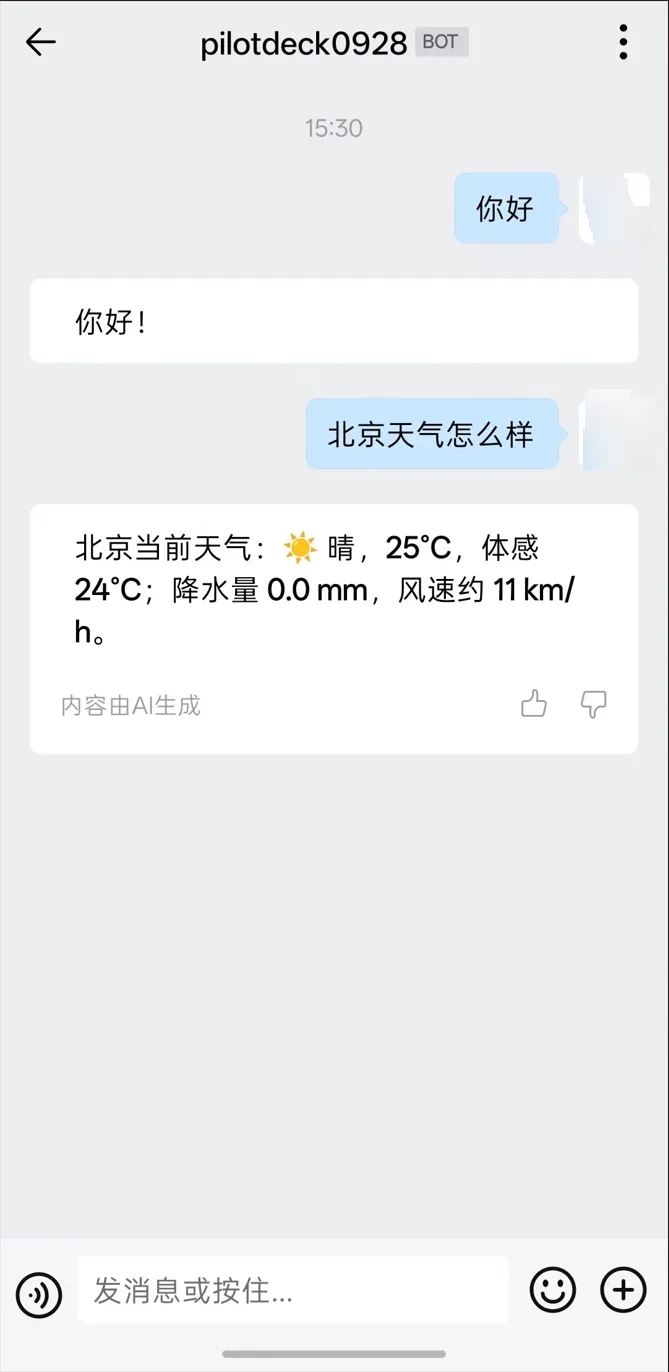
Sending messages in Feishu: Find the bot you just created or connected in Feishu and simply send messages in natural language.

Sending messages through WeChat
Go to "Settings → External Integrations → Message Channels", click "WeChat" and click "Log in by QR code". Scan the QR code with WeChat and confirm the login on your phone. Return to PilotDeck and wait for the page to show "Login successful — credentials saved", and confirm that the WeChat channel status shows as "Enabled" or "Connected".

Open the private chat with the bot you bound by scanning the QR code in WeChat and simply send messages in natural language.
Sending messages through WeCom
PilotDeck supports two ways of connecting to WeCom: configuring by QR code and connecting an existing app.
Configure by QR code: Go to "Settings → External Integrations → Message Channels", click "WeCom", choose "Configure by QR code" and click "Generate WeCom QR code". Scan the QR code with WeCom and complete the authorization as prompted. Return to PilotDeck and wait for the page to show "WeCom configured successfully — bot credentials saved and enabled".
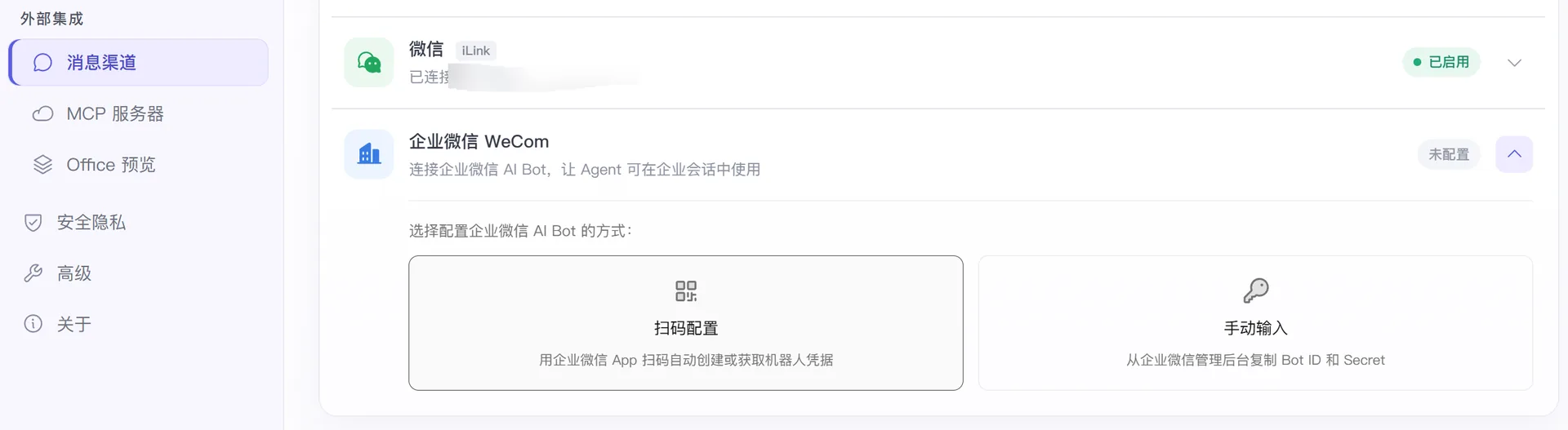
After QR-code configuration is complete, private chats are allowed by default and group chats are disabled by default. If you need to use it in group chats, click "Manual input" to change this. Once configuration is completed by QR code, Bot ID, Secret and WebSocket URL can be left empty; fill in the allowlist of permitted users or group chats as needed. If your organization restricts members from creating or installing apps, an administrator needs to approve it, or you need to use an app that has already been created.
Connect an existing app: Go to "Settings → External Integrations → Message Channels", click "WeCom", choose "Manual input" and fill in the Bot ID, Secret, WebSocket URL (usually keep the default value), private-chat policy and group-chat policy in turn. For enterprise projects, we recommend using allowlists to control access: enter WeCom user IDs in the private-chat allowlist and group chat IDs in the group-chat allowlist, separating multiple values with commas.
Sending messages in WeCom: Find the bot you just created or connected in WeCom and simply send messages in natural language.
Related Resources
| Topic | Link |
|---|---|
| PilotDeck deployment | Deployment guide |
| PilotDeck configuration | Model, routing, MCP and message channel configuration |
| Case gallery | PilotDeck case gallery |
| Tutorial video | Bilibili tutorials |