PilotDeck
Open-source agent workspace
Configure models, agents (routing / memory / always-on / search / scheduled tasks), MCP tools and message channels for your project. Enable features as needed so that PilotDeck works the way your project requires.
The entry points for configuring the Model Pool, Agents (routing / memory / always-on / search / scheduled tasks), MCP and IM channels are all under [Settings].
1. Configure an LLM provider
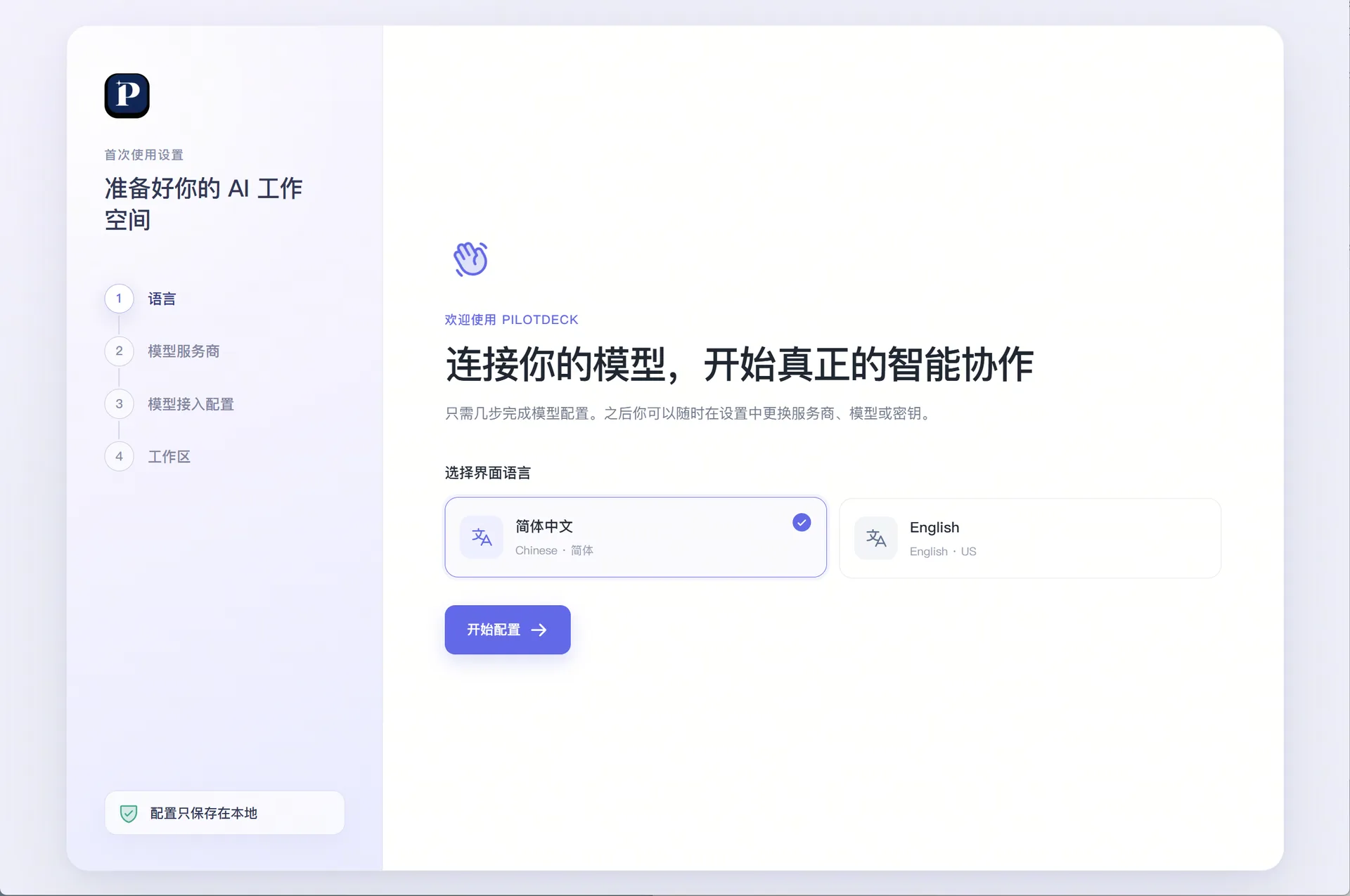
The first time you open PilotDeck, choose the interface language and the model provider, then fill in the model connection details.
1. Set the interface language
Both Chinese and English are supported.
2. Choose a provider
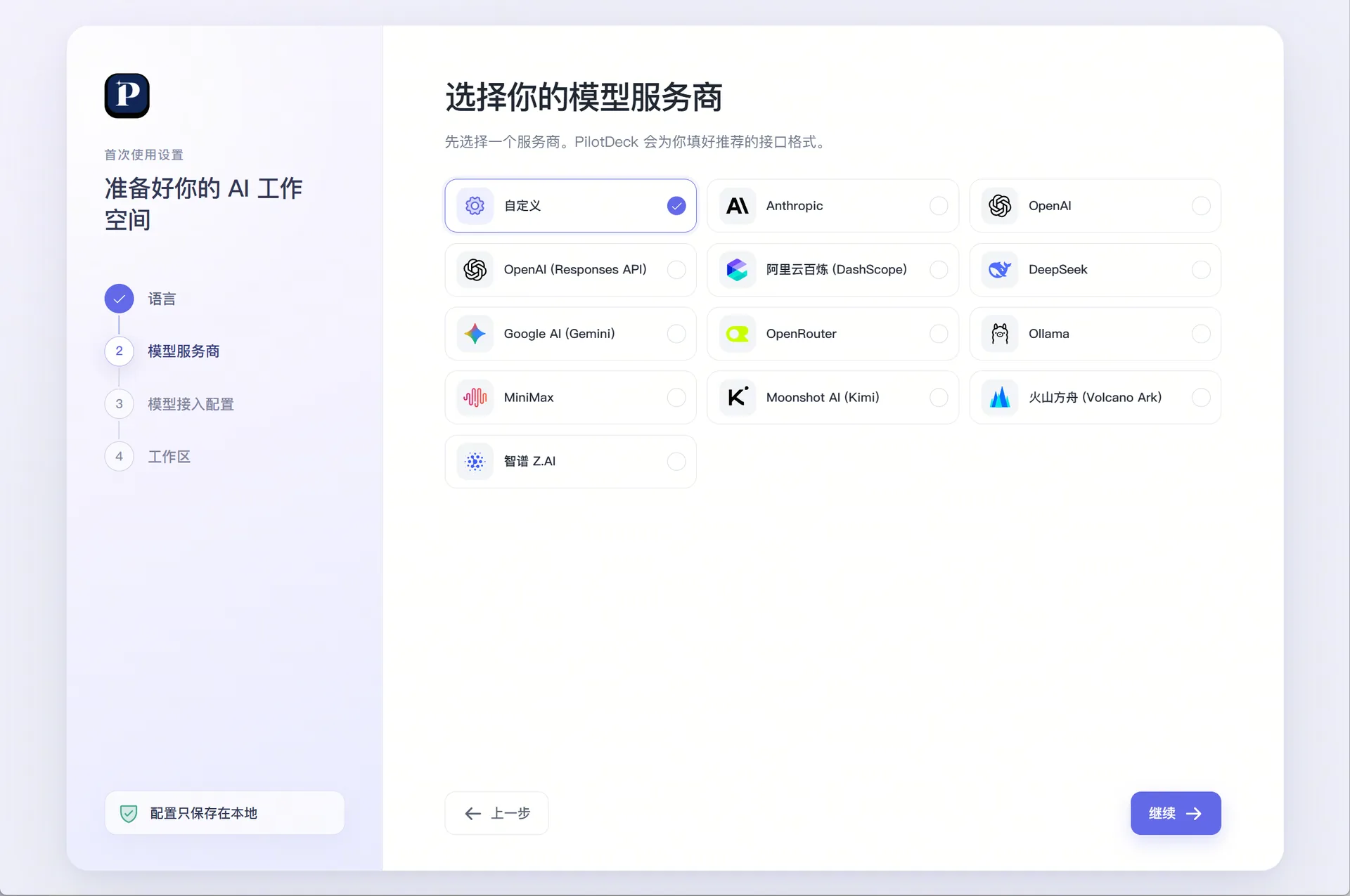
Connection details for common model providers on the market are preset, and you can also define a custom provider by entering the protocol and API endpoint manually.
3. Fill in the model details
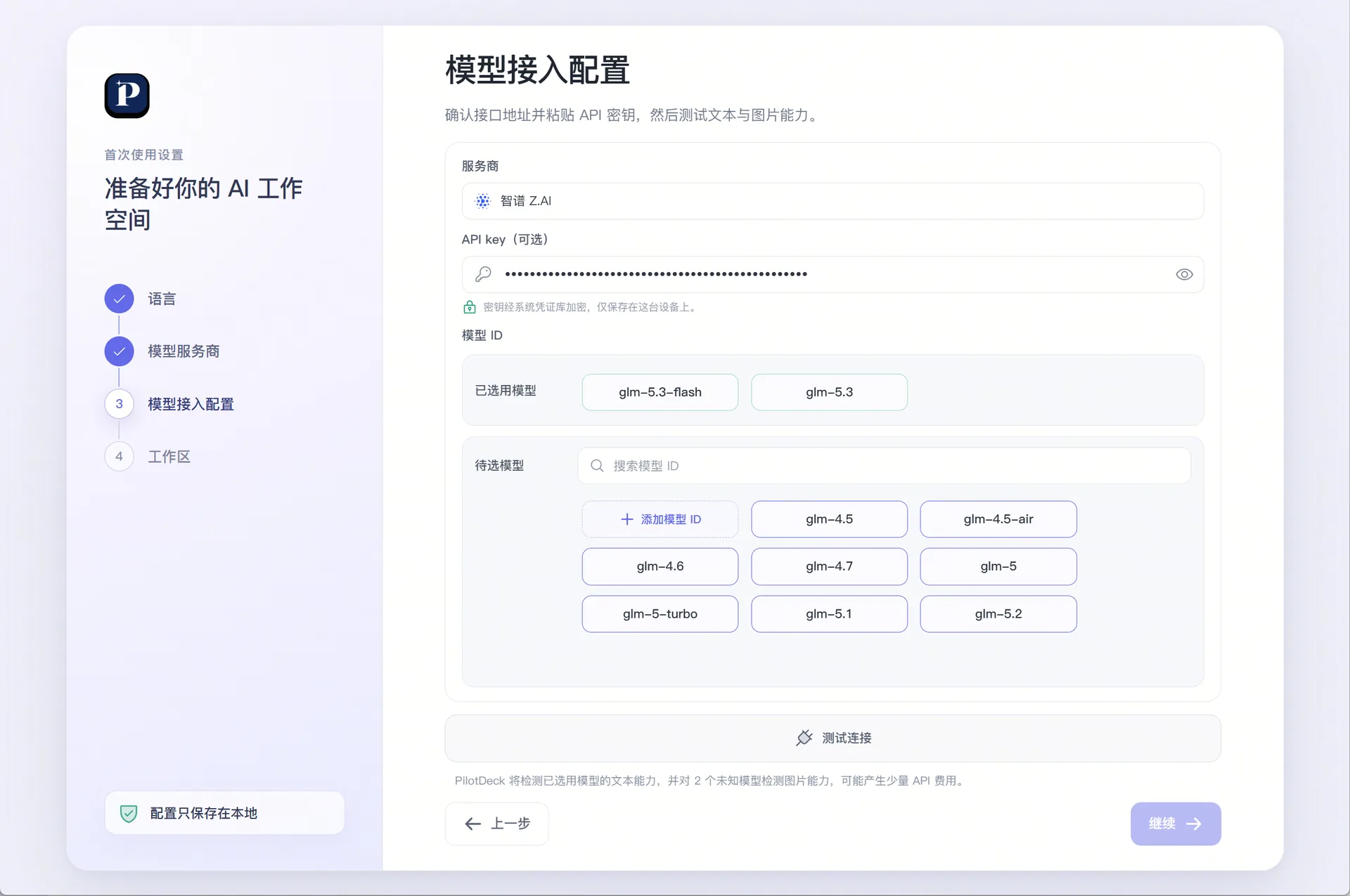
- Preset models: Enter the API Key and PilotDeck automatically retrieves the provider's model list and shows it under the candidate models; select at least one usable model ID.
- Custom models: Enter the provider ID, API endpoint and API Key, and PilotDeck automatically retrieves the provider's model list and shows it under the candidate models; select at least one usable model ID.
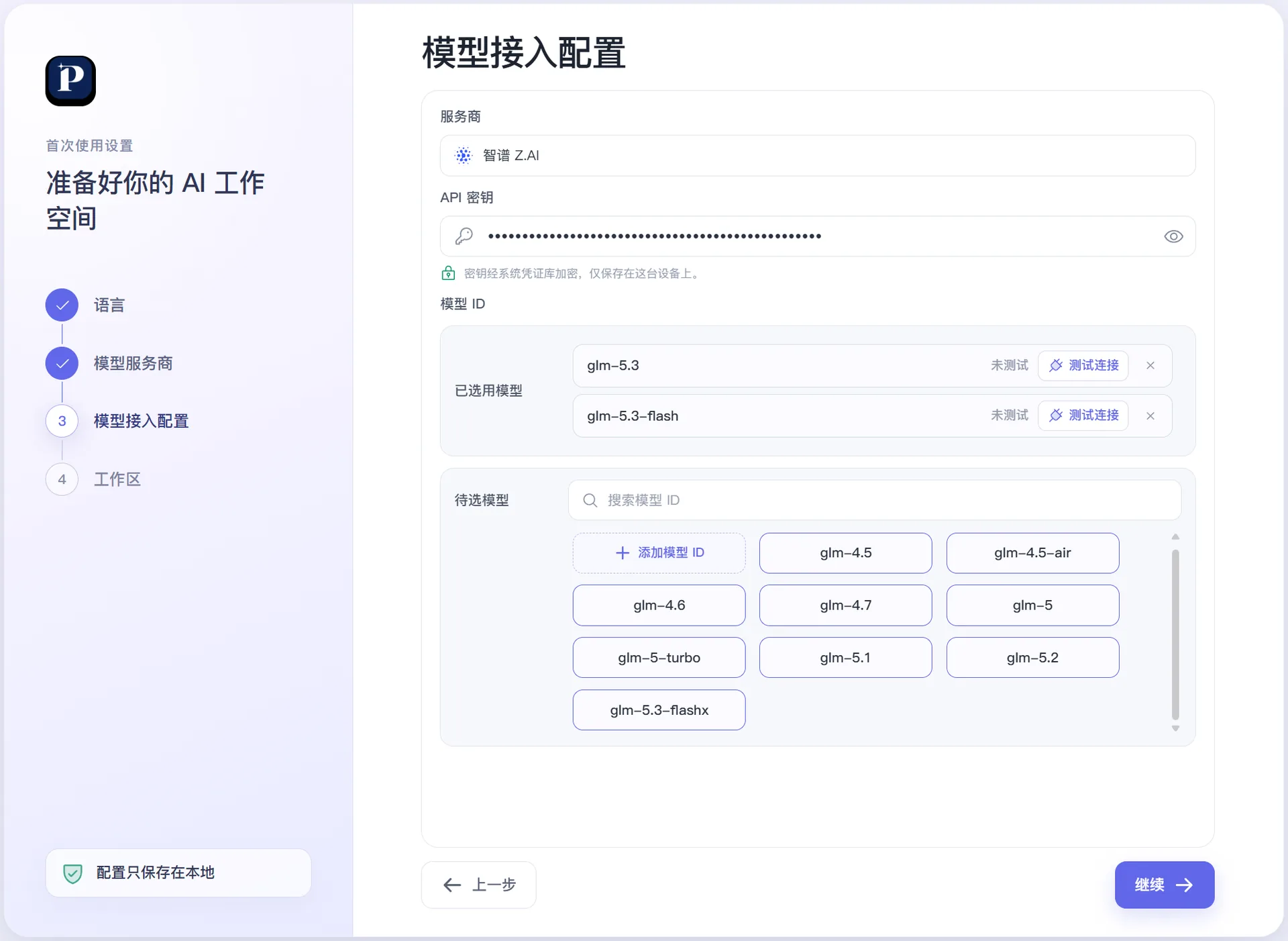
4. Test model availability
Click "Test connection" and PilotDeck sends a short piece of text and a small image to the server to check whether the model connects successfully and whether it supports image input (if this information cannot be detected, mark it manually). Testing model availability is optional — you can go straight to the next step.
Testing may invoke the model and incur a small charge.
5. Create your first workspace
The workspace stores PilotDeck's inputs and output deliverables, and shares its name with the project. You can choose an "existing folder" or a "new folder", and you can also create a project by cloning a GitHub environment by filling in the GitHub URL field.
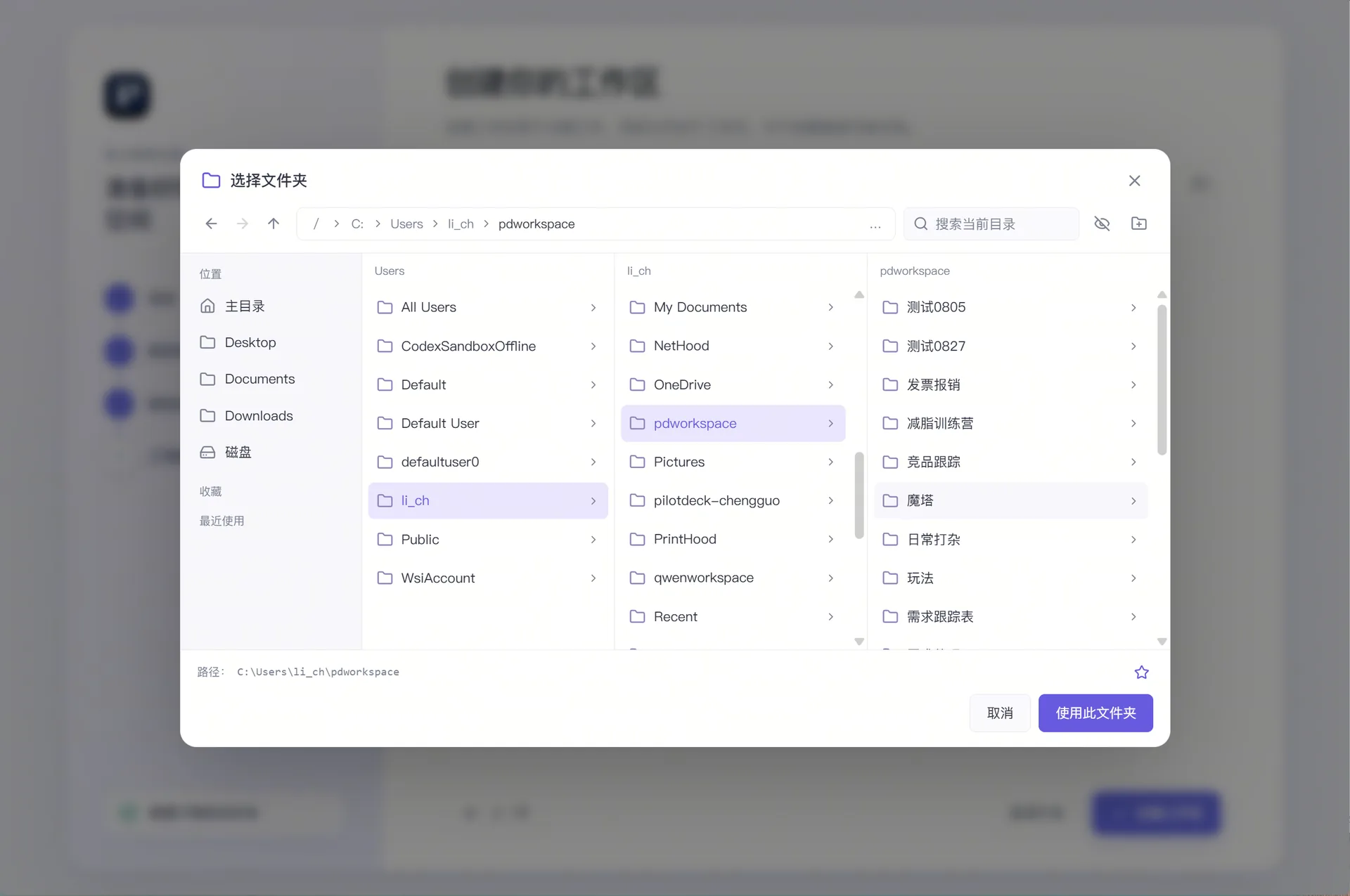
PilotDeck also lets you start chatting without creating a project; those conversations are saved in the default workspace. For your first file-based task we recommend explicitly creating a workspace so that it is easy to check where files are saved.
6. Get to know the workbench
| Area | Description |
|---|---|
| Chat area | Describe the task in natural language and click send, and the agent executes it automatically; you can adjust operation permissions (Default permissions / Full access) and switch the model used in the conversation |
| Project management area | The project management area is on the left, where you can switch between tasks and check how they are running |
| Files | After selecting a project, click "Files" in the top-right corner to see the list of files in that project's workspace and preview their contents |
| Search | Supports searching conversation content |

2. Configure routing (main agent and sub-agents)
Configure smart routing under "Settings → Agents → Routing".
1. Prepare the models
Under "Settings → Model Pool", add the models you want routing to use; we recommend preparing at least 2 models.
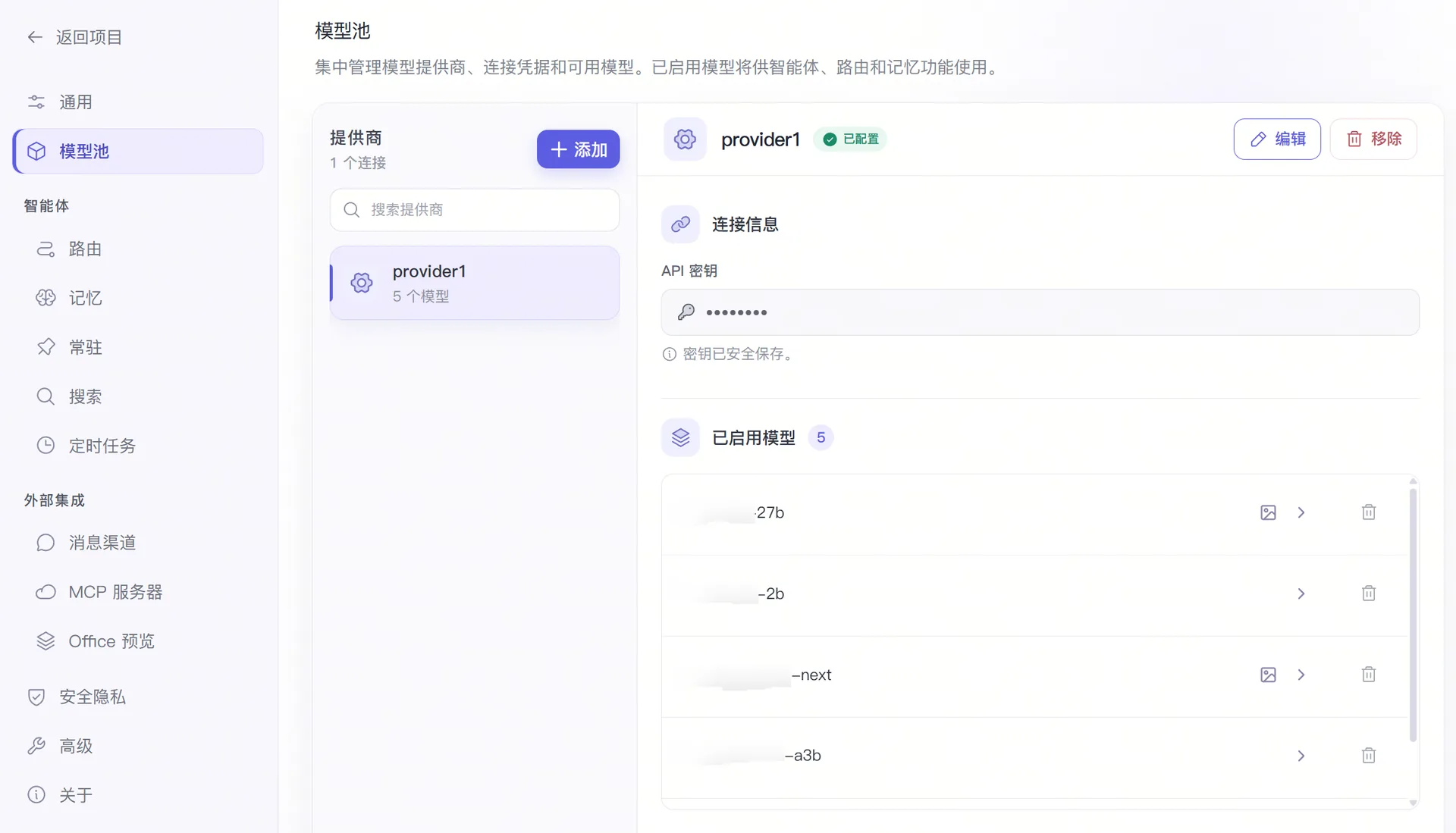
2. Turn on routing
Go to "Settings → Agents → Routing" and turn on "Enable smart routing".
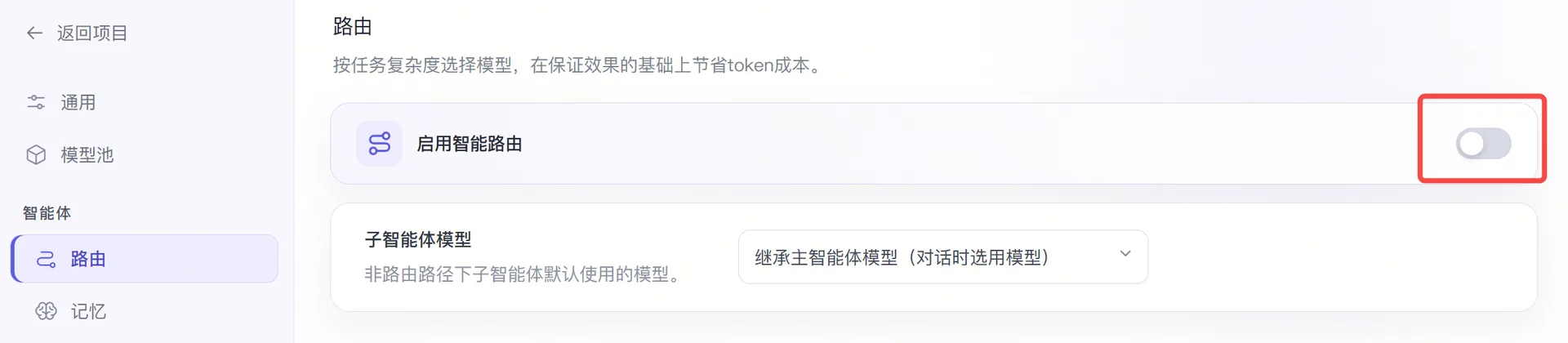
When smart routing is off, the main agent directly uses the model selected for the current conversation, and sub-agents inherit the main agent's model by default but can be switched to other models.
3. Choose a judge model
Under "Routing models", select a model for the "Judge model". The judge model needs to understand requests quickly and assess their complexity, so a fast, low-cost model with basic instruction-following ability is usually a good choice.
4. Assign models to task tiers
Select an execution model for each of the 4 task tiers: Simple, Medium, Reasoning and Complex. You can use the following guidance:
| Task tier | Selection guidance |
|---|---|
| Simple | Prefer fast, low-cost models |
| Medium | Choose a model with reliable tool calling and general content generation |
| Reasoning | Choose a model that is strong at long context, analysis and reasoning |
| Complex | Choose a model suited to task planning and sub-agent collaboration |
When choosing models, confirm that they have the capabilities the task requires, such as image input, tool calling and a sufficient context length.
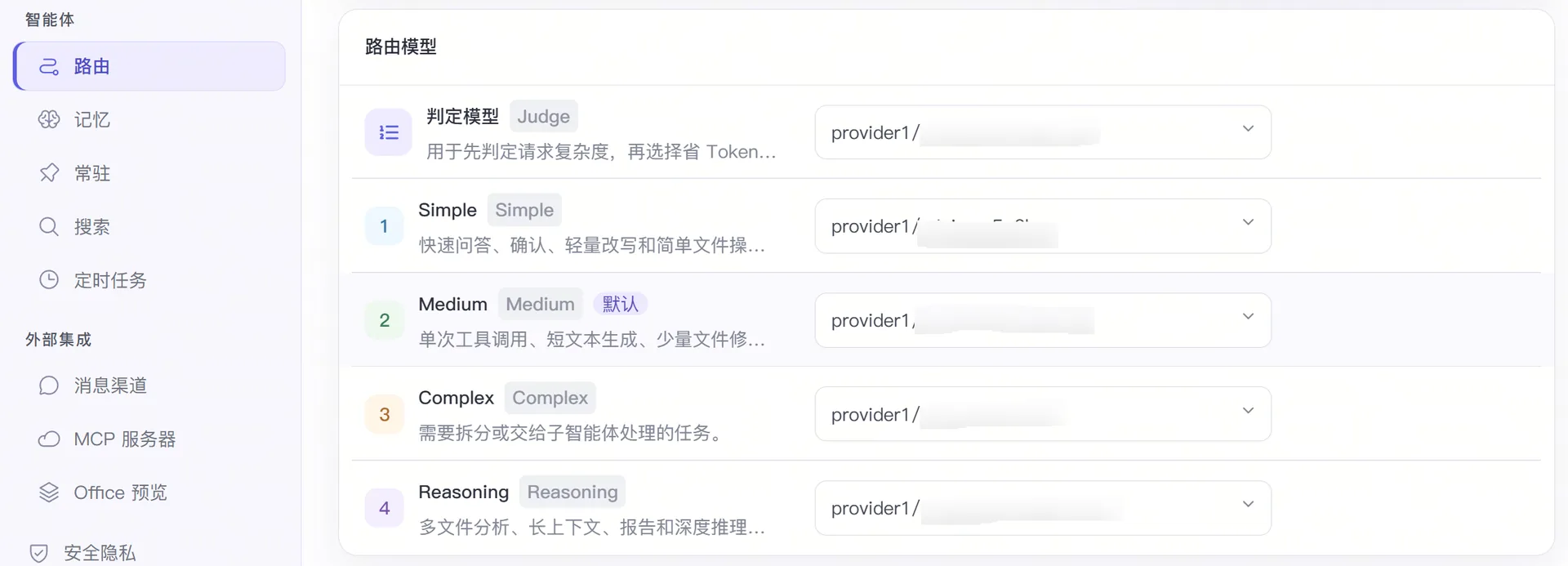
Click "Set as default" next to a tier to use that tier when the task tier cannot be determined. Setting Medium as the default tier usually strikes a good balance between cost and capability.
Once configured, switch the model in the bottom-right corner of the chat box to "Auto" to run tasks with the routing strategy.

3. Configure MCP
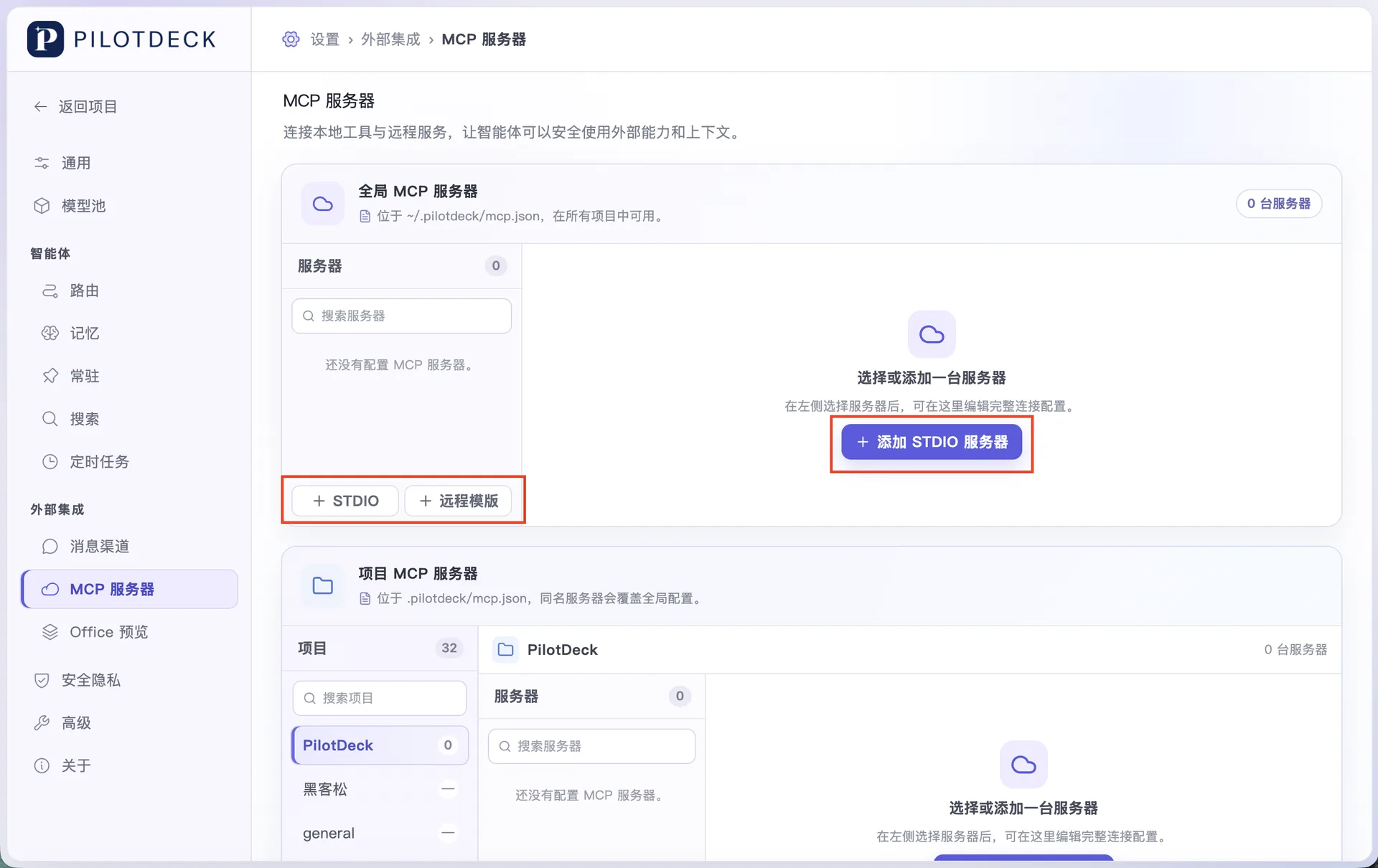
On the [Settings] page, click MCP Servers, choose a template and fill in the information the template requires.
4. Configure IM channels
Go to "Settings → External Integrations → Message Channels" and turn on "Enable gateway" at the top of the page. Once configured, you can remotely control PilotDeck on your computer from instant-messaging apps on your phone (Feishu / Lark, WeChat, WeCom) to run tasks.
Message channels only provide a new interaction entry point; tasks are still executed by the computer or server running PilotDeck, and the models and skills come from that runtime environment's configuration.
Choose channels as needed:
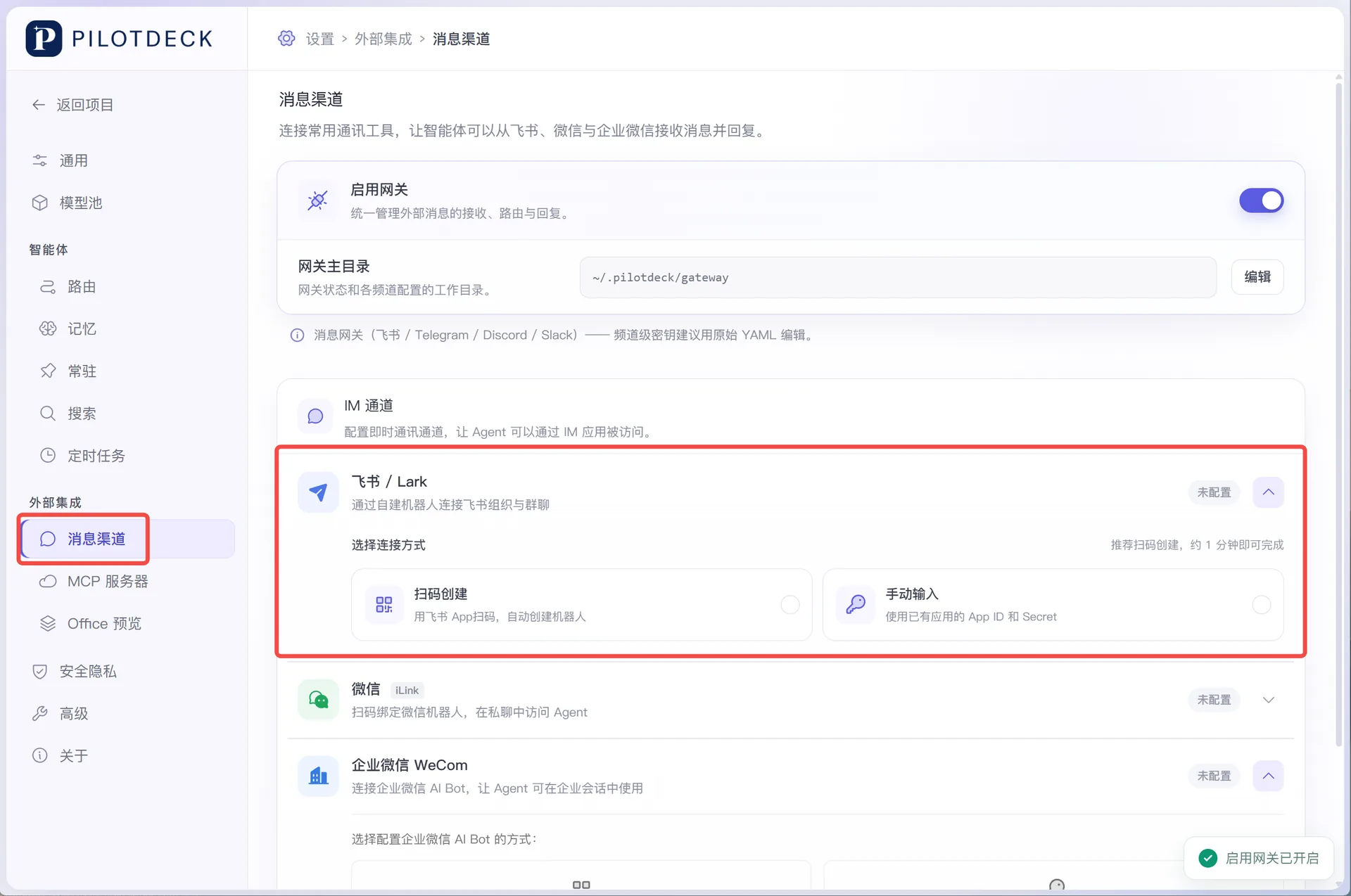
Feishu / Lark
- Create by QR code: Set the domain to
feishu.cnorlarksuite.comdepending on the messaging app you actually use, generate the QR code, scan it with the corresponding app to authorize, then return to PilotDeck and wait for the page to show "App created successfully — configuration saved and enabled"; confirm that the Feishu channel status shows as "Enabled". - Manual input: Fill in the domain, connection method, App ID, App Secret and other details in turn. In most cases Stream (WebSocket) is recommended; only choose Webhook if you already have a public callback service ready. Test the connection, then save.
WeChat
Click "Log in by QR code", scan the QR code with WeChat and confirm the login on your phone. Once the credentials are saved, you can send natural-language messages in a private chat with the bound bot.
WeCom
- Configure by QR code: Go to "Settings → External Integrations → Message Channels", click "WeCom", choose "Configure by QR code" and click "Generate WeCom QR code". After QR-code configuration is complete, private chats are allowed by default and group chats are disabled by default; if you need to use it in group chats, click "Manual input" to change this. Once configuration is completed by QR code, Bot ID, Secret and WebSocket URL can be left empty; fill in the allowlist of permitted users or group chats as needed.
- Manual input: Fill in the Bot ID, Secret, WebSocket URL (usually keep the default value), private-chat policy and group-chat policy in turn. For enterprise projects, we recommend using allowlists to control access: enter WeCom user IDs in the private-chat allowlist and group chat IDs in the group-chat allowlist, separating multiple values with commas.
Related Resources
| Topic | Link |
|---|---|
| PilotDeck deployment | Deployment guide |
| PilotDeck usage | Features and how to use them |
| Source repository | github.com/OpenBMB/PilotDeck |
| Official website | pilotdeck.openbmb.cn |