MiniCPM-V 4.5
MiniCPM-V Multimodal Series
Bring the model into your own service: vLLM and SGLang target high-throughput GPU serving, llama.cpp and Ollama target local and on-device runs, while Gradio and iOS are ready-made demo apps. Pick one based on your hardware and scenario; this page covers installation, startup and invocation for each.
| Option | Best for | Notes |
|---|---|---|
| vLLM | High-throughput GPU serving | pip install vllm==0.10.2; video inference needs vllm[video] |
| SGLang | High-throughput GPU serving | Source install, plus the flashinfer dependency |
| llama.cpp | Local CPU / Metal | Convert to GGUF first |
| Ollama | Quick local trial | ollama run openbmb/minicpm-v4.5; building from source needs the OpenBMB branch |
| Gradio | Web demo (image / video chat) | Server plus client |
| iOS | On-device app (also Android / HarmonyOS) | Built on the llama.cpp submodule |
vLLM
1. Environment Setup
1.1 Install vLLM
pip install vllm==0.10.2
For video inference, install the video module:
pip install vllm[video]
2. API Service Deployment
2.1 Launch API Service
vllm serve <model_path> --dtype auto --max-model-len 2048 --api-key token-abc123 --gpu_memory_utilization 0.9 --trust-remote-code --max-num-batched-tokens 2048
Parameter Description:
<model_path>: Specify the local path to your MiniCPM-V 4.5 model--api-key: Set the API access key--max-model-len: Set the maximum model length--gpu_memory_utilization: GPU memory utilization rate
2.2 Image Inference
from openai import OpenAI
import base64

# API configuration
openai_api_key = "token-abc123"  # API key must match the one set when launching the service
openai_api_base = "http://localhost:8000/v1"

client = OpenAI(
    api_key=openai_api_key,
    base_url=openai_api_base,
)

# Read and encode local image
with open('./assets/airplane.jpeg', 'rb') as file:
    image = "data:image/jpeg;base64," + base64.b64encode(file.read()).decode('utf-8')

chat_response = client.chat.completions.create(
    model="<model_path>",  # Specify model path or HuggingFace ID
    messages=[{
        "role": "user",
        "content": [
            {"type": "text", "text": "Please describe this image"},
            {
                "type": "image_url",
                "image_url": {
                    "url": image,  # Supports network image URLs
                },
            },
        ],
    }],
    extra_body={
        "stop_token_ids": [1, 151645]
    }
)

print("Chat response:", chat_response)
print("Chat response content:", chat_response.choices[0].message.content)
2.3 Video Inference
from openai import OpenAI
import base64

# API configuration
openai_api_key = "token-abc123"
openai_api_base = "http://localhost:8000/v1"

client = OpenAI(
    api_key=openai_api_key,
    base_url=openai_api_base,
)

# Read video file and encode to base64
with open('./videos/video.mp4', 'rb') as video_file:
    video_base64 = base64.b64encode(video_file.read()).decode('utf-8')

chat_response = client.chat.completions.create(
    model="<model_path>",
    messages=[
        {
            "role": "system",
            "content": "You are a helpful assistant.",
        },
        {
            "role": "user",
            "content": [
                {"type": "text", "text": "Please describe this video"},
                {
                    "type": "video_url",
                    "video_url": {
                        "url": f"data:video/mp4;base64,{video_base64}",
                    },
                },
            ],
        },
    ],
    extra_body={
        "stop_token_ids": [1, 151645]
    }
)

print("Chat response:", chat_response)
print("Chat response content:", chat_response.choices[0].message.content)
2.4 Thinking and Non-Thinking Modes
The MiniCPM-V 4.5 model supports thinking before replying, and the thinking mode can be turned on and off by setting the opanai request parameters.
"chat_template_kwargs": {"enable_thinking": True}
In the reply, thinking and the reply will be separated by the </think> tag.
from openai import OpenAI
import base64

# API configuration
openai_api_key = "token-abc123"
openai_api_base = "http://localhost:8000/v1"

client = OpenAI(
    api_key=openai_api_key,
    base_url=openai_api_base,
)

# Read and encode local image
with open('./assets/airplane.jpeg', 'rb') as file:
    image = "data:image/jpeg;base64," + base64.b64encode(file.read()).decode('utf-8')

chat_response = client.chat.completions.create(
    model="<model_path>", # Specify model path or HuggingFace ID
    messages=[{
        "role": "user",
        "content": [
            {"type": "text", "text": "Please describe this image"},
            {
                "type": "image_url",
                "image_url": {
                    "url": image,   # Supports network image URLs
                },
            },
        ],
    }],
    extra_body={
        "stop_token_ids": [1, 151645],
        "chat_template_kwargs": {"enable_thinking": True},
    }
)

print("Chat response:", chat_response)
print("Chat response content:", chat_response.choices[0].message.content)
2.5 High frame rate and long video understanding mode
The MiniCPM-V 4.5 model supports efficient high frame rate and long video understanding.
Environment variables need to be set to specify the corresponding video loading backend
VLLM_VIDEO_LOADER_BACKEND=enhanced_opencv
1、Set the size of choose_fps via the --media-io-kwargs parameter, for example:
VLLM_VIDEO_LOADER_BACKEND=enhanced_opencv vllm serve <model_path> --dtype auto --max-model-len 2048 --api-key token-abc123 --gpu_memory_utilization 0.9 --trust-remote-code --max-num-batched-tokens 2048 --media-io-kwargs '{"video": {"choose_fps": 5}}'
[!NOTE]
It has not yet been merged into the vllm repository. You can install and use the source code through this vllm repository
Because the new video loading backend loads more video frames, a larger video memory is required for operation.
On 2 * 4090 GPUs, setting
gpu_memory_utilizationto 0.8, and bothmax-model-lenandmax-num-batched-tokensto 8192 allows it to run successfully, for exampleBash
2、Or add the mm_processor_kwargs parameter in the OpenAI request
"mm_processor_kwargs": {"choose_fps": 1}
from openai import OpenAI
import base64

# API configuration
openai_api_key = "token-abc123"
openai_api_base = "http://localhost:8000/v1"

client = OpenAI(
    api_key=openai_api_key,
    base_url=openai_api_base,
)

# Read video file and encode to base64
with open('./videos/video.mp4', 'rb') as video_file:
    video_base64 = base64.b64encode(video_file.read()).decode('utf-8')

chat_response = client.chat.completions.create(
    model="<model_path>",
    messages=[
        {
            "role": "system",
            "content": "You are a helpful assistant.",
        },
        {
            "role": "user",
            "content": [
                {"type": "text", "text": "Please describe this video"},
                {
                    "type": "video_url",
                    "video_url": {
                        "url": f"data:video/mp4;base64,{video_base64}",
                    },
                },
            ],
        },
    ],
    extra_body={
        "stop_token_ids": [1, 151645],
        "mm_processor_kwargs": {"choose_fps": 1}
    }
)

print("Chat response:", chat_response)
print("Chat response content:", chat_response.choices[0].message.content)
2.6 Multi-turn Conversation
Launch Parameter Configuration
For video multi-turn conversations, you need to add the --limit-mm-per-prompt parameter when launching vLLM:
Video multi-turn conversation configuration (supports up to 3 videos):
vllm serve <模型路径> --dtype auto --max-model-len 4096 --api-key token-abc123 --gpu_memory_utilization 0.9 --trust-remote-code --limit-mm-per-prompt '{"video": 3}'
Image and video mixed input configuration:
vllm serve <模型路径> --dtype auto --max-model-len 4096 --api-key token-abc123 --gpu_memory_utilization 0.9 --trust-remote-code --limit-mm-per-prompt '{"image":5, "video": 2}'
Multi-turn Conversation Example Code
from openai import OpenAI
import base64
import mimetypes
import os

# API configuration
openai_api_key = "token-abc123"
openai_api_base = "http://localhost:8000/v1"

client = OpenAI(
    api_key=openai_api_key,
    base_url=openai_api_base,
)

messages = [
    {
        "role": "system",
        "content": "You are a helpful assistant.",
    }
]

def file_to_base64(file_path):
    """Convert file to base64 encoding"""
    with open(file_path, 'rb') as f:
        return base64.b64encode(f.read()).decode('utf-8')

def get_mime_type(file_path):
    """Get file MIME type"""
    mime, _ = mimetypes.guess_type(file_path)
    return mime or 'application/octet-stream'

def build_file_content(file_path):
    """Build multimedia file content"""
    mime_type = get_mime_type(file_path)
    base64_data = file_to_base64(file_path)
    url = f"data:{mime_type};base64,{base64_data}"

    if mime_type.startswith("image/"):
        return {"type": "image_url", "image_url": {"url": url}}
    elif mime_type.startswith("video/"):
        return {"type": "video_url", "video_url": {"url": url}}
    else:
        print(f"Unsupported file type: {mime_type}")
        return None

# Interactive conversation loop
while True:
    user_text = input("Please enter your question (type 'exit' to quit): ")
    if user_text.strip().lower() == "exit":
        break

    content = [{"type": "text", "text": user_text}]

    # File upload confirmation
    upload_file = input("Upload a file? (y/n): ").strip().lower() == 'y'
    if upload_file:
        file_path = input("Please enter file path: ").strip()
        if os.path.exists(file_path):
            file_content = build_file_content(file_path)
            if file_content:
                content.append(file_content)
        else:
            print("File path does not exist, skipping file upload.")

    messages.append({
        "role": "user",
        "content": content,
    })

    chat_response = client.chat.completions.create(
        model="<model_path>",
        messages=messages,
        extra_body={
            "stop_token_ids": [1, 151645]
        }
    )

    ai_message = chat_response.choices[0].message
    print("MiniCPM-V 4.5:", ai_message.content)

    messages.append({
        "role": "assistant",
        "content": ai_message.content,
    })
3. Offline Inference
from transformers import AutoTokenizer
from PIL import Image
from vllm import LLM, SamplingParams

# Model configuration
MODEL_NAME = "<model_path>"
# Option to use HuggingFace model ID
# MODEL_NAME = "openbmb/MiniCPM-V-4_5"

# Load image
image = Image.open("./assets/airplane.jpeg").convert("RGB")
tokenizer = AutoTokenizer.from_pretrained(MODEL_NAME, trust_remote_code=True)

# Initialize LLM
llm = LLM(
    model=MODEL_NAME,
    max_model_len=2048,
    trust_remote_code=True,
    disable_mm_preprocessor_cache=True,
    limit_mm_per_prompt={"image": 5}
)

# Build messages
messages = [{
    "role": "user",
    "content": "(<image>./</image>)\nPlease describe the content of this image"
}]

prompt = tokenizer.apply_chat_template(
    messages,
    tokenize=False,
    add_generation_prompt=True
)

# Single inference
inputs = {
    "prompt": prompt,
    "multi_modal_data": {
        "image": image
        # For multi-image inference, use list format:
        # "image": [image1, image2]
    },
}

# Batch inference example
# inputs = [{
#     "prompt": prompt,
#     "multi_modal_data": {
#         "image": image
#     },
# } for _ in range(2)]

# Set stop tokens
stop_tokens = ['<|im_end|>', '<|endoftext|>']
stop_token_ids = [tokenizer.convert_tokens_to_ids(i) for i in stop_tokens]

# Sampling parameters
sampling_params = SamplingParams(
    stop_token_ids=stop_token_ids,
    temperature=0.7,
    top_p=0.7,
    max_tokens=1024
)

# Generate results
outputs = llm.generate(inputs, sampling_params=sampling_params)
print(outputs[0].outputs[0].text)
Notes
- Model Path: Replace all
<model_path>in the examples with the actual MiniCPM-V 4.5 model path - API Key: Ensure the API key when launching the service matches the key in the client code
- File Paths: Adjust image and video file paths according to your actual situation
- Memory Configuration: Adjust the
--gpu_memory_utilizationparameter appropriately based on GPU memory - Multimodal Limits: Set appropriate
--limit-mm-per-promptparameters when using multi-turn conversations
SGLang
1. Installing SGLang
Install SGLang from Source Code
git clone https://github.com/sgl-project/sglang.git
cd sglang

pip install --upgrade pip
pip install -e "python[all]"
Installing flashinfer Dependencies
Method 1: pip installation (network speed may be insufficient)
pip install flashinfer -i https://flashinfer.ai/whl/cu121/torch2.4/
Method 2: whl file installation
- Visit: https://flashinfer.ai/whl/cu121/torch2.4/flashinfer/
- Locate and download the whl file compatible with your server, e.g.
flashinfer-0.1.6+cu121torch2.4-cp310-cp310-linux_x86_64.whl - Install using pip:
Cpppip install flashinfer-0.1.6+cu121torch2.4-cp310-cp310-linux_x86_64.whl
For any installation issues, please consult the official installation documentation
2. Launching Inference Service with sglang
By default, it downloads model files from Hugging Face Hub
python -m sglang.launch_server --model-path openbmb/MiniCPM-V-4_5 --port 30000
Alternatively, you can specify a local path after the --model-path parameter
python -m sglang.launch_server --model-path your_model_path --port 30000 --trust-remote-code
3. Service API Calls
-
Bash call
Pythoncurl -s http://localhost:30000/v1/chat/completions \-H "Content-Type: application/json" \-d '{"model": "MiniCPM-V-4.5","messages": [{"role": "user","content": [{"type": "text","text": "What's in this image?"},{"type": "image_url","image_url": {"url": "https://github.com/OpenSQZ/MiniCPM-V-CookBook/blob/main/inference/assets/airplane.jpeg?raw=true"}}]}],"max_tokens": 300}' -
Python call
Pythonfrom openai import OpenAIclient = OpenAI(base_url=f"http://localhost:30000/v1", api_key="None")response = client.chat.completions.create(model="MiniCPM-V-4.5",messages=[{"role": "user","content": [{"type": "text","text": "What is in this image?",},{"type": "image_url","image_url": {"url": "https://github.com/OpenSQZ/MiniCPM-V-CookBook/blob/main/inference/assets/airplane.jpeg?raw=true",},},],}],max_tokens=300,)print(response.choices[0].message.content)
If the image_url is inaccessible, it can be replaced with a local image path
For more calling methods, please refer to the SGLang documentation
llama.cpp
1. Build llama.cpp
Clone the llama.cpp repository:
git clone https://github.com/ggml-org/llama.cpp.git
cd llama.cpp
Build llama.cpp using CMake: https://github.com/ggerganov/llama.cpp/blob/master/docs/build.md
CPU/Metal:
cmake -B build
cmake --build build --config Release
CUDA:
cmake -B build -DGGML_CUDA=ON
cmake --build build --config Release
2. GGUF files
Option 1: Download official GGUF files
Download converted language model file (e.g., ggml-model-Q4_K_M.gguf) and vision model file (mmproj-model-f16.gguf) from:
- HuggingFace: https://huggingface.co/openbmb/MiniCPM-V-4_5-gguf
- ModelScope: https://modelscope.cn/models/OpenBMB/MiniCPM-V-4_5-gguf
Option 2: Convert from PyTorch model
Download the MiniCPM-V-4_5 PyTorch model to "MiniCPM-V-4_5" folder:
- HuggingFace: https://huggingface.co/openbmb/MiniCPM-V-4_5
- ModelScope: https://modelscope.cn/models/OpenBMB/MiniCPM-V-4_5
Convert the PyTorch model to GGUF:
python ./tools/mtmd/legacy-models/minicpmv-surgery.py -m ../MiniCPM-V-4_5

python ./tools/mtmd/legacy-models/minicpmv-convert-image-encoder-to-gguf.py -m ../MiniCPM-V-4_5 --minicpmv-projector ../MiniCPM-V-4_5/minicpmv.projector --output-dir ../MiniCPM-V-4_5/ --minicpmv_version 6

python ./convert_hf_to_gguf.py ../MiniCPM-V-4_5/model

# quantize int4 version
./llama-quantize ../MiniCPM-V-4_5/model/Model-3.6B-F16.gguf ../MiniCPM-V-4_5/model/ggml-model-Q4_K_M.gguf Q4_K_M
3. Model Inference
cd build/bin/

# run f16 version
./llama-mtmd-cli -m ../MiniCPM-V-4_5/model/Model-3.6B-F16.gguf --mmproj ../MiniCPM-V-4_5/mmproj-model-f16.gguf -c 4096 --temp 0.7 --top-p 0.8 --top-k 100 --repeat-penalty 1.05 --image xx.jpg -p "What is in the image?"

# run quantized int4 version
./llama-mtmd-cli -m ../MiniCPM-V-4_5/model/ggml-model-Q4_K_M.gguf --mmproj ../MiniCPM-V-4_5/mmproj-model-f16.gguf -c 4096 --temp 0.7 --top-p 0.8 --top-k 100 --repeat-penalty 1.05 --image xx.jpg -p "What is in the image?"

# or run in interactive mode
./llama-mtmd-cli -m ../MiniCPM-V-4_5/model/ggml-model-Q4_K_M.gguf --mmproj ../MiniCPM-V-4_5/mmproj-model-f16.gguf -c 4096 --temp 0.7 --top-p 0.8 --top-k 100 --repeat-penalty 1.05 --image xx.jpg -i

# run with reasoning enabled (think mode without token limit)
./llama-mtmd-cli -m ../MiniCPM-V-4_5/model/ggml-model-Q4_K_M.gguf --mmproj ../MiniCPM-V-4_5/mmproj-model-f16.gguf -c 4096 --temp 0.7 --top-p 0.8 --top-k 100 --repeat-penalty 1.05 --image xx.jpg --jinja --reasoning-budget -1 -p "what is it?"

# run with reasoning disabled (no think mode)
./llama-mtmd-cli -m ../MiniCPM-V-4_5/model/ggml-model-Q4_K_M.gguf --mmproj ../MiniCPM-V-4_5/mmproj-model-f16.gguf -c 4096 --temp 0.7 --top-p 0.8 --top-k 100 --repeat-penalty 1.05 --image xx.jpg --jinja --reasoning-budget 0 -p "what is it?"
Argument Reference:
| Argument | -m, --model | --mmproj | --image | -p, --prompt | -c, --ctx-size | --reasoning-budget | --jinja |
|---|---|---|---|---|---|---|---|
| Description | Path to the language model | Path to the vision model | Path to the input image | The prompt | Maximum context size | Maximum tokens for model reasoning (-1 for unlimited, 0 for disabled) | Enable Jinja template rendering |
Ollama
1. Install Ollama
-
macOS: Download from https://ollama.com/download/Ollama.dmg.
-
Windows: Download from https://ollama.com/download/OllamaSetup.exe.
-
Linux:
curl -fsSL https://ollama.com/install.sh | sh, or refer to the guide from ollama. -
Docker: The official Ollama Docker image
ollama/ollamais available on Docker Hub.
Build Ollama locally
Environment requirements:
- go version 1.22 or above
- cmake version 3.24 or above
- C/C++ Compiler e.g. Clang on macOS, TDM-GCC (Windows amd64) or llvm-mingw (Windows arm64), GCC/Clang on Linux.
Clone OpenBMB Ollama Fork:
git clone https://github.com/tc-mb/ollama.git
cd ollama
git checkout MiniCPM-V
Then build and run Ollama from the root directory of the repository:
go build .
./ollama serve
2. Quick Start
The MiniCPM-V 4.5 model can be used directly:
./ollama run openbmb/minicpm-v4.5
Command Line
Separate the input prompt and the image path with space.
What is in the picture? xx.jpg
API
with open(image_path, 'rb') as image_file:
    # Convert the image file to a base64 encoded string
    encoded_string = base64.b64encode(image_file.read()).decode('utf-8')
    data = {
    "model": "minicpm-v4.5",
    "prompt": query,
    "stream": False,
    "images": [encoded_string] # The 'images' list can hold multiple base64-encoded images.
    }

    # Set request URL
    url = "http://localhost:11434/api/generate"
    response = requests.post(url, json=data)

    return response
3. Customize model
If the method above fails, please refer to the following guide.
Download GGUF Model
- HuggingFace: https://huggingface.co/openbmb/MiniCPM-V-4_5-gguf
- ModelScope: https://modelscope.cn/models/OpenBMB/MiniCPM-V-4_5-gguf
Create a ModelFile
Create and edit a ModelFile:
vim minicpmv4.5.Modelfile
The content of the Modelfile should be as follows:
FROM ./MiniCPM-V-4_5/model/ggml-model-Q4_K_M.gguf
FROM ./MiniCPM-V-4_5/mmproj-model-f16.gguf

TEMPLATE """{{- if .Messages }}{{- range $i, $_ := .Messages }}{{- $last := eq (len (slice $.Messages $i)) 1 -}}<|im_start|>{{ .Role }}{{ .Content }}{{- if $last }}{{- if (ne .Role "assistant") }}<|im_end|><|im_start|>assistant{{ end }}{{- else }}<|im_end|>{{ end }}{{- end }}{{- else }}{{- if .System }}<|im_start|>system{{ .System }}<|im_end|>{{ end }}{{ if .Prompt }}<|im_start|>user{{ .Prompt }}<|im_end|>{{ end }}<|im_start|>assistant{{ end }}{{ .Response }}{{ if .Response }}<|im_end|>{{ end }}"""

SYSTEM """You are a helpful assistant."""

PARAMETER top_p 0.8
PARAMETER num_ctx 4096
PARAMETER stop ["<|im_start|>","<|im_end|>"]
PARAMETER temperature 0.7
Parameter Descriptions:
| first from | second from | num_ctx |
|---|---|---|
| Your language GGUF model path | Your vision GGUF model path | Max Model length |
Create Ollama Model
./ollama create minicpm-v4.5 -f minicpmv4.5.Modelfile
Run
In a new terminal window, run the model instance:
./ollama run minicpm-v4.5
Input Prompt
Enter the prompt and the image path, separated by a space.
What is in the picture? xx.jpg
Gradio
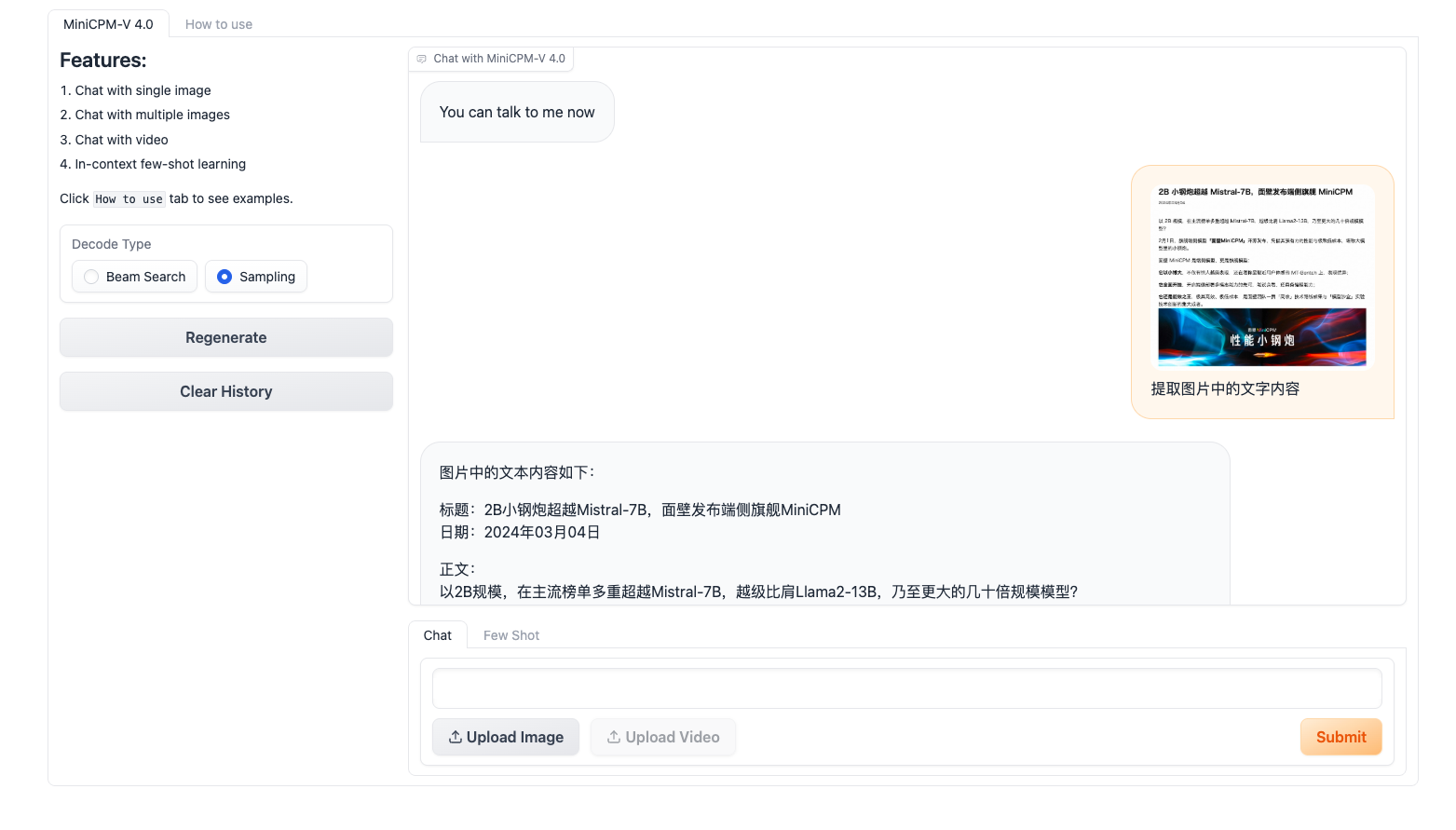
Provides web interface demonstration service for MiniCPM-V 4.5 (compatible with 4.0), supporting multimodal conversations with images and videos. The demo consists of two parts: server and client.
📖 中文版本
Deployment Steps
Server
cd server
conda create -n gradio-server python=3.10
conda activate gradio-server
pip install -r requirements.txt
python gradio_server.py
Custom Parameters:
# Specify server port, log directory, model path and model type (MiniCPM-V 4.5)
# If VRAM is limited, set /path/to/model to an INT4-quantized model; ensure required dependencies are installed.
python gradio_server.py --port=9999 --log_dir=logs_v4_5 --model_path=/path/to/model --model_type=minicpmv4_5
Client
cd client
conda create -n gradio-client python=3.10
conda activate gradio-client
pip install -r requirements.txt
python gradio_client_minicpmv4_5.py
Custom Parameters:
# Specify frontend port and backend service address (MiniCPM-V 4.5)
python gradio_client_minicpmv4_5.py --port=8889 --server=http://localhost:9999/api
Access
By default, after the services are started, you can access the web demo by visiting http://localhost:8889 in your browser.
iOS
Upstream project: OpenBMB/MiniCPM-V-Apps
That repository bundles iOS, Android, and HarmonyOS NEXT demos sharing one root llama.cpp git submodule (branch Support-iOS-Demo). This page summarizes the iOS flow; Android / HarmonyOS build steps stay in the upstream README.
Prebuilt installers (TestFlight / APK / HAP): DOWNLOAD.md / DOWNLOAD_zh.md. The sections below are for building from source.
1. Clone repo and submodule
git clone https://github.com/OpenBMB/MiniCPM-V-Apps.git
cd MiniCPM-V-Apps
git submodule update --init --recursive
2. Open the Xcode project
NOTE: Deploying on a physical iPhone or iPad may require an Apple Developer membership.
Install Xcode:
-
Xcode from the App Store
-
Command Line Tools:
Bashxcode-select --install -
Accept the license:
Bashsudo xcodebuild -license
Open MiniCPM-V-demo/MiniCPM-V-demo.xcodeproj in Xcode and let it finish downloading the required dependencies. Then pick a destination device at the top and tap Run.
NOTE: If something fails related to thirdparty/llama.xcframework, build it manually using section 3.
3. Manually build llama.xcframework
From the repository root (after submodules are in place):
cd llama.cpp
./build-xcframework.sh
cp -r ./build-apple/llama.xcframework ../MiniCPM-V-demo/thirdparty
4. GGUF model files for the demos
Upstream currently targets MiniCPM-V 2.6, 4.0, and 4.6. For each version, download a quantized language-model GGUF plus mmproj-model-f16.gguf (the vision projector is kept at f16 since quantizing the visual tower hurts perception quality noticeably more than quantizing the LLM).
Recommended device RAM and total download size (see upstream README hardware section):
| Model | LLM params | Recommended quant | Total download | Recommended device RAM |
|---|---|---|---|---|
| MiniCPM-V 2.6 | 8B | Q4_K_M | ~5.4 GB | ≥ 8 GB |
| MiniCPM-V 4.0 | 4.1B | Q4_K_M | ~2.9 GB | ≥ 6 GB |
| MiniCPM-V 4.6 | 1.3B | Q4_K_M | ~1.6 GB | ≥ 6 GB |
All three demos default to a 4K context window; KV-cache footprint grows roughly linearly with context, so on a borderline device you may want to lower it.
MiniCPM-V 2.6 — official GGUF
- Hugging Face: openbmb/MiniCPM-V-2_6-gguf
- ModelScope: OpenBMB/MiniCPM-V-2_6-gguf
Download the language-model file (e.g. ggml-model-Q4_0.gguf) and the vision-model file mmproj-model-f16.gguf.
MiniCPM-V 4.0 — official GGUF
- Hugging Face: openbmb/MiniCPM-V-4-gguf
- ModelScope: OpenBMB/MiniCPM-V-4-gguf
Download the language-model file (e.g. ggml-model-Q4_K_M.gguf) and the vision-model file mmproj-model-f16.gguf.
MiniCPM-V 4.6 — official GGUF
- Hugging Face: openbmb/MiniCPM-V-4.6-gguf
- ModelScope: OpenBMB/MiniCPM-V-4.6-gguf
Download the language-model file (e.g. MiniCPM-V-4_6-Q4_K_M.gguf) and the vision-model file mmproj-model-f16.gguf.
5. Convert PyTorch → GGUF (optional)
For server-side conversion recipes in this Cookbook, see:
- MiniCPM-V 4.6 GGUF
- MiniCPM-V 4.0 GGUF
- Additional versions: Cookbook
quantization/gguf/
Run conversion commands inside the llama.cpp subtree at the MiniCPM-V-Apps repo root.