MiniCPM-o 4.5
MiniCPM-o Omnimodal Series
Bring the model into your own service: vLLM and SGLang target high-throughput GPU serving, llama.cpp and Ollama target local and on-device runs, while FastAPI and Gradio are ready-made omnimodal demo apps. Pick one based on your hardware and scenario; this page covers installation, startup and invocation for each.
| Option | Best for | Notes |
|---|---|---|
| vLLM | High-throughput GPU serving | Supported upstream from v0.16.0 (PR #33431), installable via pip |
| SGLang | High-throughput GPU serving | Source install |
| llama.cpp | Local CPU / Metal | Convert to GGUF first |
| Ollama | Quick local trial | Requires the OpenBMB branch |
| FastAPI Omni Streaming | Real-time audio-video streaming | Full-duplex demo with front and back end |
| Gradio | Web demo (image / video chat) | Server plus client |
vLLM
1. Environment Setup
1.1 Install vLLM
[!NOTE] MiniCPM-o 4.5 support has been merged into the official vLLM (PR #33431) and is included starting from vLLM v0.16.0.
You can now install vLLM directly from PyPI — there is no longer a need to build from the
tc-mb/vllmSupport-MiniCPM-o-4.5branch (which has been removed since the code was upstreamed).
# Create a clean conda environment
conda create -n vllm-o45 python=3.10
conda activate vllm-o45

# Install vLLM (>= 0.16.0) from PyPI
pip install "vllm>=0.16.0"
For video inference, install the video module:
pip install vllm[video]
For audio inference, install the audio module:
pip install vllm[audio]
1.2 Install vLLM from Source (Optional)
If you want to use the latest features from the main branch, you can also install vLLM from the official source:
# Create a clean conda environment
conda create -n vllm-o45 python=3.10
conda activate vllm-o45

# Clone the official vLLM repo
git clone https://github.com/vllm-project/vllm.git
cd vllm

# Install with pre-compiled option for faster build
MAX_JOBS=6 VLLM_USE_PRECOMPILED=1 pip install --editable . -v --progress-bar=on

# Install video and audio modules
pip install vllm[video]
pip install vllm[audio]
You can verify the installation with:
python -c "import vllm; print(vllm.__version__)"
2. API Service Deployment
2.1 Launch API Service
vllm serve <model_path> --dtype auto --max-model-len 2048 --api-key token-abc123 --gpu_memory_utilization 0.9 --trust-remote-code --max-num-batched-tokens 2048
Parameter Description:
<model_path>: Specify the local path to your MiniCPM-o 4.5 model--api-key: Set the API access key--max-model-len: Set the maximum model length--gpu_memory_utilization: GPU memory utilization rate
2.2 Image Inference
from openai import OpenAI
import base64

# API configuration
openai_api_key = "token-abc123"  # API key must match the one set when launching the service
openai_api_base = "http://localhost:8000/v1"

client = OpenAI(
    api_key=openai_api_key,
    base_url=openai_api_base,
)

# Read and encode local image
with open('./assets/airplane.jpeg', 'rb') as file:
    image = "data:image/jpeg;base64," + base64.b64encode(file.read()).decode('utf-8')

chat_response = client.chat.completions.create(
    model="<model_path>",  # Specify model path or HuggingFace ID
    messages=[{
        "role": "user",
        "content": [
            {"type": "text", "text": "Please describe this image"},
            {
                "type": "image_url",
                "image_url": {
                    "url": image,  # Supports network image URLs
                },
            },
        ],
    }],
    extra_body={
        "stop_token_ids": [151643, 151645]
    }
)

print("Chat response:", chat_response)
print("Chat response content:", chat_response.choices[0].message.content)
2.3 Video Inference
from openai import OpenAI
import base64

# API configuration
openai_api_key = "token-abc123"
openai_api_base = "http://localhost:8000/v1"

client = OpenAI(
    api_key=openai_api_key,
    base_url=openai_api_base,
)

# Read video file and encode to base64
with open('./videos/video.mp4', 'rb') as video_file:
    video_base64 = base64.b64encode(video_file.read()).decode('utf-8')

chat_response = client.chat.completions.create(
    model="<model_path>",
    messages=[
        {
            "role": "system",
            "content": "You are a helpful assistant.",
        },
        {
            "role": "user",
            "content": [
                {"type": "text", "text": "Please describe this video"},
                {
                    "type": "video_url",
                    "video_url": {
                        "url": f"data:video/mp4;base64,{video_base64}",
                    },
                },
            ],
        },
    ],
    extra_body={
        "stop_token_ids": [151643, 151645]
    }
)

print("Chat response:", chat_response)
print("Chat response content:", chat_response.choices[0].message.content)
2.4 Audio Inference
from openai import OpenAI
import base64

# API configuration
openai_api_key = "token-abc123"
openai_api_base = "http://localhost:8000/v1"

client = OpenAI(
    api_key=openai_api_key,
    base_url=openai_api_base,
)

# Read audio file and encode to base64
with open('./audio/audio.wav', 'rb') as audio_file:
    audio_base64 = base64.b64encode(audio_file.read()).decode('utf-8')

chat_response = client.chat.completions.create(
    model="<model_path>",
    messages=[
        {
            "role": "system",
            "content": "You are a helpful assistant.",
        },
        {
            "role": "user",
            "content": [
                {"type": "text", "text": "Please describe this audio"},
                {
                    "type": "audio_url",
                    "audio_url": {
                        "url": f"data:audio/wav;base64,{audio_base64}",
                    },
                },
            ],
        },
    ],
    extra_body={
        "stop_token_ids": [151643, 151645]
    }
)

print("Chat response:", chat_response)
print("Chat response content:", chat_response.choices[0].message.content)
2.5 Multi-turn Conversation
Launch Parameter Configuration
For video multi-turn conversations, you need to add the --limit-mm-per-prompt parameter when launching vLLM:
Video multi-turn conversation configuration (supports up to 3 videos):
vllm serve <model_path> --dtype auto --max-model-len 4096 --api-key token-abc123 --gpu_memory_utilization 0.9 --trust-remote-code --limit-mm-per-prompt '{"video": 3}'
Image and video mixed input configuration:
vllm serve <model_path> --dtype auto --max-model-len 4096 --api-key token-abc123 --gpu_memory_utilization 0.9 --trust-remote-code --limit-mm-per-prompt '{"image":5, "video": 2}'
Multi-turn Conversation Example Code
from openai import OpenAI
import base64
import mimetypes
import os

# API configuration
openai_api_key = "token-abc123"
openai_api_base = "http://localhost:8000/v1"

client = OpenAI(
    api_key=openai_api_key,
    base_url=openai_api_base,
)

messages = [
    {
        "role": "system",
        "content": "You are a helpful assistant.",
    }
]

def file_to_base64(file_path):
    """Convert file to base64 encoding"""
    with open(file_path, 'rb') as f:
        return base64.b64encode(f.read()).decode('utf-8')

def get_mime_type(file_path):
    """Get file MIME type"""
    mime, _ = mimetypes.guess_type(file_path)
    return mime or 'application/octet-stream'

def build_file_content(file_path):
    """Build multimedia file content"""
    mime_type = get_mime_type(file_path)
    base64_data = file_to_base64(file_path)
    url = f"data:{mime_type};base64,{base64_data}"

    if mime_type.startswith("image/"):
        return {"type": "image_url", "image_url": {"url": url}}
    elif mime_type.startswith("video/"):
        return {"type": "video_url", "video_url": {"url": url}}
    elif mime_type.startswith("audio/"):
        return {"type": "audio_url", "audio_url": {"url": url}}
    else:
        print(f"Unsupported file type: {mime_type}")
        return None

# Interactive conversation loop
while True:
    user_text = input("Please enter your question (type 'exit' to quit): ")
    if user_text.strip().lower() == "exit":
        break

    content = [{"type": "text", "text": user_text}]

    # File upload confirmation
    upload_file = input("Upload a file? (y/n): ").strip().lower() == 'y'
    if upload_file:
        file_path = input("Please enter file path: ").strip()
        if os.path.exists(file_path):
            file_content = build_file_content(file_path)
            if file_content:
                content.append(file_content)
        else:
            print("File path does not exist, skipping file upload.")

    messages.append({
        "role": "user",
        "content": content,
    })

    chat_response = client.chat.completions.create(
        model="<model_path>",
        messages=messages,
        extra_body={
            "stop_token_ids": [151643, 151645]
        }
    )

    ai_message = chat_response.choices[0].message
    print("MiniCPM-o 4.5:", ai_message.content)

    messages.append({
        "role": "assistant",
        "content": ai_message.content,
    })
3. Offline Inference
from transformers import AutoTokenizer
from PIL import Image
from vllm import LLM, SamplingParams

# Model configuration
MODEL_NAME = "<model_path>"
# Option to use HuggingFace model ID
# MODEL_NAME = "openbmb/MiniCPM-o-4_5"

# Load image
image = Image.open("./assets/airplane.jpeg").convert("RGB")
tokenizer = AutoTokenizer.from_pretrained(MODEL_NAME, trust_remote_code=True)

# Initialize LLM
llm = LLM(
    model=MODEL_NAME,
    max_model_len=2048,
    trust_remote_code=True,
    disable_mm_preprocessor_cache=True,
    limit_mm_per_prompt={"image": 5}
)

# Build messages
messages = [{
    "role": "user",
    "content": "(<image>./</image>)\nPlease describe the content of this image"
}]

prompt = tokenizer.apply_chat_template(
    messages,
    tokenize=False,
    add_generation_prompt=True
)

# Single inference
inputs = {
    "prompt": prompt,
    "multi_modal_data": {
        "image": image
        # For multi-image inference, use list format:
        # "image": [image1, image2]
    },
}

# Batch inference example
# inputs = [{
#     "prompt": prompt,
#     "multi_modal_data": {
#         "image": image
#     },
# } for _ in range(2)]

# Set stop tokens
stop_tokens = ['<|im_end|>', '<|endoftext|>']
stop_token_ids = [tokenizer.convert_tokens_to_ids(i) for i in stop_tokens]

# Sampling parameters
sampling_params = SamplingParams(
    stop_token_ids=stop_token_ids,
    temperature=0.7,
    top_p=0.7,
    max_tokens=1024
)

# Generate results
outputs = llm.generate(inputs, sampling_params=sampling_params)
print(outputs[0].outputs[0].text)
Notes
- Model Path: Replace all
<model_path>in the examples with the actual MiniCPM-o 4.5 model path - API Key: Ensure the API key when launching the service matches the key in the client code
- File Paths: Adjust image, video, and audio file paths according to your actual situation
- Memory Configuration: Adjust the
--gpu_memory_utilizationparameter appropriately based on GPU memory - Multimodal Limits: Set appropriate
--limit-mm-per-promptparameters when using multi-turn conversations
SGLang
1. Installing SGLang
Install SGLang from Source Code
git clone https://github.com/sgl-project/sglang.git
cd sglang

pip install --upgrade pip
pip install -e "python[all]"
Installing flashinfer Dependencies
Method 1: pip installation (network speed may be insufficient)
pip install flashinfer -i https://flashinfer.ai/whl/cu121/torch2.4/
Method 2: whl file installation
- Visit: https://flashinfer.ai/whl/cu121/torch2.4/flashinfer/
- Locate and download the whl file compatible with your server, e.g.
flashinfer-0.1.6+cu121torch2.4-cp310-cp310-linux_x86_64.whl - Install using pip:
Cpppip install flashinfer-0.1.6+cu121torch2.4-cp310-cp310-linux_x86_64.whl
For any installation issues, please consult the official installation documentation
2. Launching Inference Service with sglang
By default, it downloads model files from Hugging Face Hub
python -m sglang.launch_server --model-path openbmb/MiniCPM-o-4_5 --port 30000
Alternatively, you can specify a local path after the --model-path parameter
python -m sglang.launch_server --model-path your_model_path --port 30000 --trust-remote-code
3. Service API Calls
-
Bash call
Pythoncurl -s http://localhost:30000/v1/chat/completions \-H "Content-Type: application/json" \-d '{"model": "MiniCPM-o-4.5","messages": [{"role": "user","content": [{"type": "text","text": "What's in this image?"},{"type": "image_url","image_url": {"url": "https://github.com/OpenSQZ/MiniCPM-V-CookBook/blob/main/inference/assets/airplane.jpeg?raw=true"}}]}],"max_tokens": 300}' -
Python call
Pythonfrom openai import OpenAIclient = OpenAI(base_url=f"http://localhost:30000/v1", api_key="None")response = client.chat.completions.create(model="MiniCPM-o-4.5",messages=[{"role": "user","content": [{"type": "text","text": "What is in this image?",},{"type": "image_url","image_url": {"url": "https://github.com/OpenSQZ/MiniCPM-V-CookBook/blob/main/inference/assets/airplane.jpeg?raw=true",},},],}],max_tokens=300,)print(response.choices[0].message.content)
If the image_url is inaccessible, it can be replaced with a local image path
For more calling methods, please refer to the SGLang documentation
llama.cpp
1. Build llama.cpp
Clone the llama.cpp repository:
git clone https://github.com/ggml-org/llama.cpp.git
cd llama.cpp
Build llama.cpp using CMake: https://github.com/ggerganov/llama.cpp/blob/master/docs/build.md
CPU/Metal:
cmake -B build
cmake --build build --config Release
CUDA:
cmake -B build -DGGML_CUDA=ON
cmake --build build --config Release
2. GGUF files
Option 1: Download official GGUF files
Download converted language model file (e.g., MiniCPM-o-4_5-Q4_K_M.gguf) and vision model file (MiniCPM-o-4_5-vision-F16.gguf) from:
- HuggingFace: https://huggingface.co/openbmb/MiniCPM-o-4_5-gguf
- ModelScope: https://modelscope.cn/models/OpenBMB/MiniCPM-o-4_5-gguf
Option 2: Convert from PyTorch model
Download the MiniCPM-o-4_5 PyTorch model to "MiniCPM-o-4_5" folder:
- HuggingFace: https://huggingface.co/openbmb/MiniCPM-o-4_5
- ModelScope: https://modelscope.cn/models/OpenBMB/MiniCPM-o-4_5
Convert the PyTorch model to GGUF:
bash ./tools/omni/convert/run_convert.sh

# You need to modify the paths in the script:
MODEL_DIR="/path/to/MiniCPM-o-4_5"  # Source model
LLAMACPP_DIR="/path/to/llamacpp"    # llamacpp directory
OUTPUT_DIR="${CONVERT_DIR}/gguf"    # Output directory
PYTHON="/path/to/python"            # Python path
3. Model Inference
cd build/bin/

# run f16 version
./llama-mtmd-cli -m ../MiniCPM-o-4_5/model/Model-8.2B-F16.gguf --mmproj ../MiniCPM-o-4_5/MiniCPM-o-4_5-vision-F16.gguf -c 4096 --temp 0.7 --top-p 0.8 --top-k 100 --repeat-penalty 1.05 --image xx.jpg -p "What is in the image?"

# run quantized int4 version
./llama-mtmd-cli -m ../MiniCPM-o-4_5/model/MiniCPM-o-4_5-Q4_K_M.gguf --mmproj ../MiniCPM-o-4_5/MiniCPM-o-4_5-vision-F16.gguf -c 4096 --temp 0.7 --top-p 0.8 --top-k 100 --repeat-penalty 1.05 --image xx.jpg -p "What is in the image?"

# or run in interactive mode
./llama-mtmd-cli -m ../MiniCPM-o-4_5/model/MiniCPM-o-4_5-Q4_K_M.gguf --mmproj ../MiniCPM-o-4_5/MiniCPM-o-4_5-vision-F16.gguf -c 4096 --temp 0.7 --top-p 0.8 --top-k 100 --repeat-penalty 1.05 --image xx.jpg -i

# run with reasoning enabled (think mode without token limit)
./llama-mtmd-cli -m ../MiniCPM-o-4_5/model/MiniCPM-o-4_5-Q4_K_M.gguf --mmproj ../MiniCPM-o-4_5/MiniCPM-o-4_5-vision-F16.gguf -c 4096 --temp 0.7 --top-p 0.8 --top-k 100 --repeat-penalty 1.05 --image xx.jpg --jinja --reasoning-budget -1 -p "what is it?"

# run with reasoning disabled (no think mode)
./llama-mtmd-cli -m ../MiniCPM-o-4_5/model/MiniCPM-o-4_5-Q4_K_M.gguf --mmproj ../MiniCPM-o-4_5/MiniCPM-o-4_5-vision-F16.gguf -c 4096 --temp 0.7 --top-p 0.8 --top-k 100 --repeat-penalty 1.05 --image xx.jpg --jinja --reasoning-budget 0 -p "what is it?"
Argument Reference:
| Argument | -m, --model | --mmproj | --image | -p, --prompt | -c, --ctx-size | --reasoning-budget | --jinja |
|---|---|---|---|---|---|---|---|
| Description | Path to the language model | Path to the vision model | Path to the input image | The prompt | Maximum context size | Maximum tokens for model reasoning (-1 for unlimited, 0 for disabled) | Enable Jinja template rendering |
Ollama
1. Install Ollama
-
macOS: Download from https://ollama.com/download/Ollama.dmg.
-
Windows: Download from https://ollama.com/download/OllamaSetup.exe.
-
Linux:
curl -fsSL https://ollama.com/install.sh | sh, or refer to the guide from ollama. -
Docker: The official Ollama Docker image
ollama/ollamais available on Docker Hub.
Build Ollama locally
Environment requirements:
- go version 1.22 or above
- cmake version 3.24 or above
- C/C++ Compiler e.g. Clang on macOS, TDM-GCC (Windows amd64) or llvm-mingw (Windows arm64), GCC/Clang on Linux.
Clone OpenBMB Ollama Fork:
git clone https://github.com/tc-mb/ollama.git
cd ollama
git checkout MiniCPM-V
Then build and run Ollama from the root directory of the repository:
go build .
./ollama serve
2. Quick Start
The MiniCPM-o 4.5 model can be used directly:
./ollama run openbmb/minicpm-o4.5
Command Line
Separate the input prompt and the image path with space.
What is in the picture? xx.jpg
API
with open(image_path, 'rb') as image_file:
    # Convert the image file to a base64 encoded string
    encoded_string = base64.b64encode(image_file.read()).decode('utf-8')
    data = {
    "model": "minicpm-o4.5",
    "prompt": query,
    "stream": False,
    "images": [encoded_string] # The 'images' list can hold multiple base64-encoded images.
    }

    # Set request URL
    url = "http://localhost:11434/api/generate"
    response = requests.post(url, json=data)

    return response
3. Customize model
If the method above fails, please refer to the following guide.
Download GGUF Model
- HuggingFace: https://huggingface.co/openbmb/MiniCPM-o-4_5-gguf
- ModelScope: https://modelscope.cn/models/OpenBMB/MiniCPM-o-4_5-gguf
Create a ModelFile
Create and edit a ModelFile:
vim minicpmv4.5.Modelfile
The content of the Modelfile should be as follows:
FROM ./MiniCPM-o-4_5/model/MiniCPM-o-4_5-Q4_K_M.gguf
FROM ./MiniCPM-o-4_5/MiniCPM-o-4_5-vision-F16.gguf

TEMPLATE """{{- if .Messages }}{{- range $i, $_ := .Messages }}{{- $last := eq (len (slice $.Messages $i)) 1 -}}<|im_start|>{{ .Role }}{{ .Content }}{{- if $last }}{{- if (ne .Role "assistant") }}<|im_end|><|im_start|>assistant{{ end }}{{- else }}<|im_end|>{{ end }}{{- end }}{{- else }}{{- if .System }}<|im_start|>system{{ .System }}<|im_end|>{{ end }}{{ if .Prompt }}<|im_start|>user{{ .Prompt }}<|im_end|>{{ end }}<|im_start|>assistant{{ end }}{{ .Response }}{{ if .Response }}<|im_end|>{{ end }}"""

SYSTEM """You are a helpful assistant."""

PARAMETER top_p 0.8
PARAMETER num_ctx 4096
PARAMETER stop ["<|im_start|>","<|im_end|>"]
PARAMETER temperature 0.7
Parameter Descriptions:
| first from | second from | num_ctx |
|---|---|---|
| Your language GGUF model path | Your vision GGUF model path | Max Model length |
Create Ollama Model
./ollama create minicpm-o4.5 -f minicpmv4.5.Modelfile
Run
In a new terminal window, run the model instance:
./ollama run minicpm-o4.5
Input Prompt
Enter the prompt and the image path, separated by a space.
What is in the picture? xx.jpg
FastAPI Omni Streaming
Complete demo applications to quickly experience and showcase MiniCPM-o / MiniCPM-V.
📖 中文版本 | Back to Main
Mobile & HarmonyOS demo (MiniCPM-V-Apps)
For on-device inference with llama.cpp on iOS, Android, and HarmonyOS NEXT, use the official OpenBMB/MiniCPM-V-Apps repo (shared llama.cpp submodule, build instructions in README / README_zh; prebuilt installers: DOWNLOAD / DOWNLOAD_zh).
Cookbook iOS quick path: iOS demo.
Web Demo
We provide two types of web demo applications for different use cases:
📖 Text & Image Demo
Best for: Standard multimodal interactions, document processing, image analysis
Features:
- Text and image-based interactions
- Multi-turn conversations with uploaded files
- Perfect for research, education, and basic multimodal tasks
- Supports various image formats and document parsing
Available Versions:
- Gradio: Clean and easy-to-use web interface with quick deployment
- OpenWebUI: Advanced web interface with enhanced features
🎤 Omni Streaming Demo
Best for: Real-time voice conversations, multimodal streaming, voice interaction
Features:
- Real-time voice conversation capabilities
- Audio and video streaming support
- Voice cloning and emotion control
- Simultaneous processing of multiple modalities
- API endpoints for streaming interactions
Use Cases
Omni Streaming Demo
- Voice Assistants: Conversational AI with voice interaction
- Streaming Applications: Multimodal streaming interfaces
- Customer Service: Voice-enabled support systems
- Entertainment: Voice cloning and interactive media
Gradio
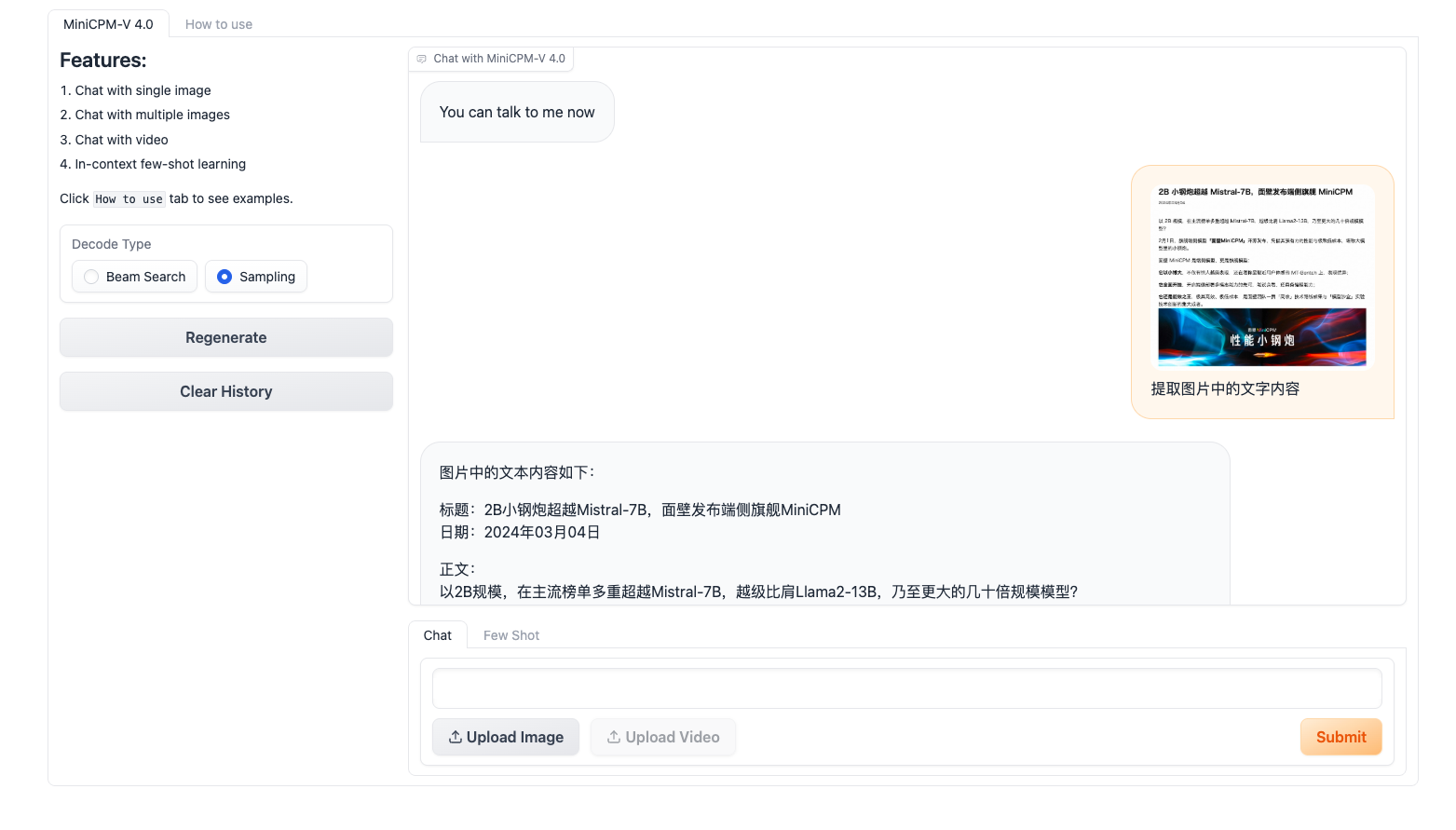
Provides web interface demonstration service for MiniCPM-o 4.5, supporting multimodal conversations with images and videos. The demo consists of two parts: server and client.
📖 中文版本
Key Features
- Multi-modal Input: Support images and videos
- Streaming Output: Real-time response streaming
- Thinking Mode: Display model's reasoning process with
<think>tags - Memory Optimization: Only loads vision and LLM modules, disables audio/TTS to save VRAM
Deployment Steps
Server
cd server
conda create -n gradio-server python=3.10
conda activate gradio-server
pip install -r requirements.txt
python gradio_server.py
Custom Parameters:
# Specify server port, log directory, model path and model type (MiniCPM-o 4.5)
# If VRAM is limited, you can use INT4-quantized model
python gradio_server.py --port=9999 --log_dir=logs_o45 --model_path=openbmb/MiniCPM-o-2_6 --model_type=minicpmo4_5
Client
cd client
conda create -n gradio-client python=3.10
conda activate gradio-client
pip install -r requirements.txt
python gradio_client_minicpmo4_5.py
Custom Parameters:
# Specify frontend port and backend service address (MiniCPM-o 4.5)
python gradio_client_minicpmo4_5.py --port=8889 --server=http://localhost:9999/api
Access
By default, after the services are started, you can access the web demo by visiting http://localhost:8889 in your browser.
UI Features
Decode Type
- Sampling: Default mode with real-time streaming support
- Beam Search: Higher quality output but no streaming support
Thinking Mode
Enable to see the model's reasoning process. The thinking content is displayed in a separate section with visual distinction.
Streaming Mode
Enable real-time character-by-character output. Only available in Sampling mode.